
- Prerequisites
- Create device on IoT Hub
- Elastel device configuration
- Connect device to IoT Hub
- Check data on IoT Hub
- Demonstration of the result
- Conclusion
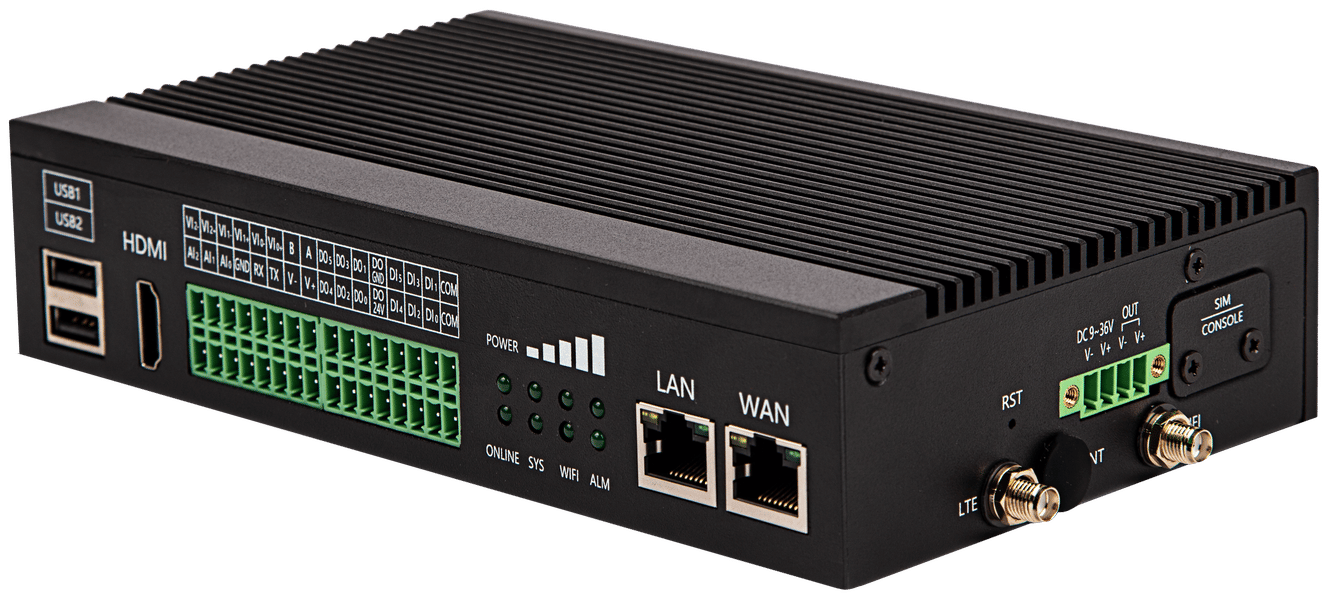 Elastel EG500 is an Industrial Edge Computing Gateway powered by Raspberry Pi CM4.
Perfect for use as an IoT Gateway, data acquisition device, Industrial Controller, or for Edge Computing applications.
Designed for IIoT applications, it features:
- Industrial interfaces: 2× GbE, 2× USB, 1× RS485, 1× RS232, 6× DI, 6× DO, and 3× ADC
- Connectivity options: 4G, LoRa, Wi-Fi/BLE, WiFi HaLow (802.11ah WiFi)
- Enclosure: Truly IPC-grade stability and ruggedness
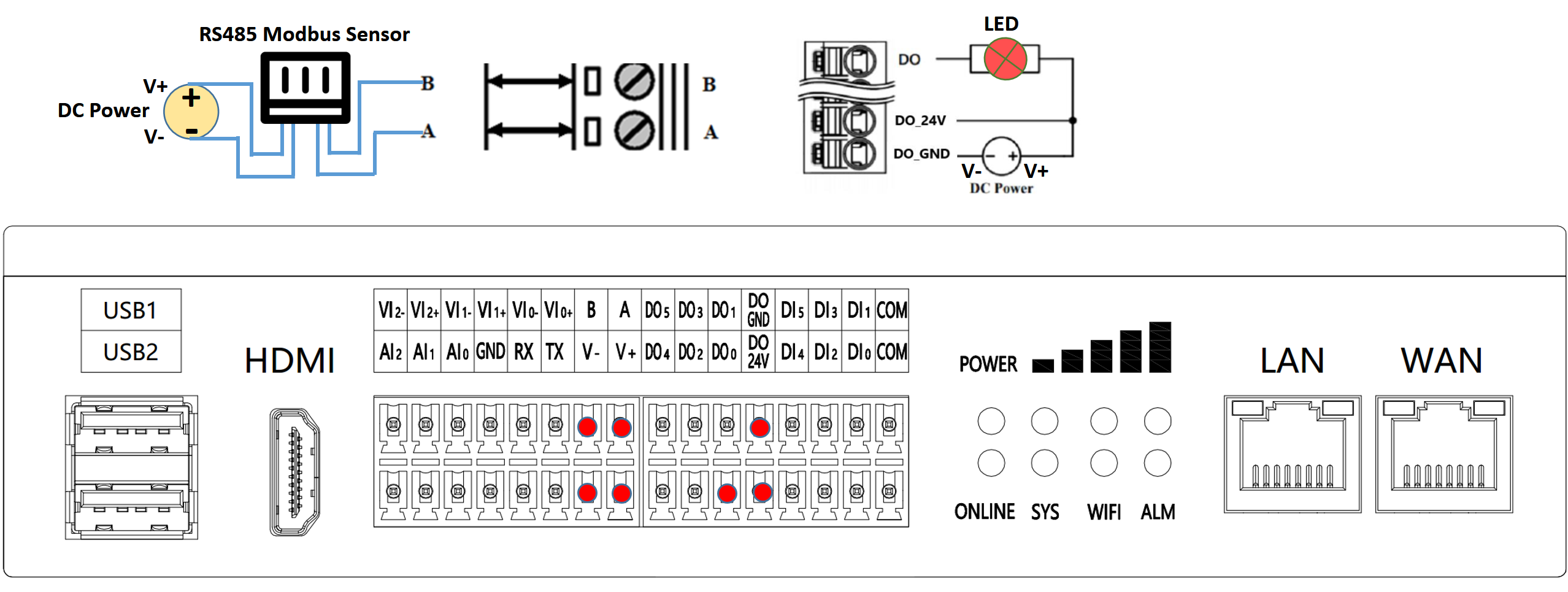
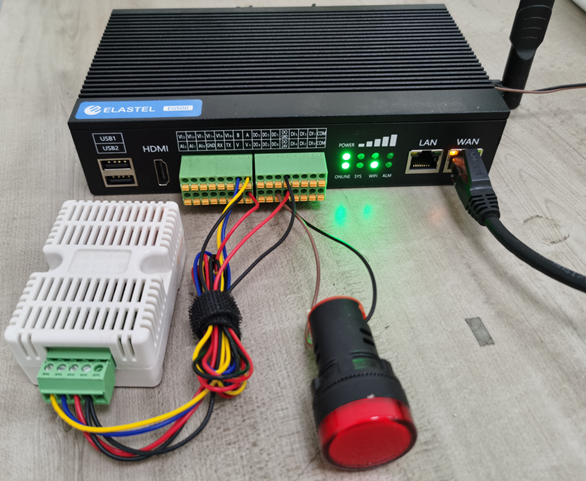
In this tutorial we will use Elastel EG500 as edge gateway to collect data from RS485 Modbus temperature & humidity sensor, also collect the DI status value and control the DO on/off which wiring a LED light. EG500 will connect to IoT Hub for data visualizing and controlling the LED.
Prerequisites
You will require the following items:
- An Elastel EG500 device
- An RS485 Modbus Temperature & Humidity sensor
- A LED light
Wiring scheme
Create device on IoT Hub
1. In our example, we use IoT Hub
Create an account and then log in.
2. Create a device on IoT Hub
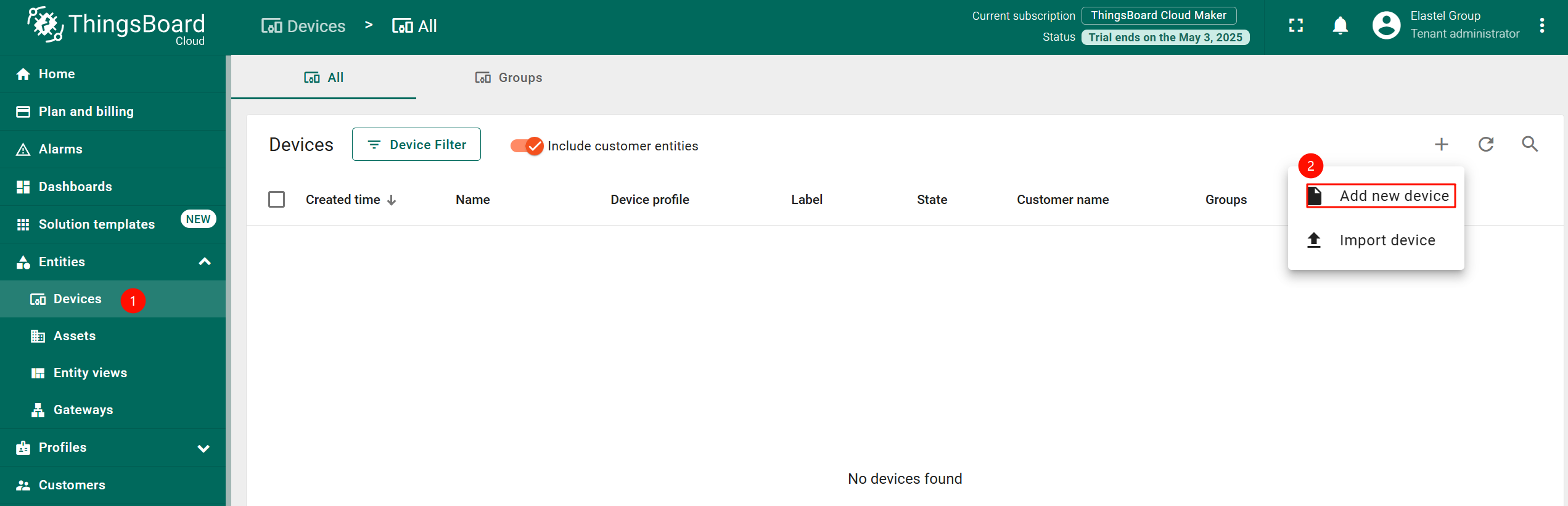
Go to the “Devices” page of the “Entities” section, click on the “+” icon button in the top right corner of the table and then select “Add new device” from drop-down menu.
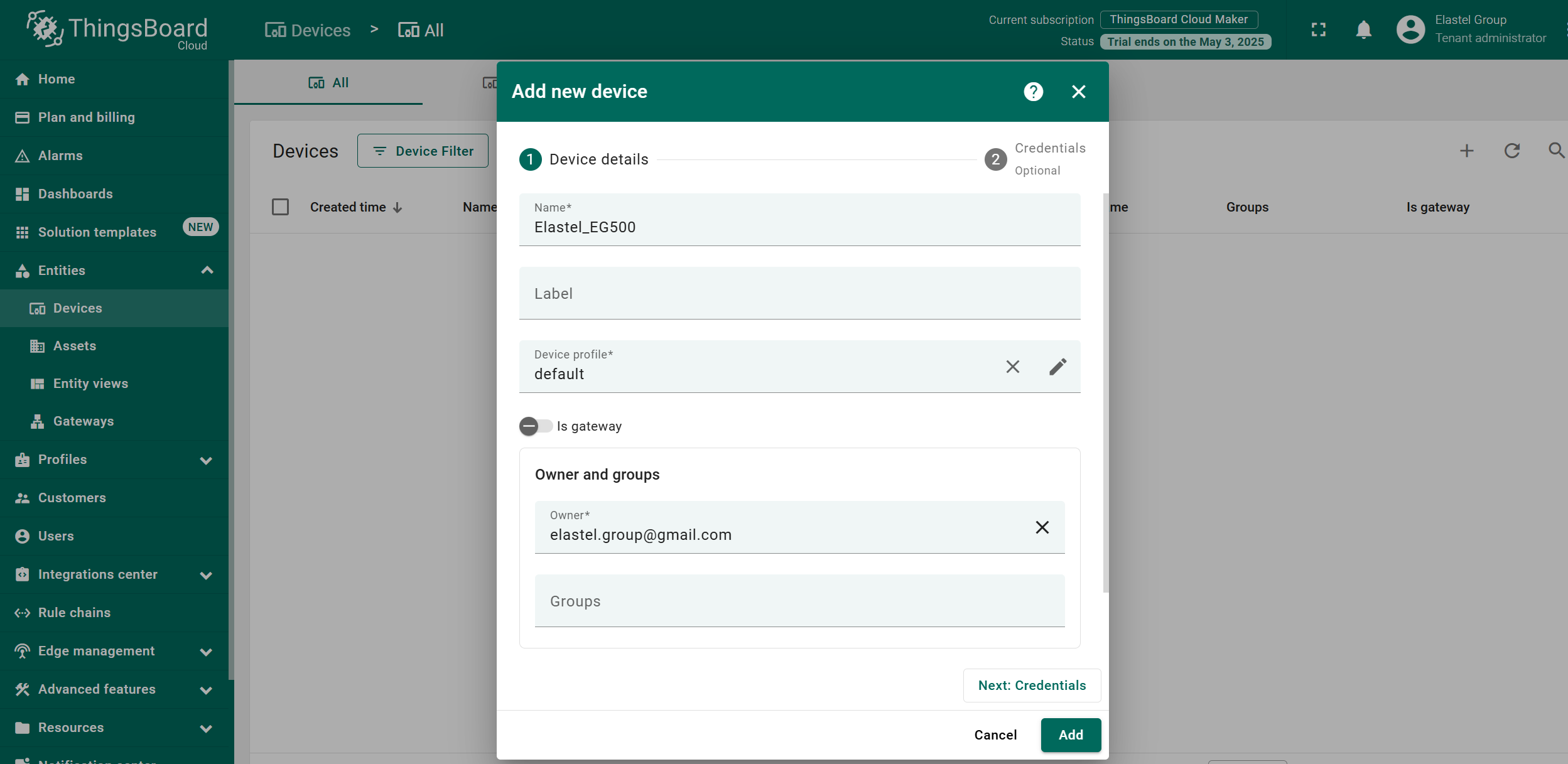
3. Enter a device name (e.g., Elastel_EG500) and click “Add”.
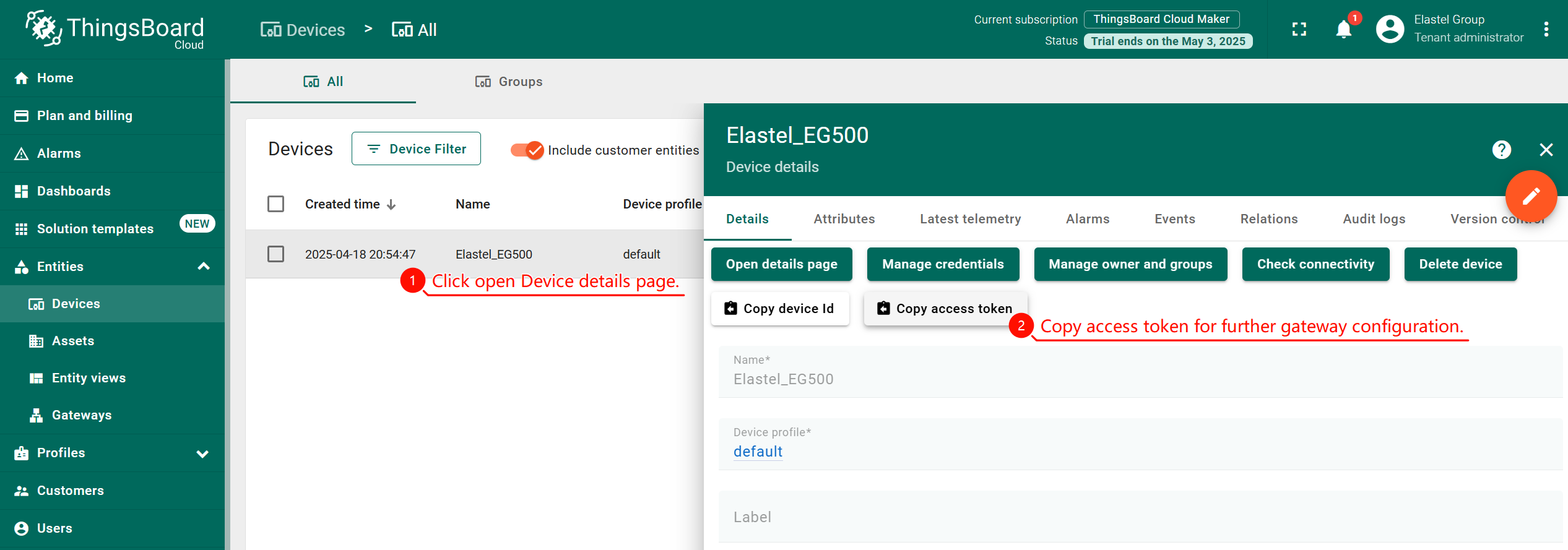
4. Copy and save the Access token
It will be needed in further device configuration for connecting to IoT Hub.
Elastel device configuration
In this step, we will configure Elastel EG500 to collect data from RS485 Modbus sensor and DI/DO status value. Elastel devices has prebuilt Elastel IIoT gateway software ElastPro which provide web-based programs for easy configuration and data collect setup.
1. Launch ElastPro
To launch ElastPro, follow this guide.
2. Enable Data Collect
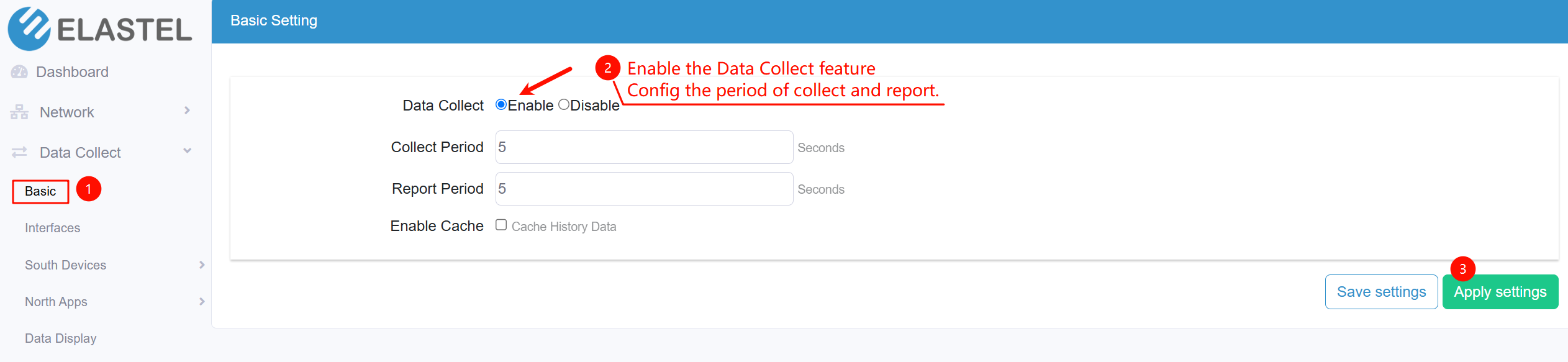
Go to the Data Collect -> Basic, enable the Data collect function, and configure the Collect period, Report period, then click the “Apply settings” button.
3. Configure the RS485 Serial port for Modbus sensor data collect
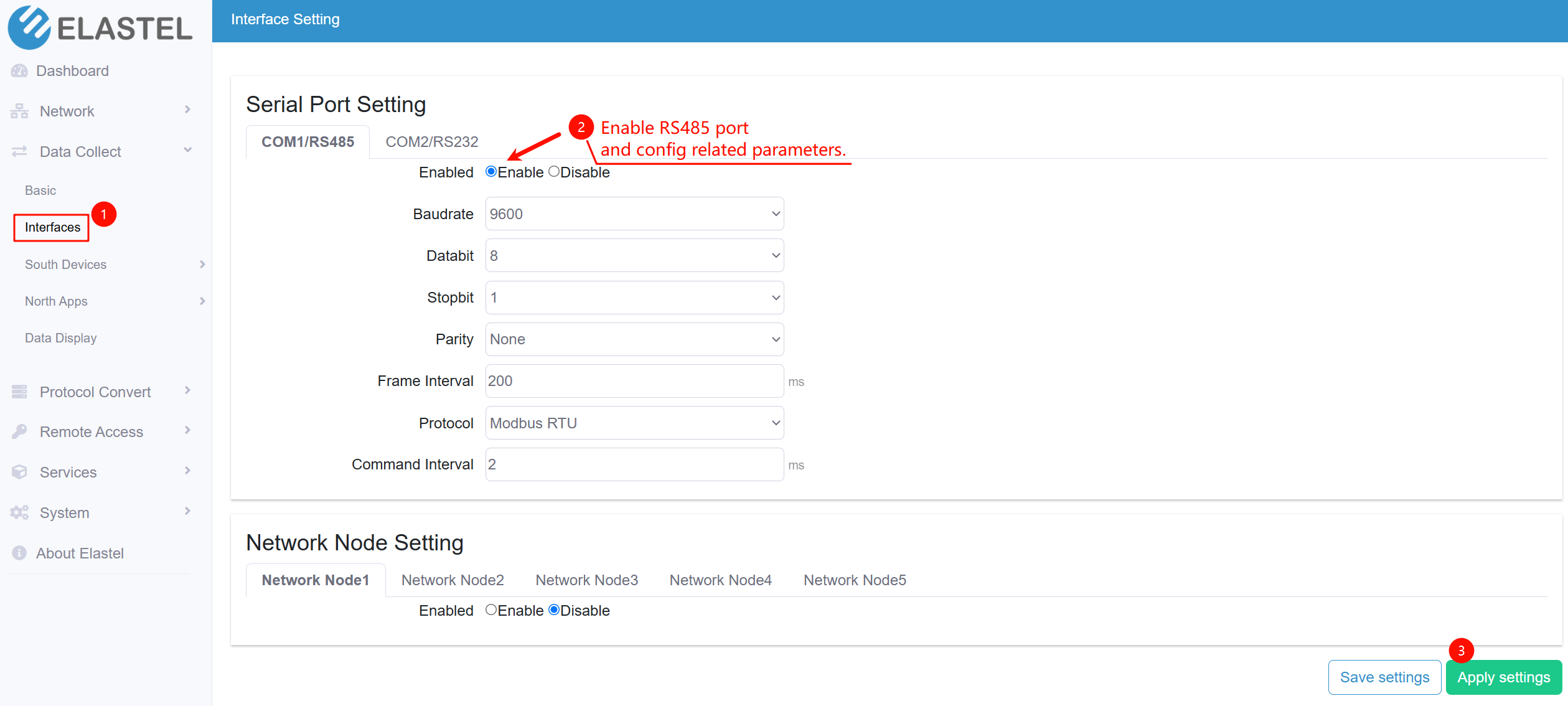
Go to the Data Collect -> Interfaces to enable the COM1 RS485 for connecting the RS485 Temp&Humidity Sensor, configure the related parameters, then “Apply settings”.
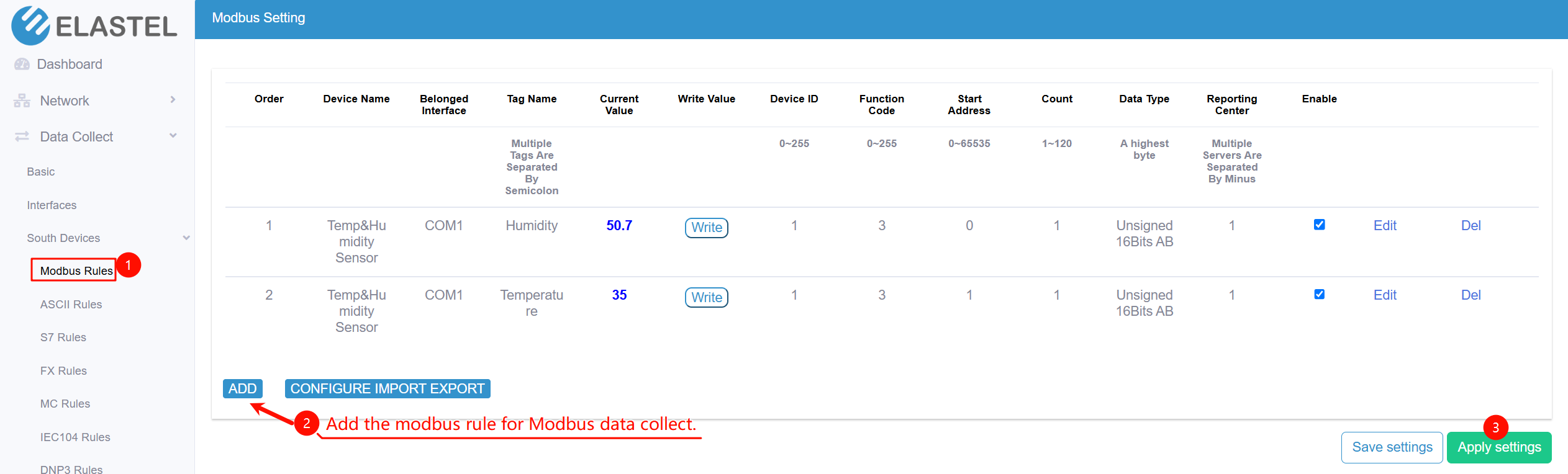
Go to Data Collect -> South Devices -> Modbus Rules to configure the collect Modbus data from Temp&Humidity Sensor, then “Apply settings”.
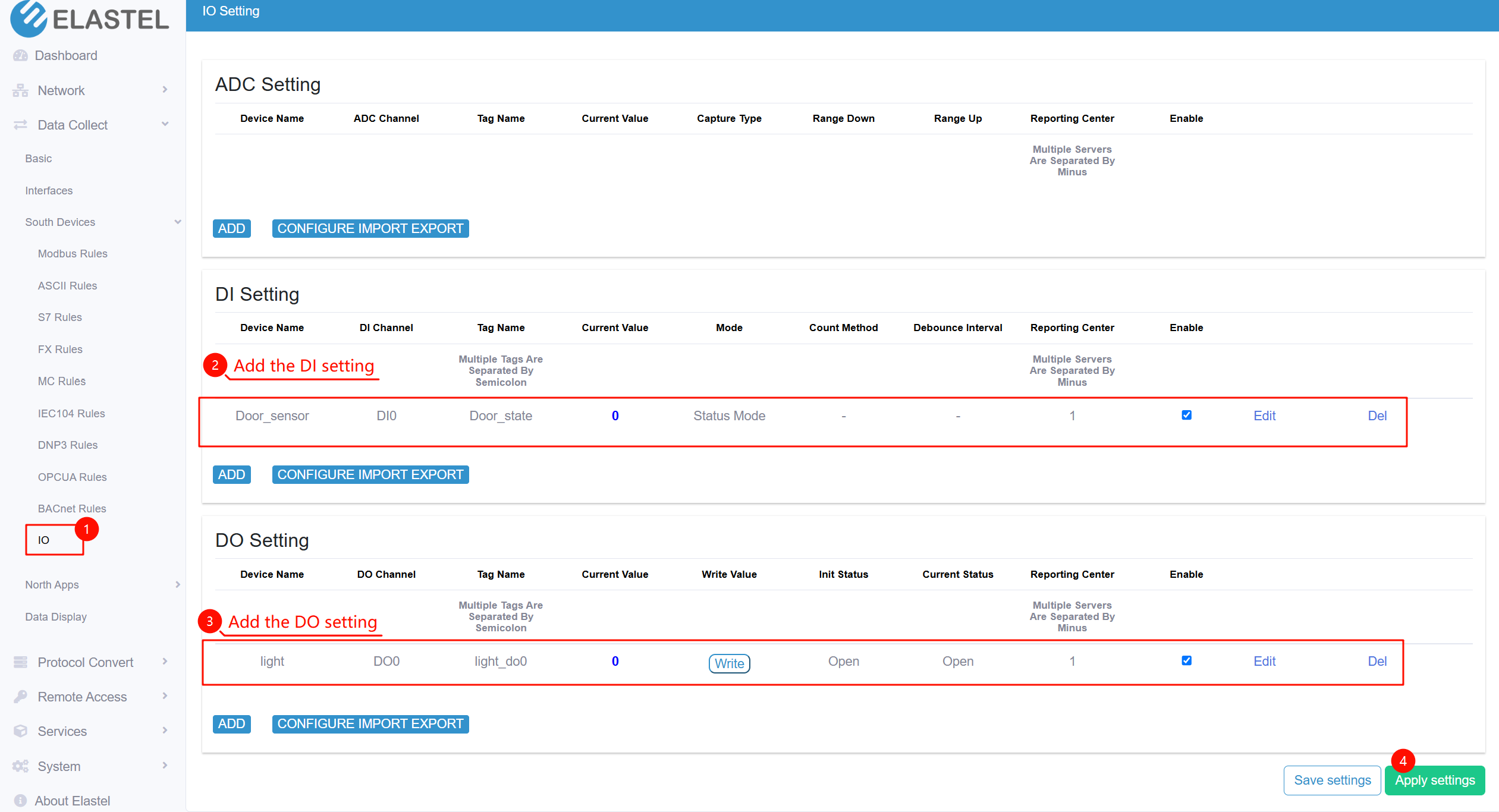
4. Configure the IO port for collect DI status and control DO status
Go to Data Collect -> South Devices -> IO, add DI and DO Setting rules, configure the relevant parameters and click the “Apply settings”.
Connect device to IoT Hub
Go to the Data Collect -> North Apps -> Reporting Center to configure the connection to IoT Hub platform via MQTT.
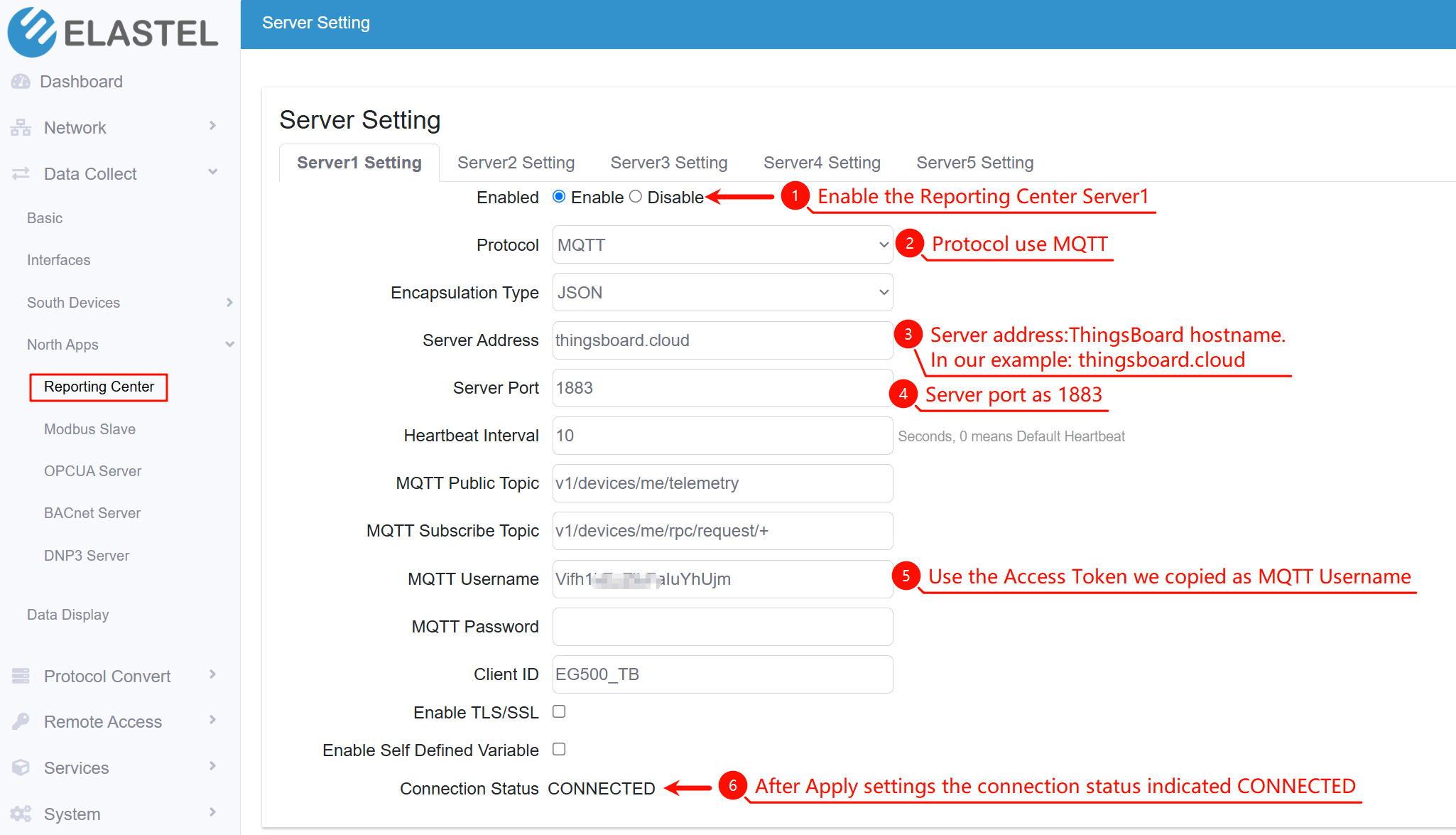
Note: If using custom MQTT credentials on IoT Hub, set them under Next: Credentials → MQTT Basic during device creation, and use those here.
Refer to the ElastPro User Manual for more detailed configuration options.
Check data on IoT Hub
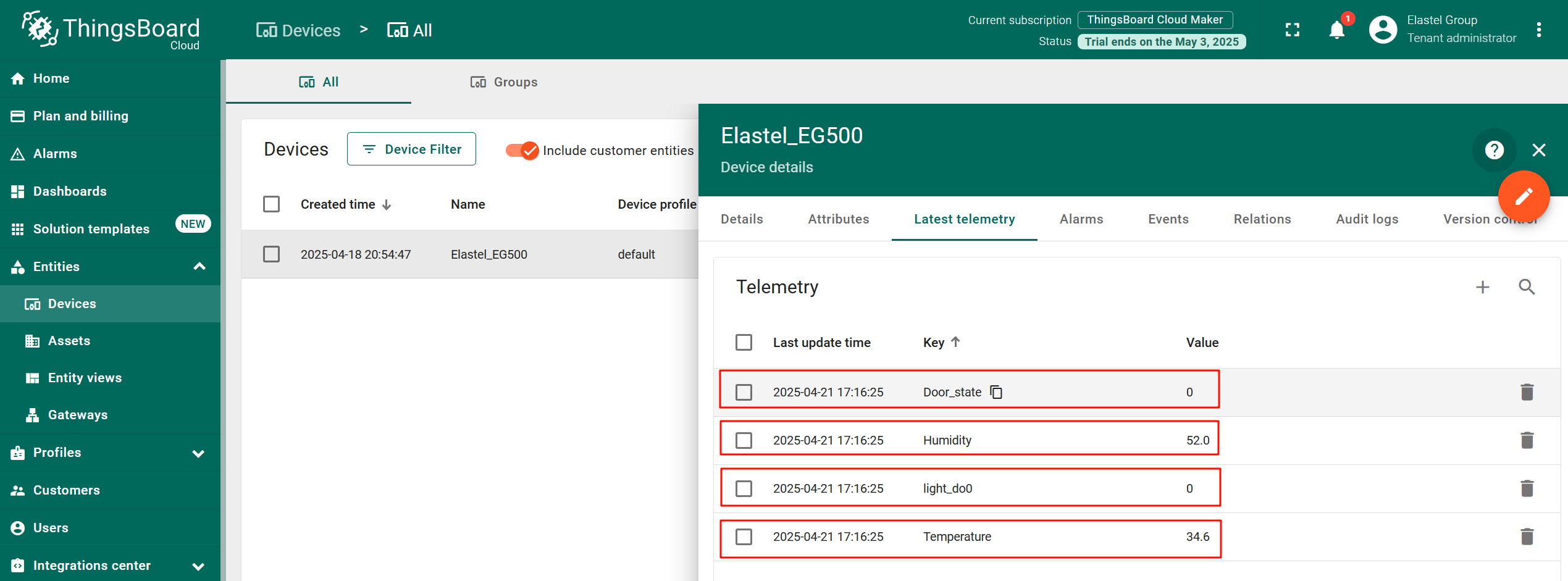
Once connected, data will appear under the device's latest telemetry tab in IoT Hub.
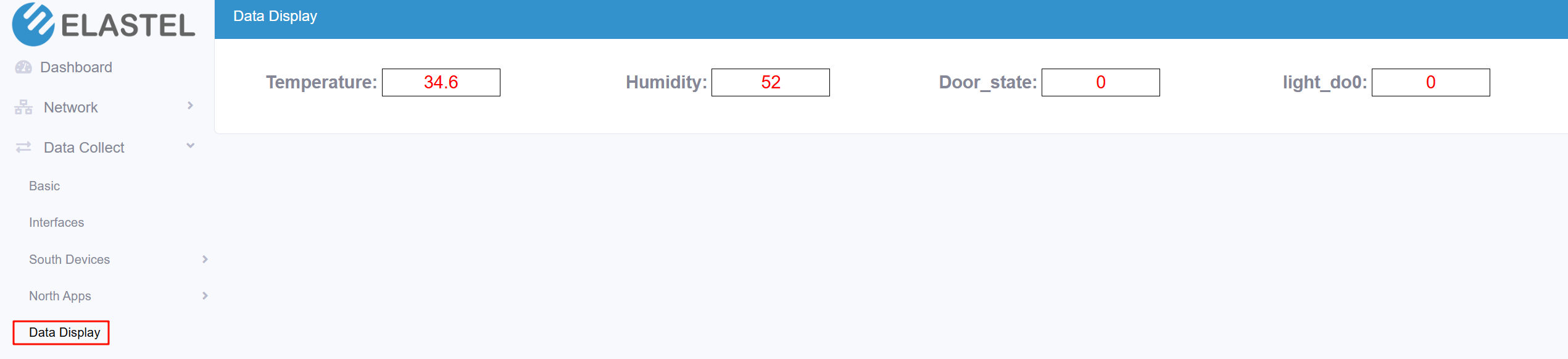
You can also view the data on EG500's local dashboard.
Create Dashboard
Now let's display the data from the Elastel EG500 device on the dashboard. Learn more how to work with the dashboard here.
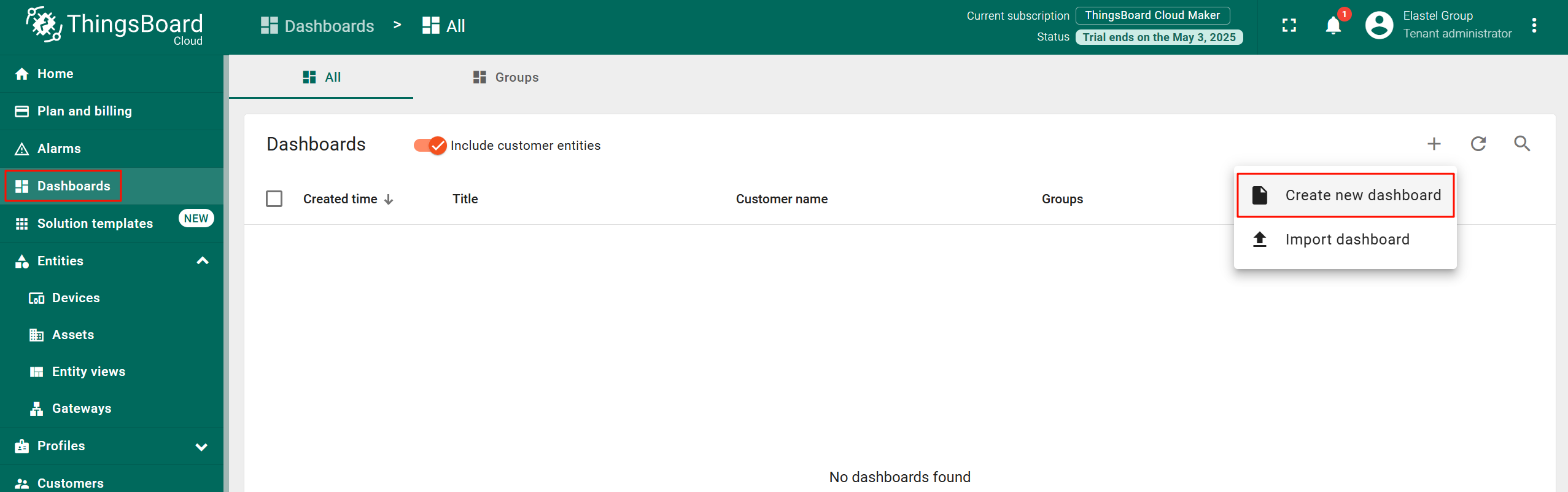
Go to the “Dashboards” page, click on the “+” icon button in the top right corner of the table and then select “Create new dashboard” from drop-down menu. Enter the Title of the dashboard, then click “Add”.
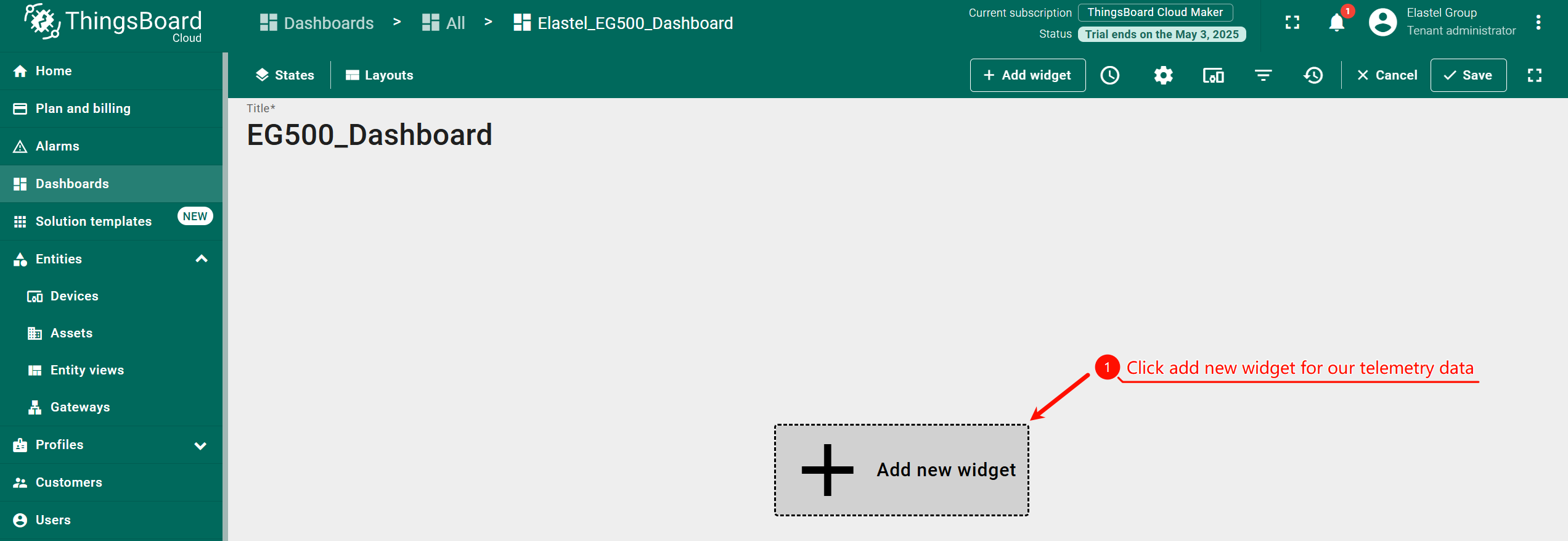
On the Dashboard edit page, click the “+ Add new widget” button to add widget for displaying our telemetry data.
Select the appropriate widget template and configure the data source accordingly. For example, choose a Value card to display the “Temperature” data and add the “Temperature” data key as a data source from the EG500 device we created.
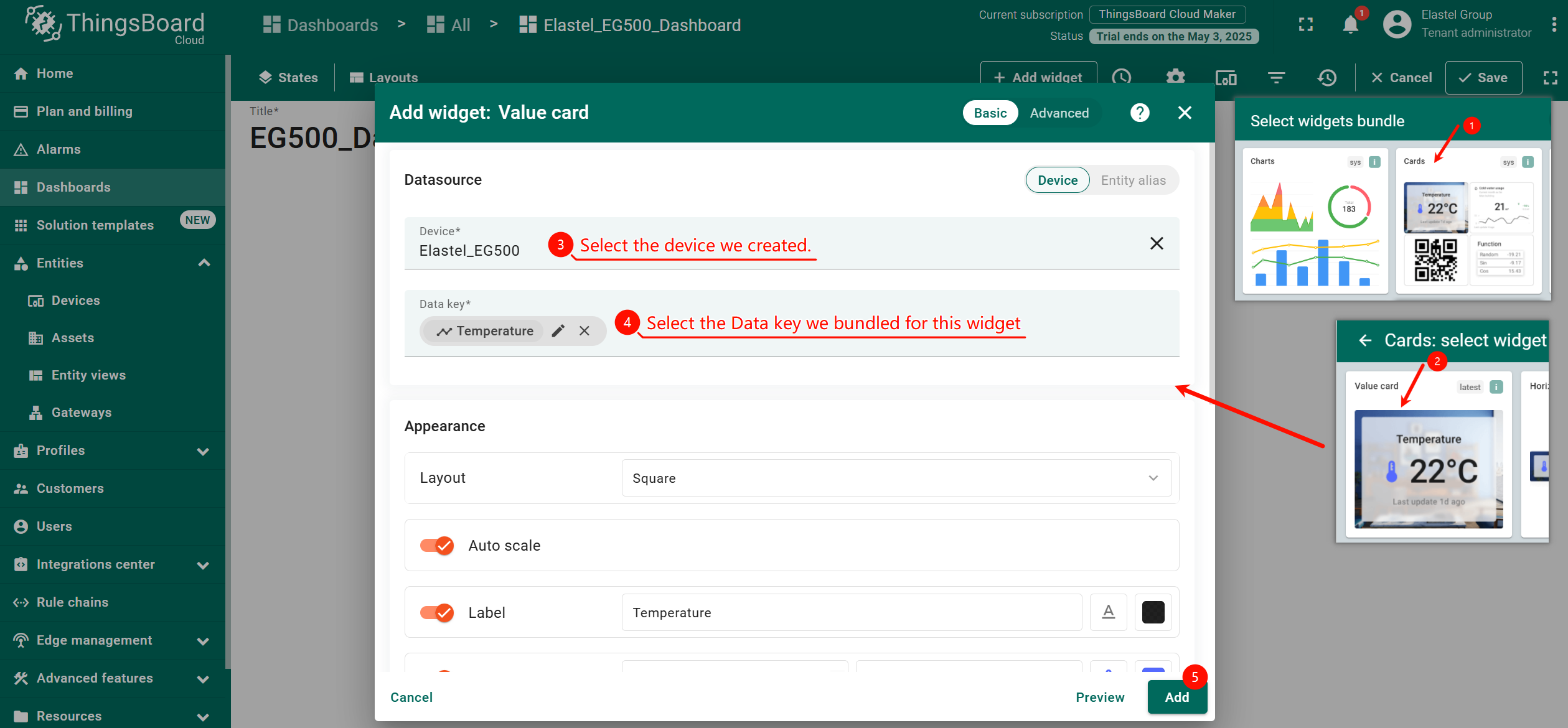
After completing the widget setup, click the “Add” button. We have now added a widget that displays the real-time temperature value.
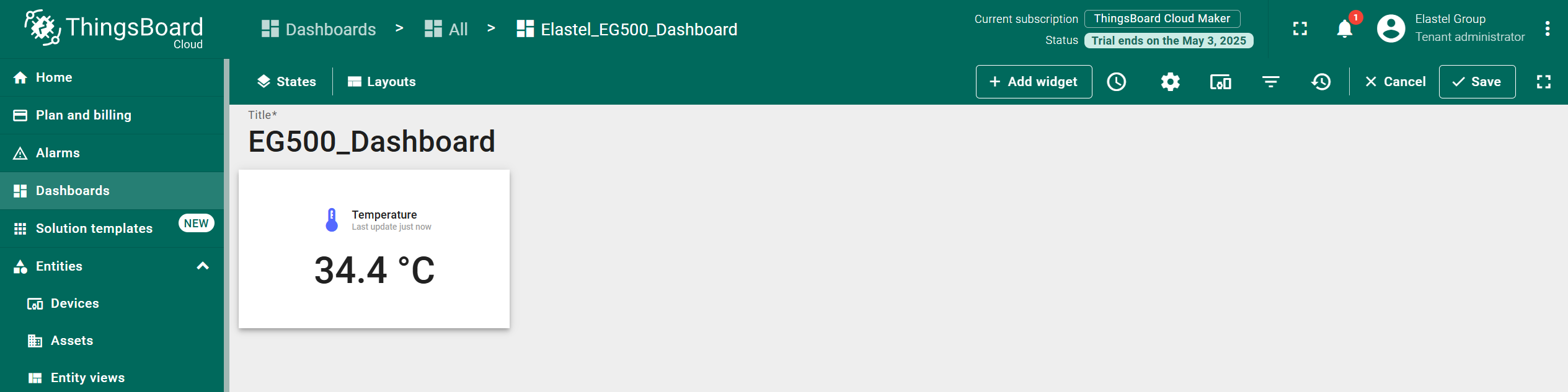
Similarly, add widgets to display humidity and door state data, and add a “Power button” widget to control turning on/off the indicator light.
After completing the dashboard configuration, click the “Save” button.
Now we have a visualizing dashboard for displaying data and controlling the DO (LED light).
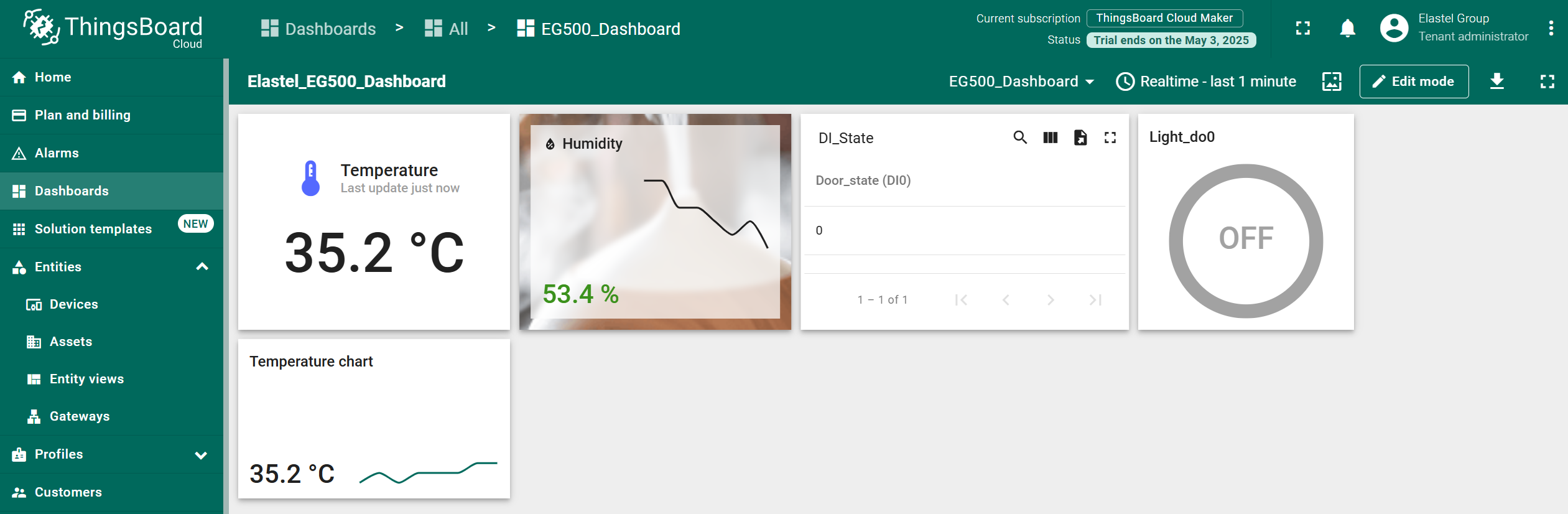
Demonstration of the result
Conclusion
By following this guide, you can easily integrate Elastel IIoT gateways with IoT Hub. Elastel’s easy-to-use web UI and IoT Hub’s powerful visualization tools make the edge-to-cloud connection seamless.
- Learn more about Elastel Edge Devices.
- Explore IoT Hub Documentation for advanced features and concepts.