Introduction
Rule chain - nodes are connected with each other with relations, so the outbound message from rule node is sent to next connected rule nodes.
Rule chains page displays a table of configured tenant rule chains. You can create, export/import, delete, and mark the desired rule chain as root.
See Rule Engine documentation for more details.
Create new rule chain
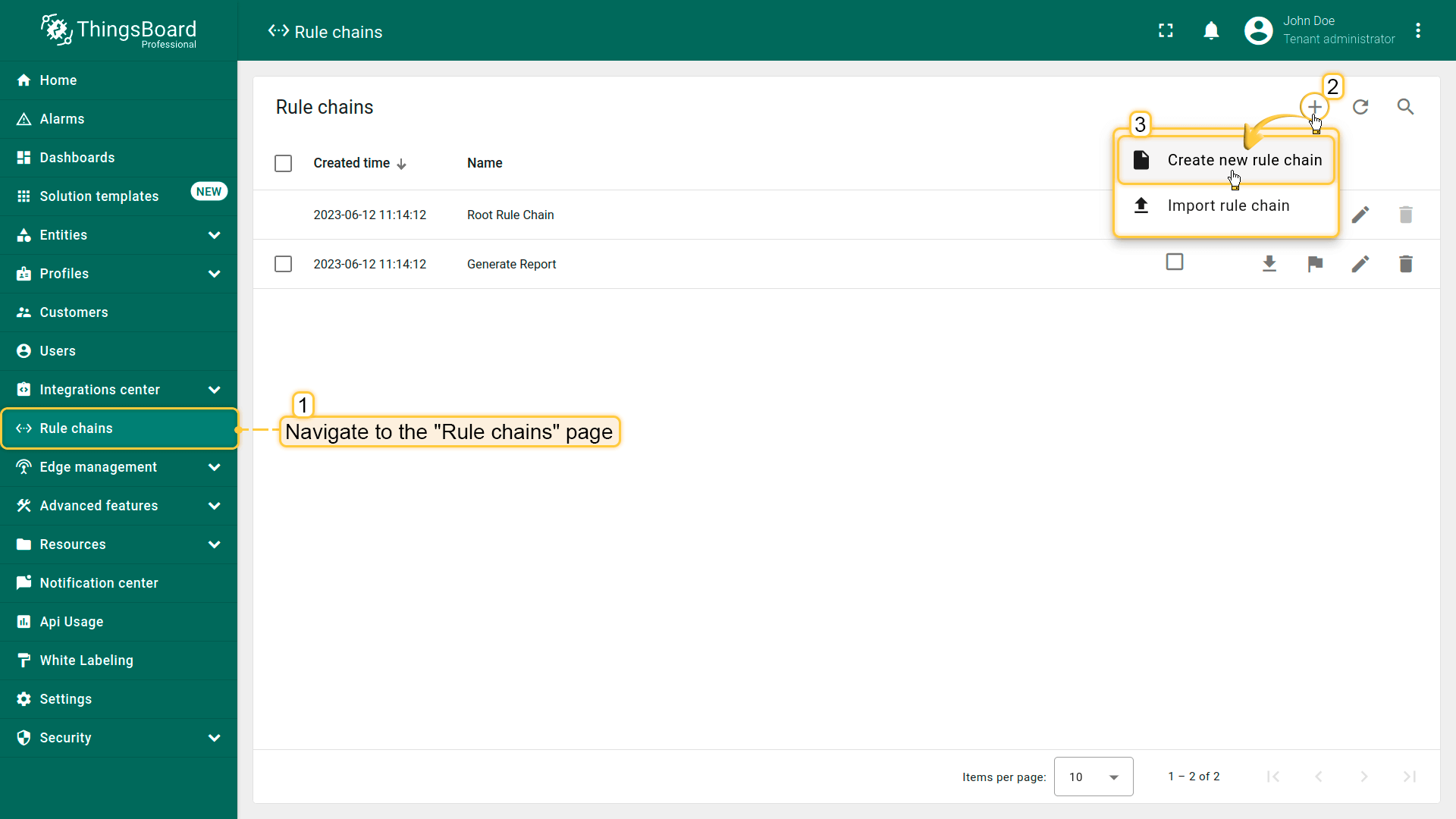
To add a new rule chain, you should:
- Navigate to the "Rule chains" page. Then click on the "plus" icon in the upper right corner, and select "Create new rule chain";
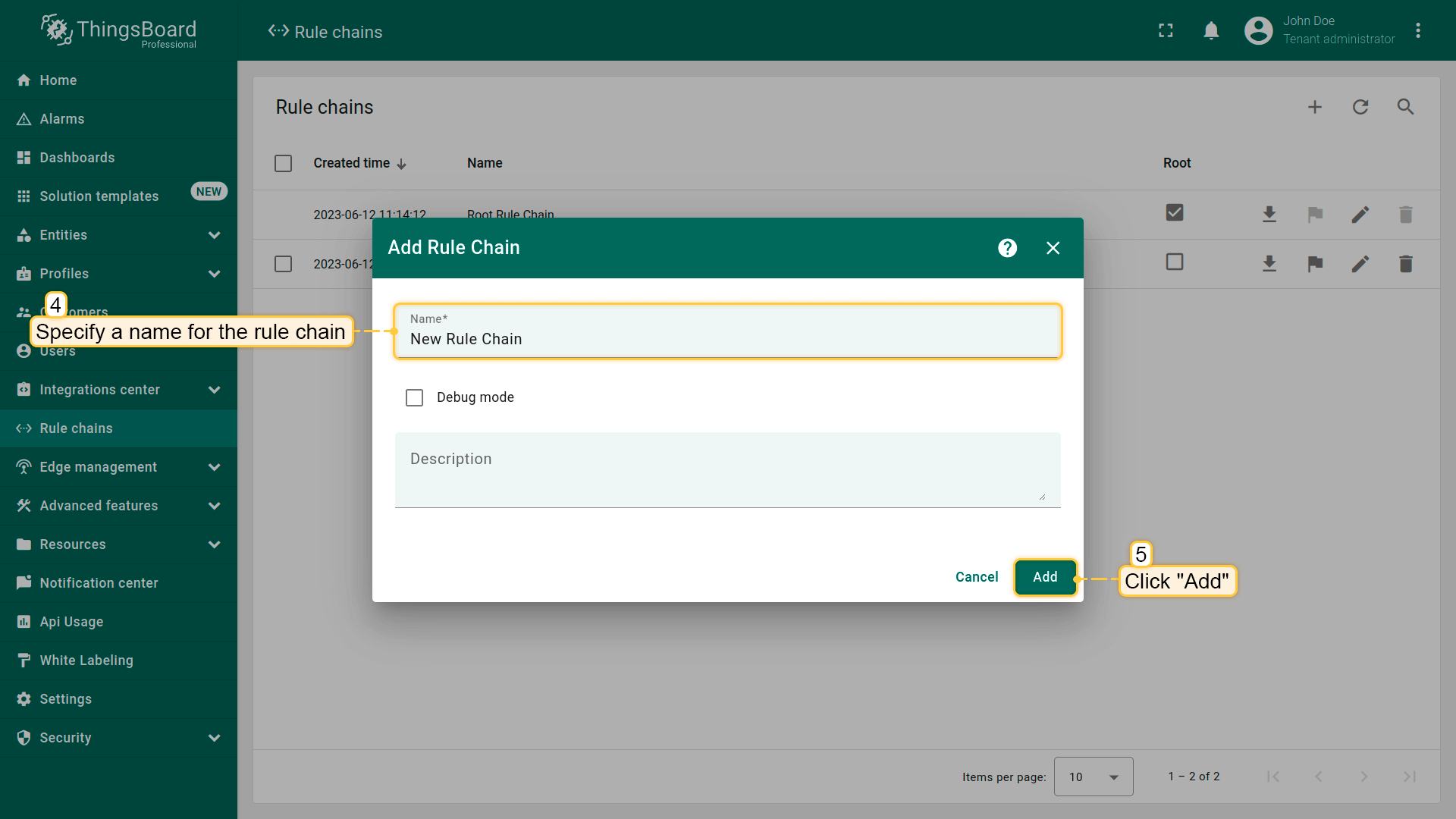
- Specify a name for the rule chain. If necessary, enable "Debug mode". Click "Add";
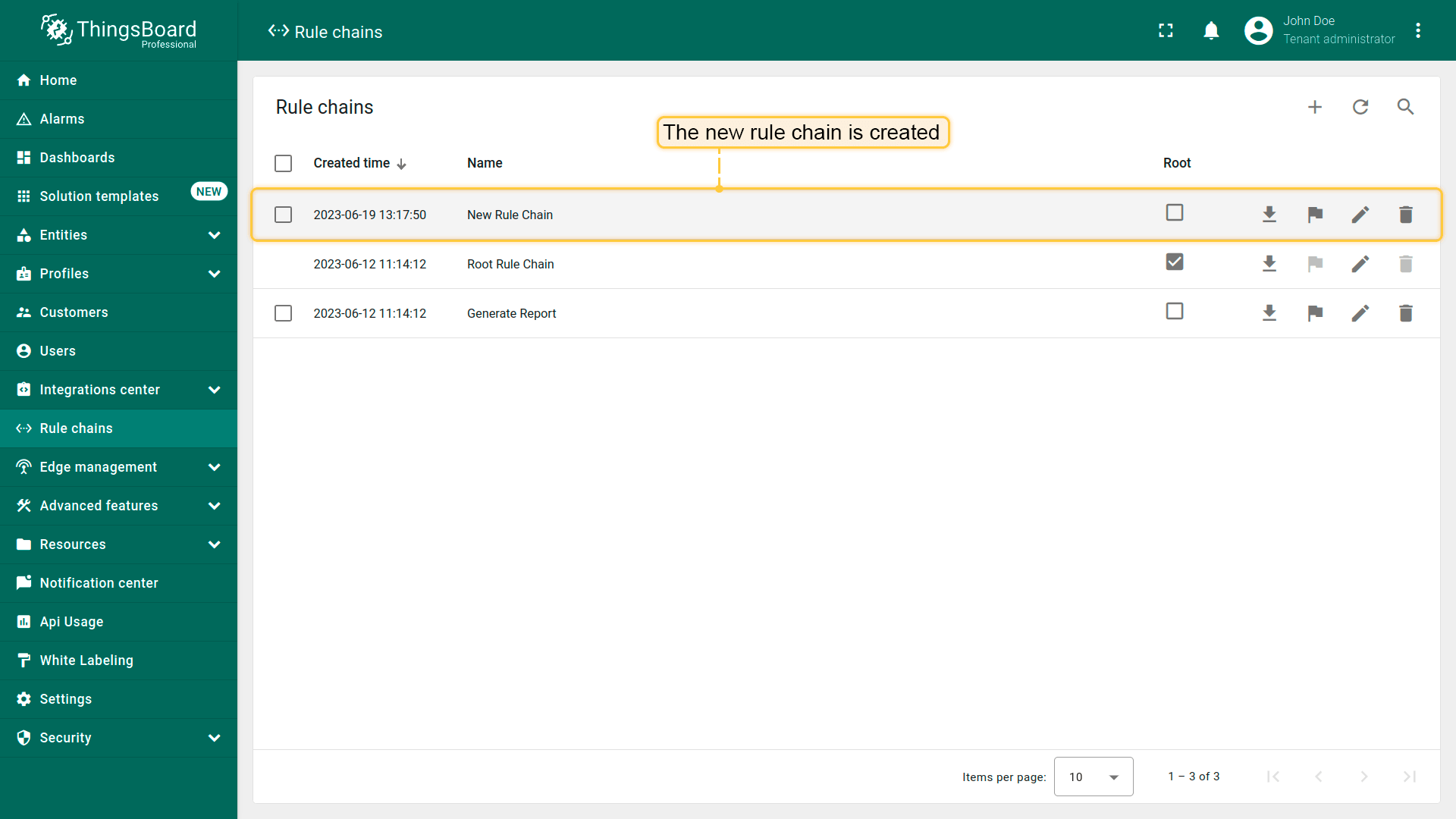
- The new rule chain is created. To open rule chain click on it.
Edit rule chain
You can edit the name and description rows as well as enable/disable debug mode.
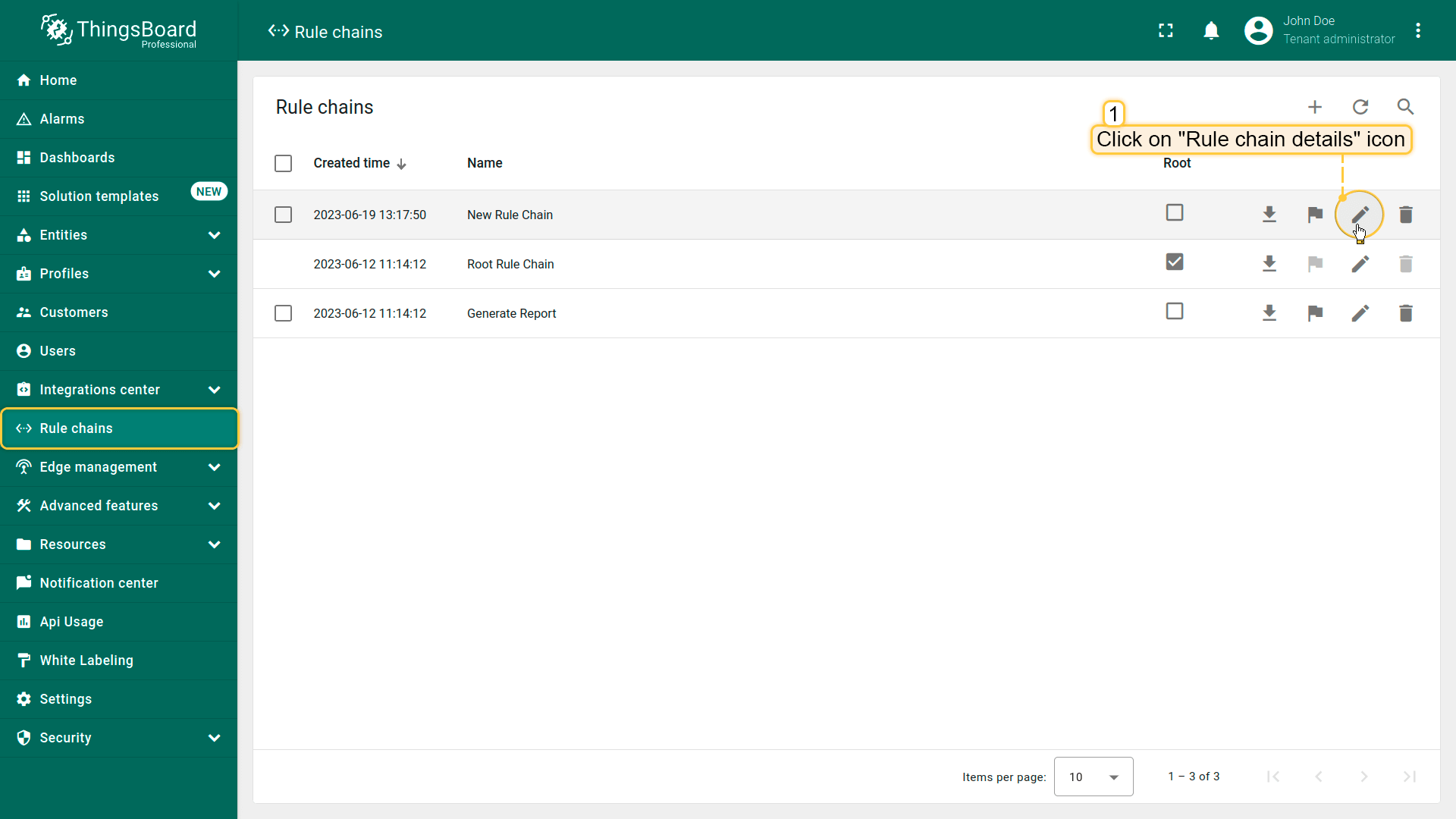
- Navigate to the "Rule chains" page and click on the "Rule chain details" icon can opposite the rule chain`s name you want to edit;
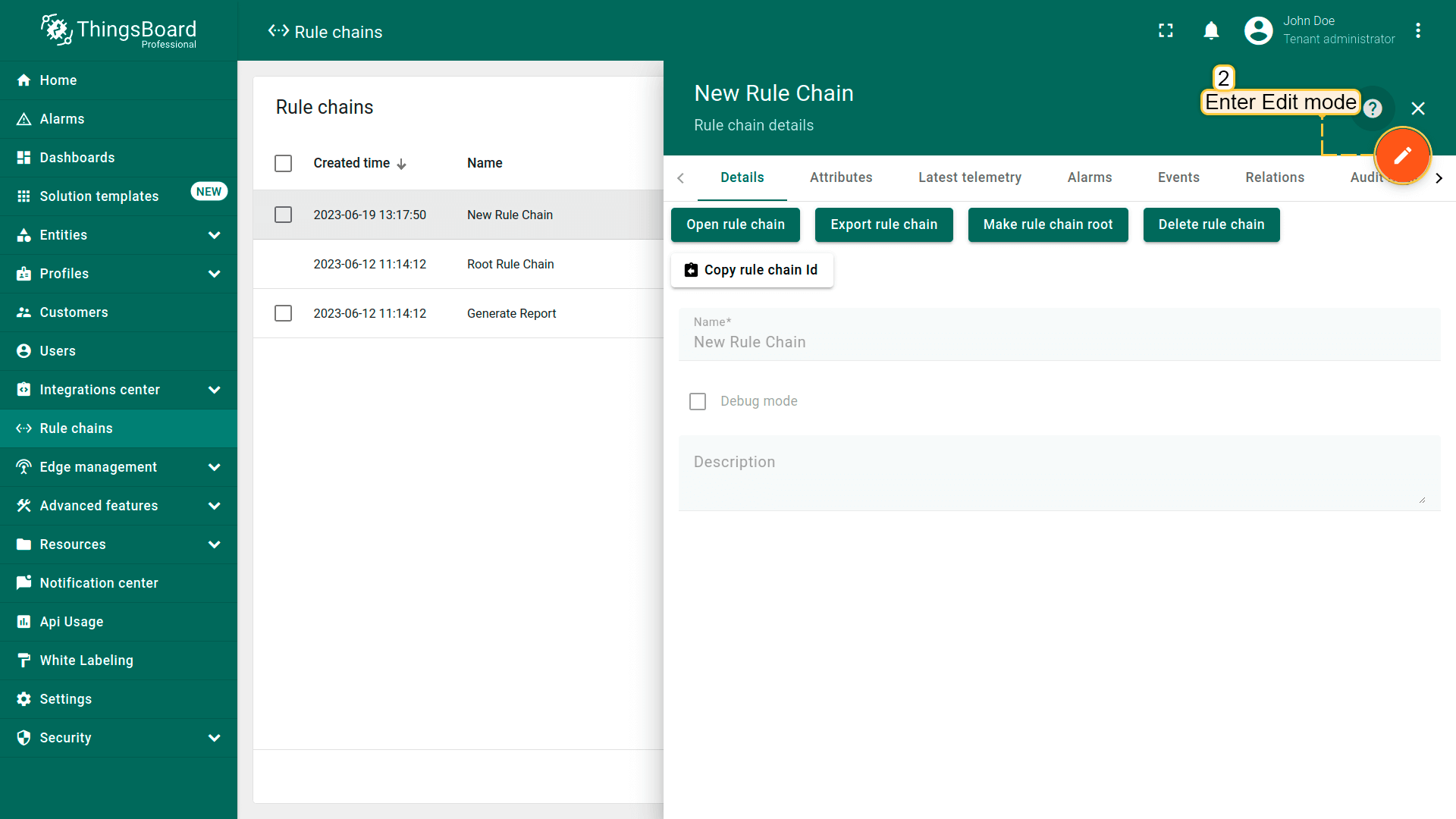
- The rule chain details window will open. Click on the "pencil" icon to enter edit mode;
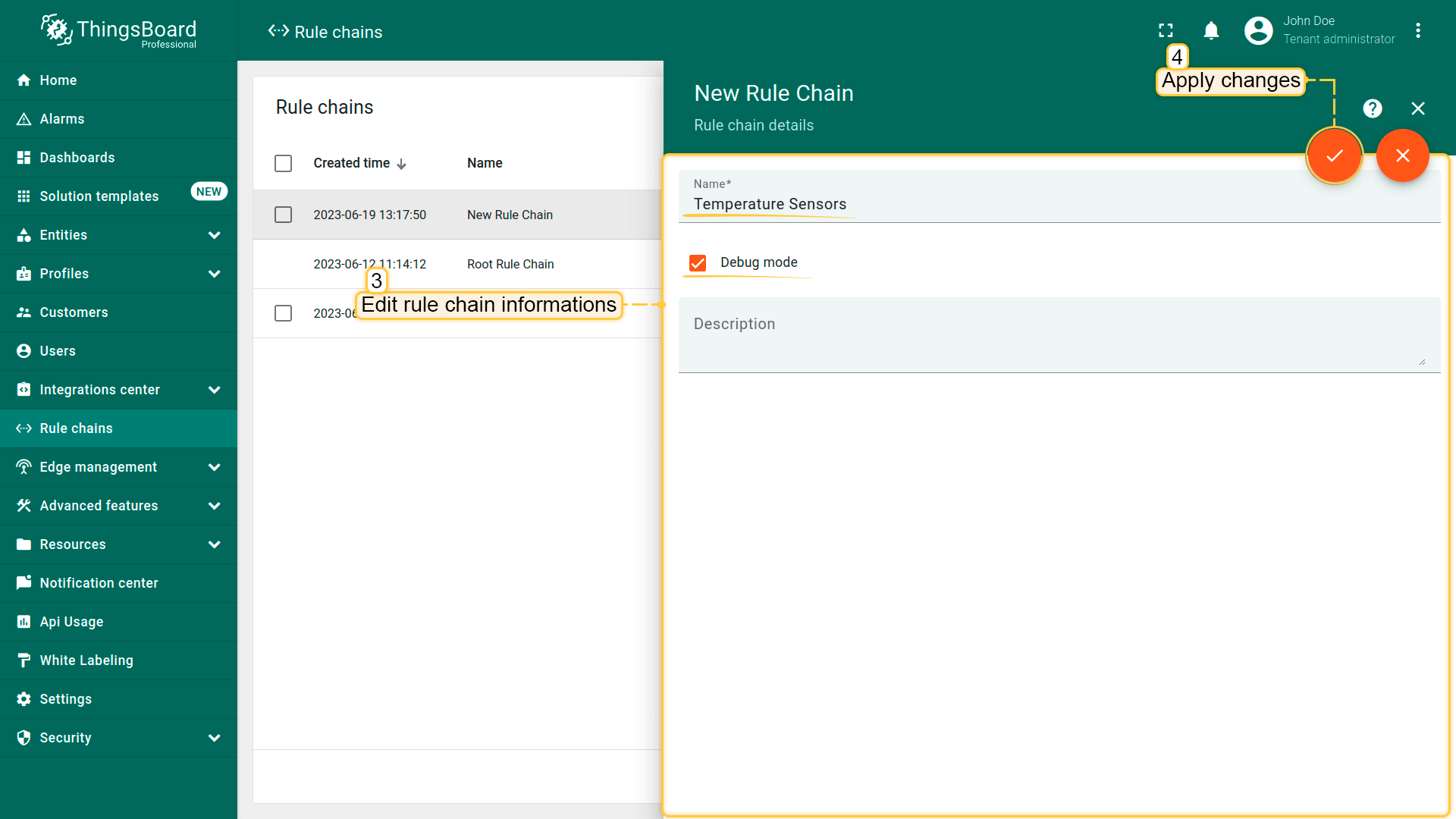
- Edit name for this rule chain and enable debug mode. After that, click on the "Apply changes" button;
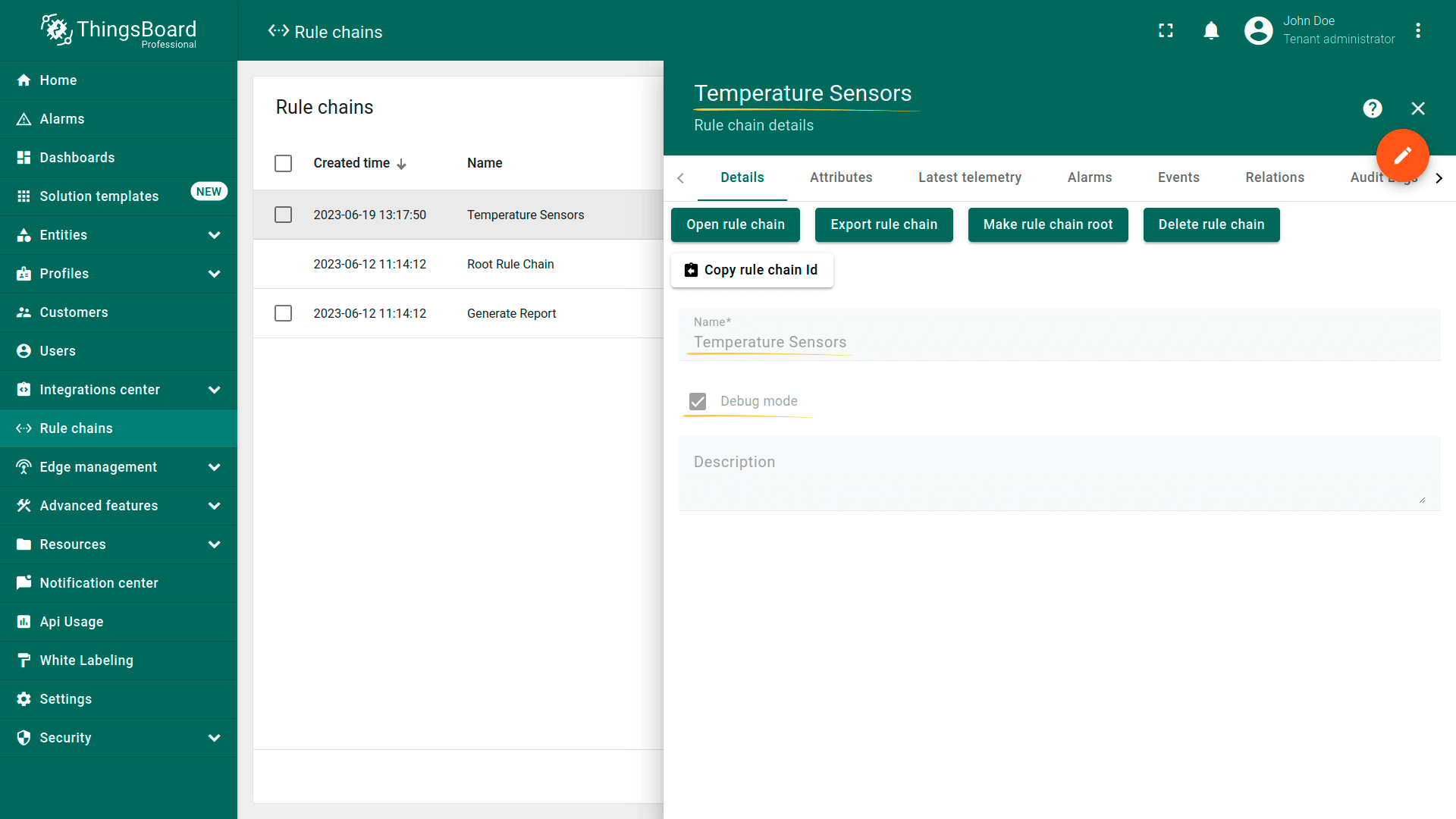
- You changed rule chain name and enable debug mode.
Export/import rule chain
You are able to export your rule chain to а JSON file and import it to the same or another IoT Hub instance.
Export rule chain
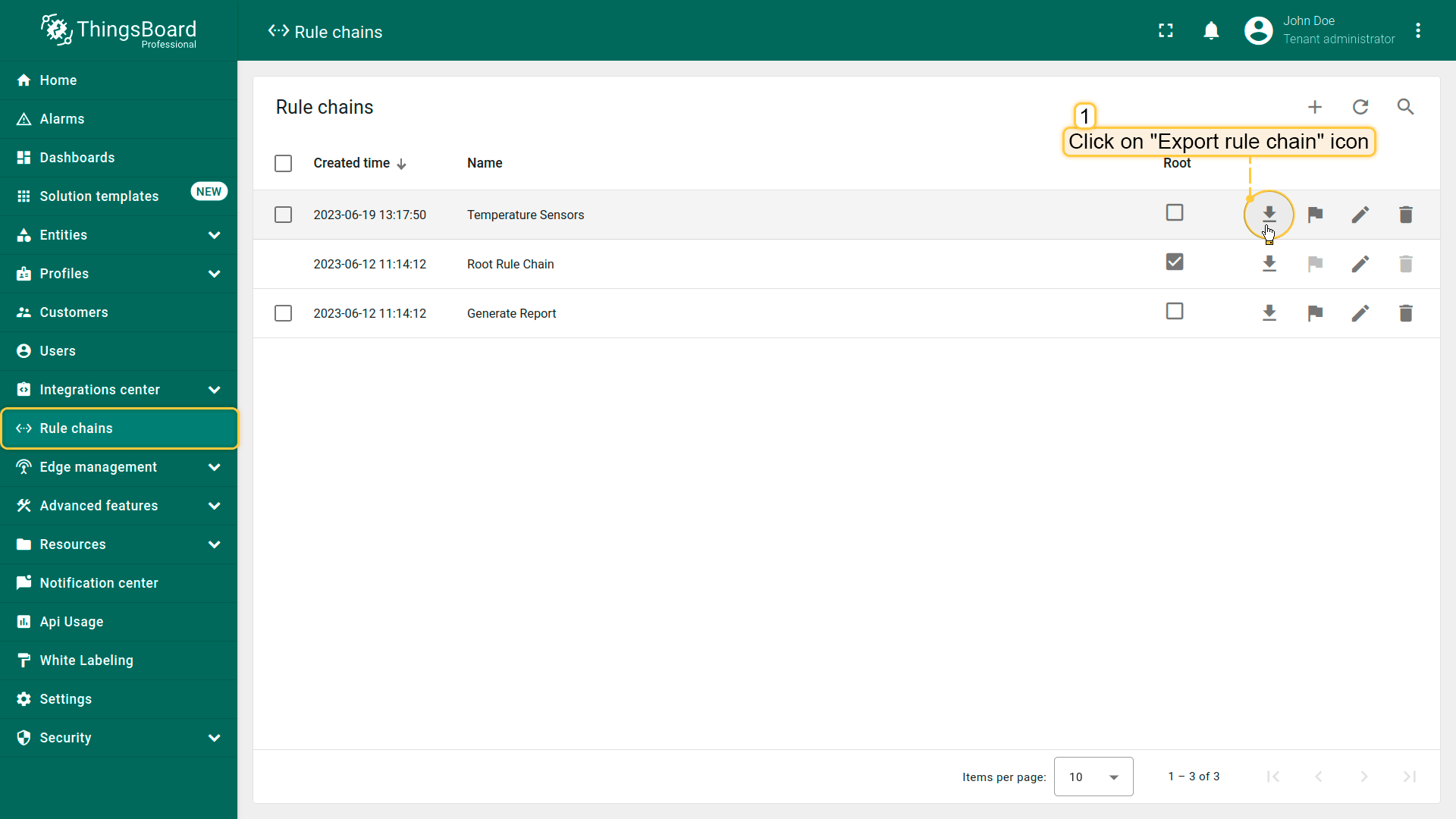
In order to export rule chain, you should:
- Navigate to the "Rule chains" page and click on the "Export rule chain" icon located on the particular rule chain row. A JSON file containing the rule chain configuration will be saved on your PC.
Import rule chain
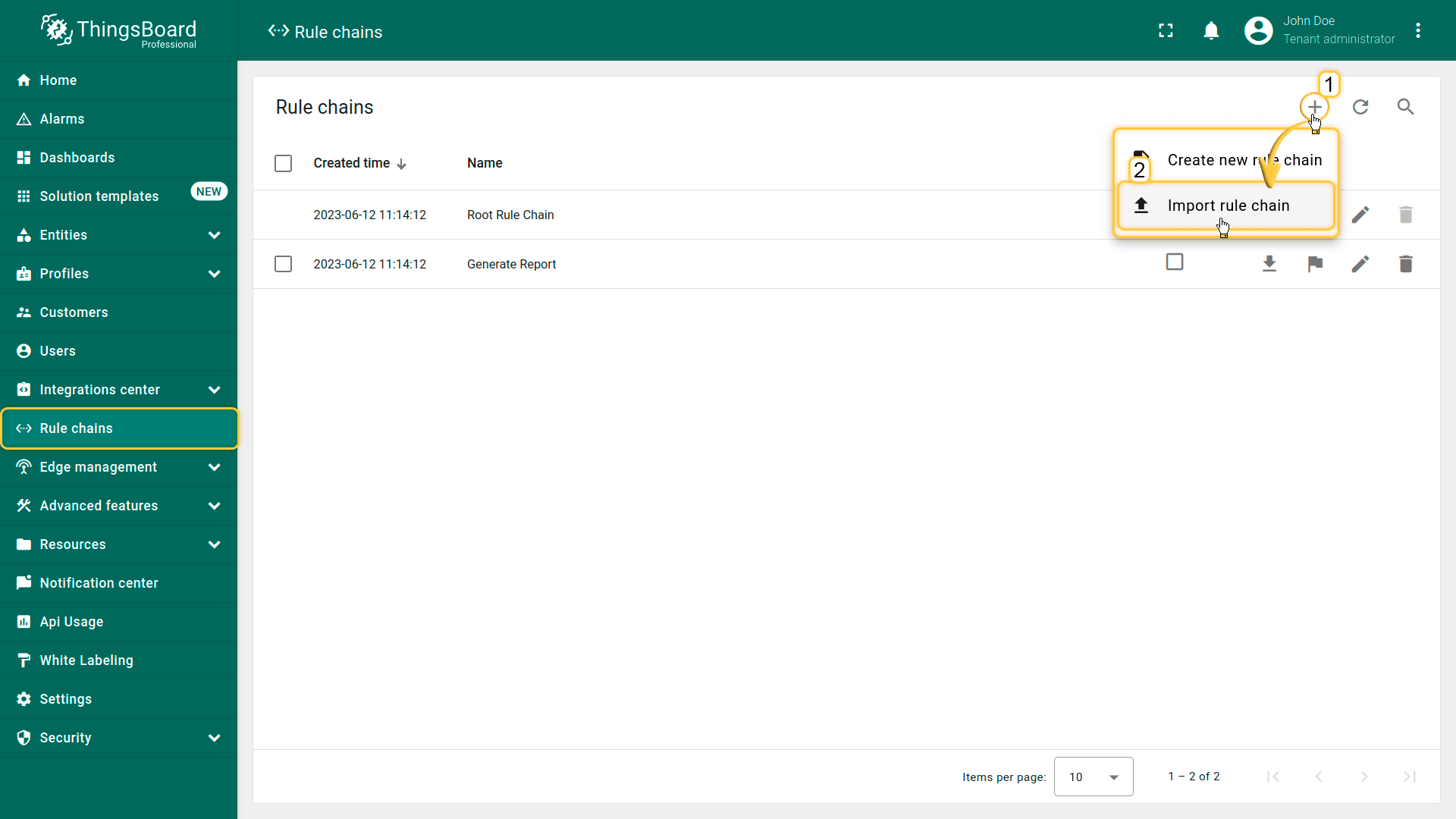
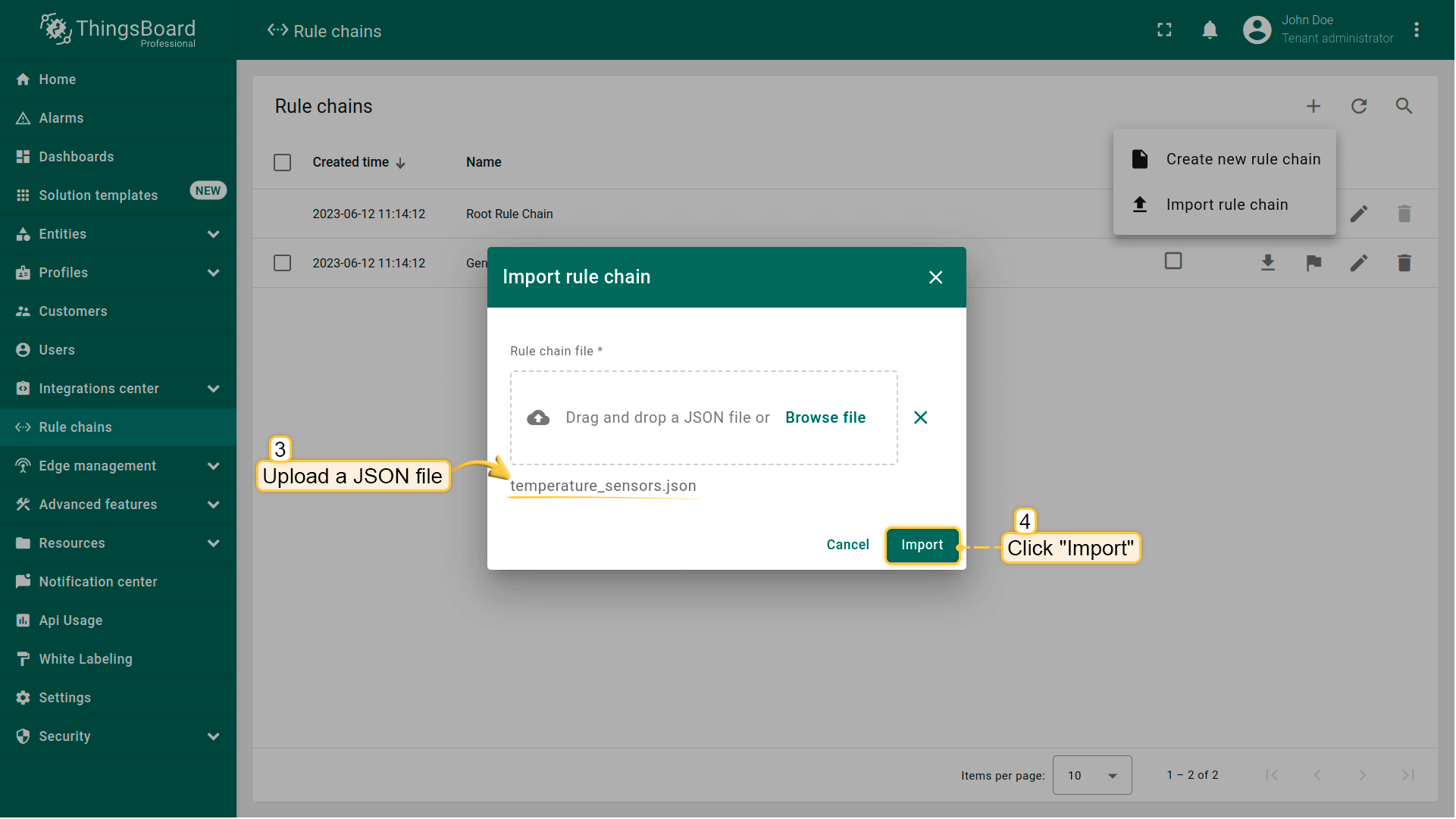
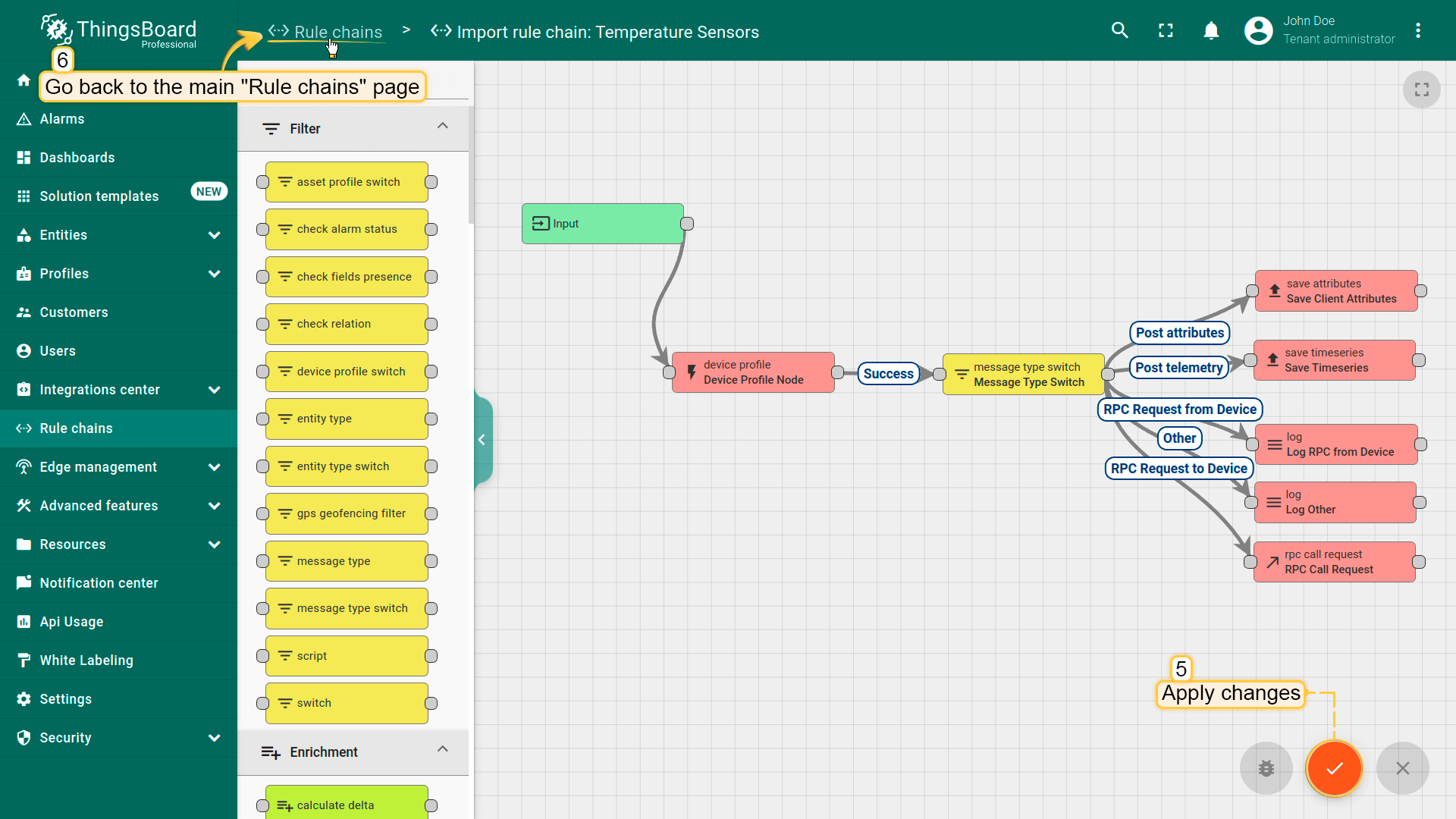
To import rule chain from а JSON file, you should:
- Navigate to the "Rule chains" page and click on the "+" button in the upper right corner of the screen and then choose "Import rule chain" option;
- The toolbar import popup window will appear. Upload a JSON file and click on the "Import" button;
- The imported rule chain will open. Click on the "Apply changes" button to save the rule chain. Then, go back to the main "Rule chains" page;
- Rule chain is imported.
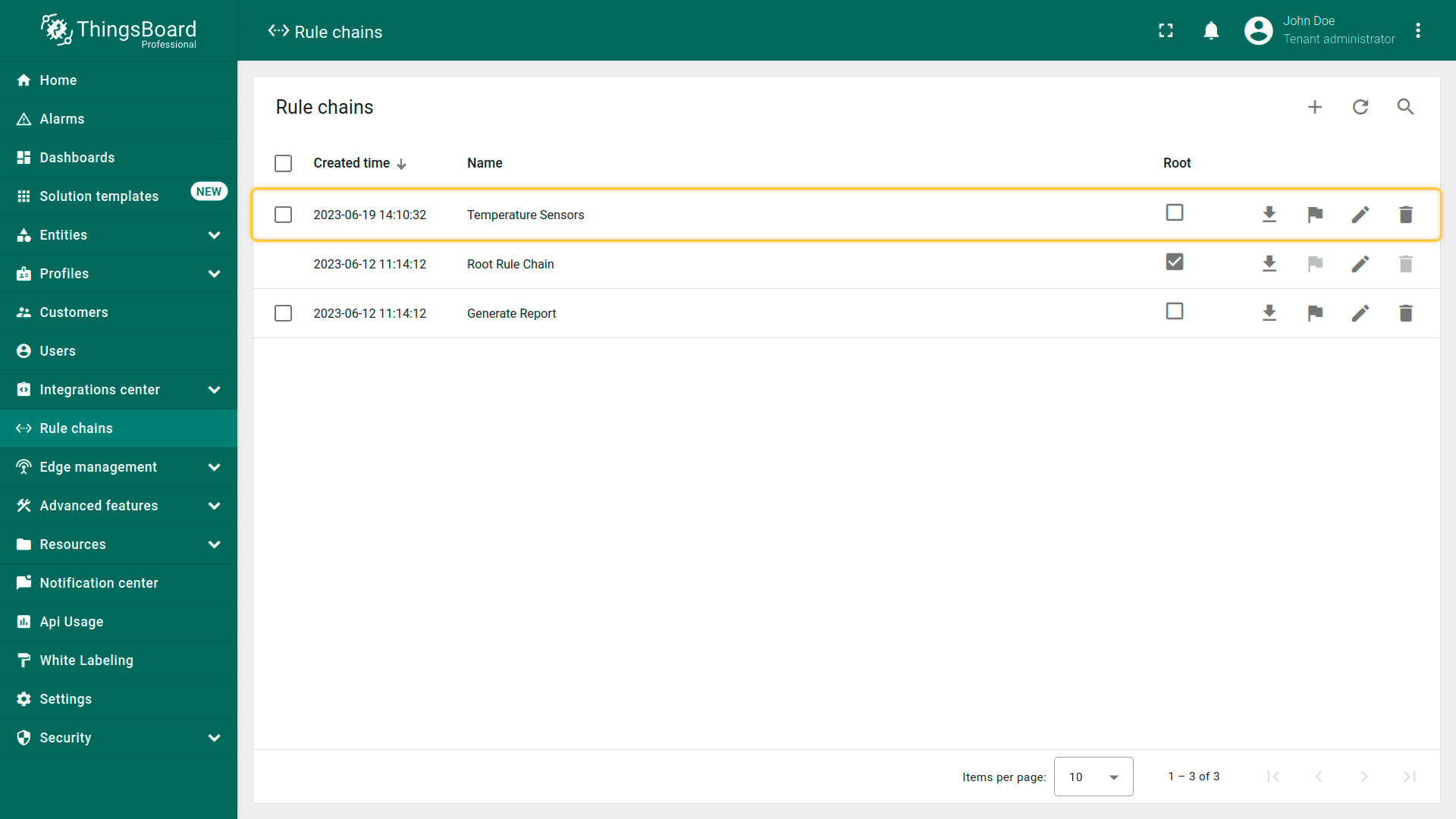

Make rule chain root
To make rule chain root, you should:
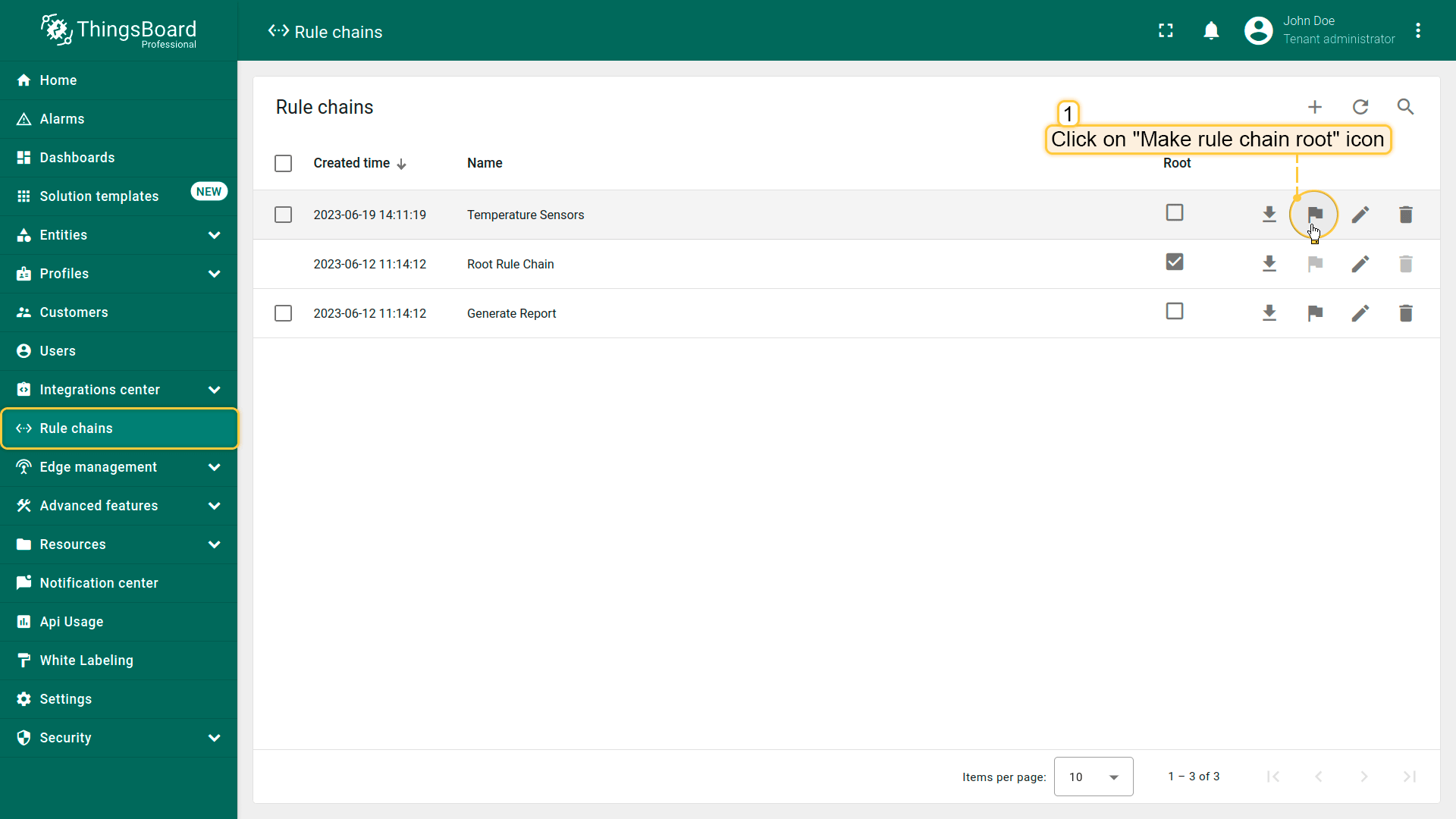
- Navigate to the "Rule chains" page and click on the "Make rule chain root" button located on the particular rule chain row;
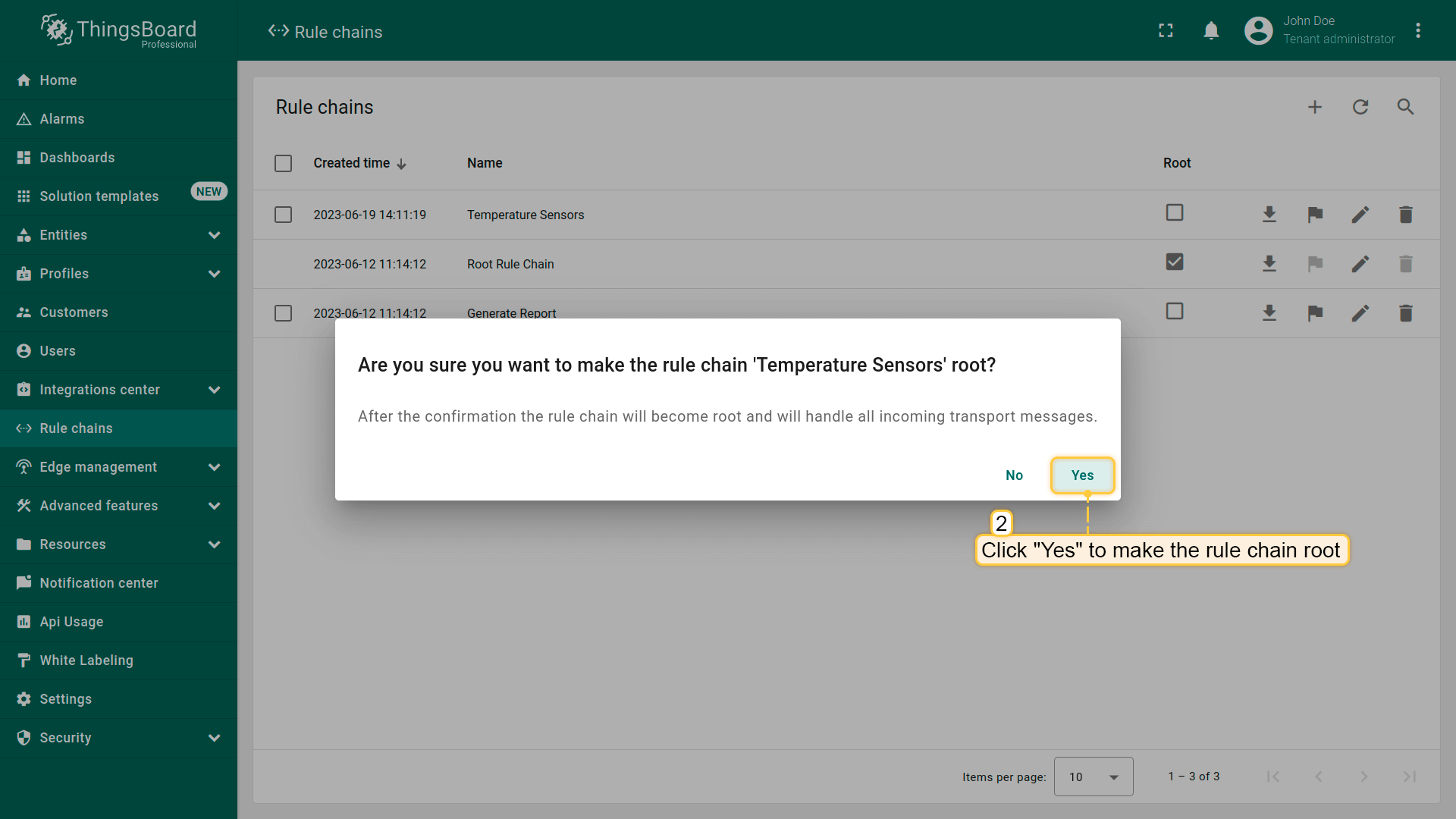
- Please confirm your actions in the dialog box;
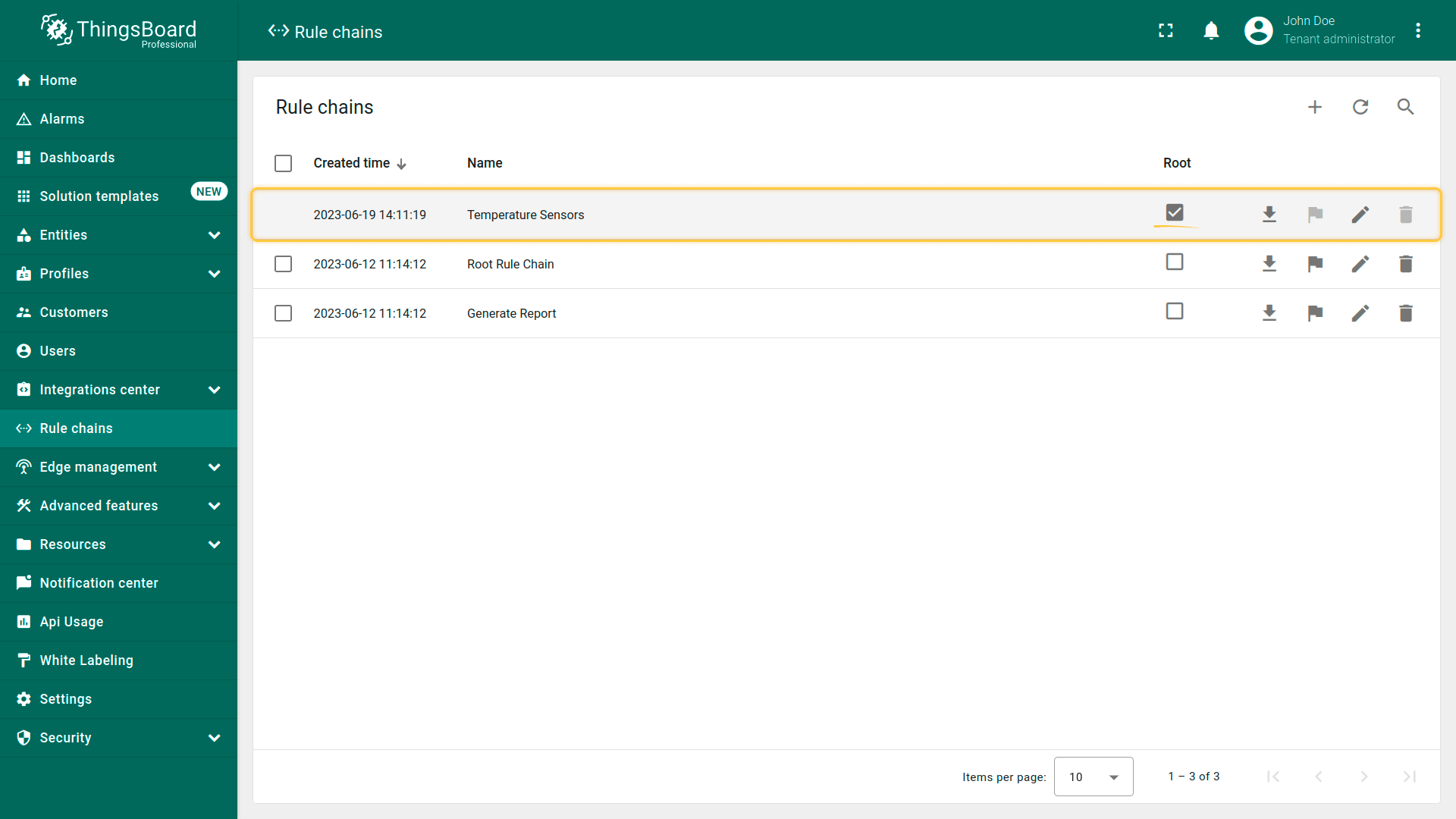
- The selected rule chain has now become the root.
Delete rule chain
You can delete a rule chain using one of the following ways:
First way:
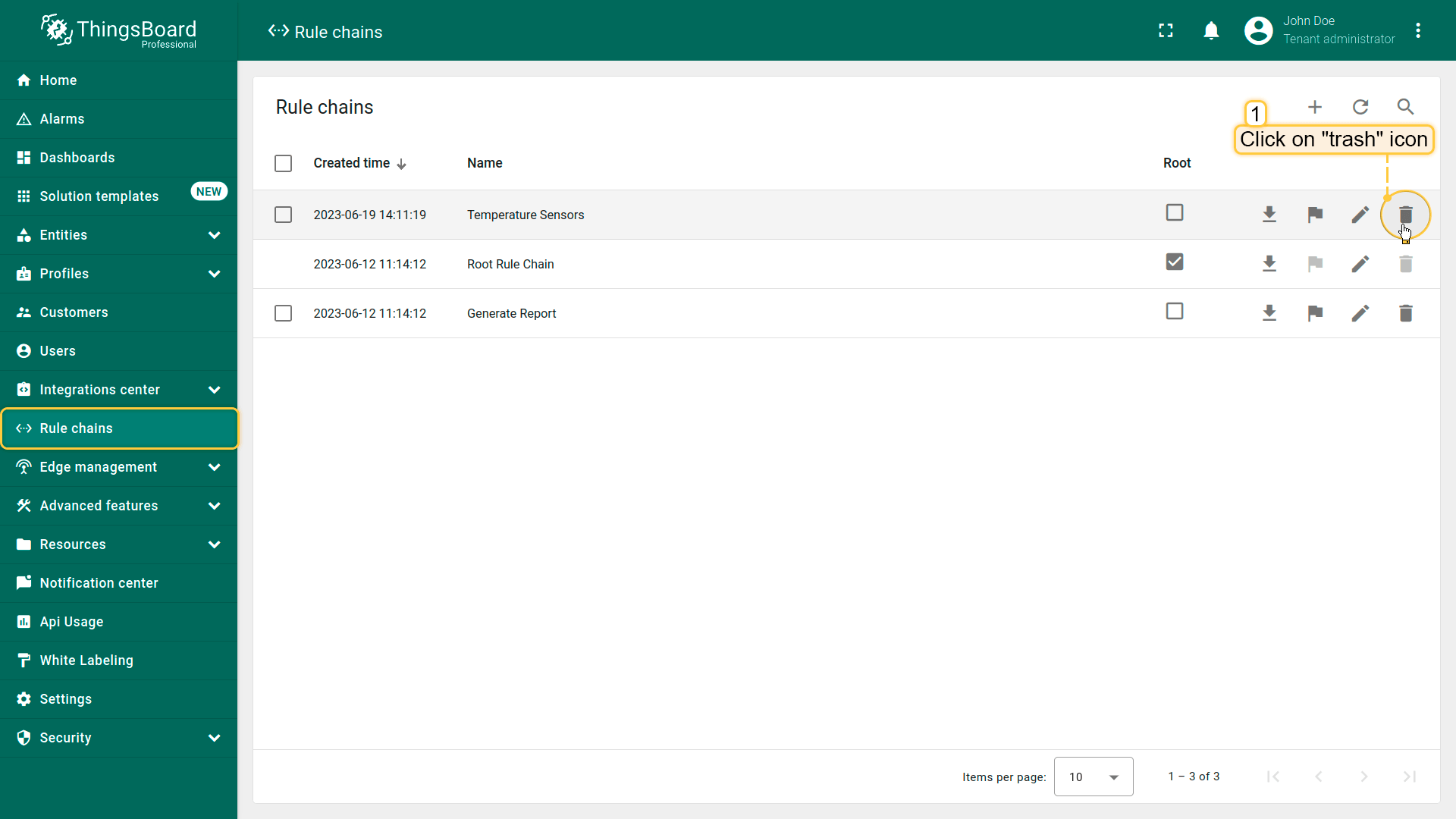
- Click a trash icon can opposite the rule chains`s name you want to delete;
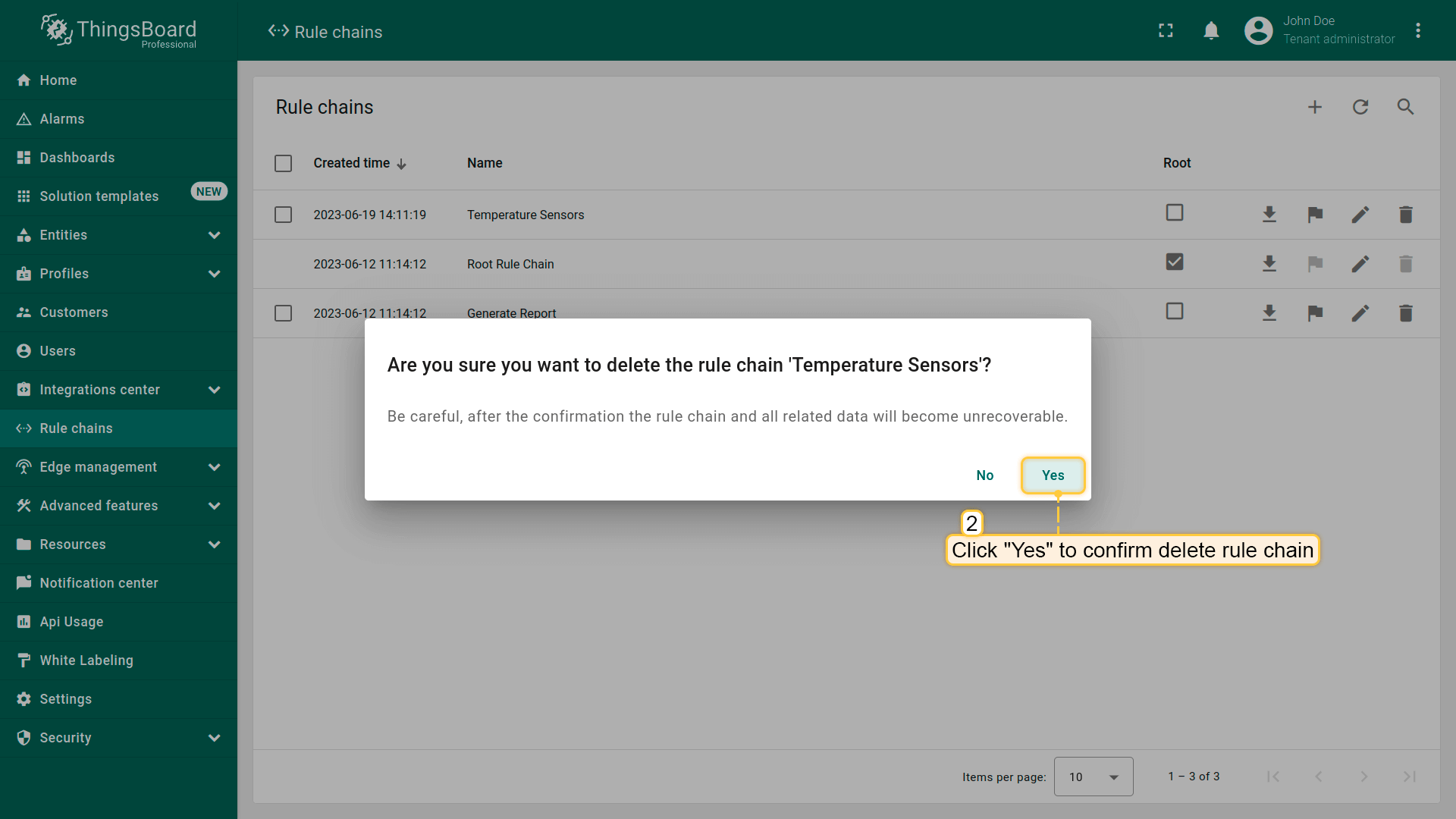
- Confirm deleting a rule chain in the dialog box.
Second way:
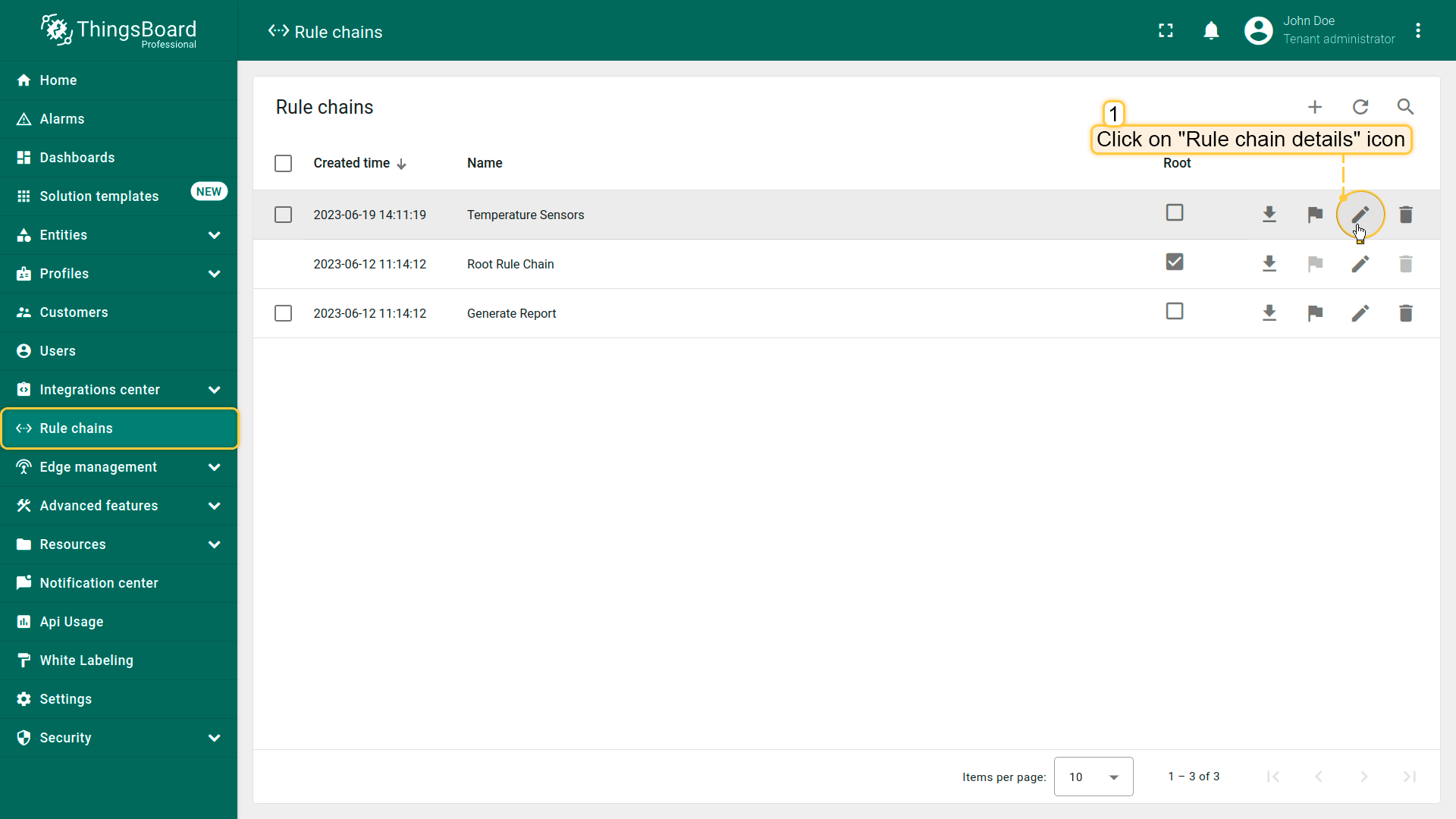
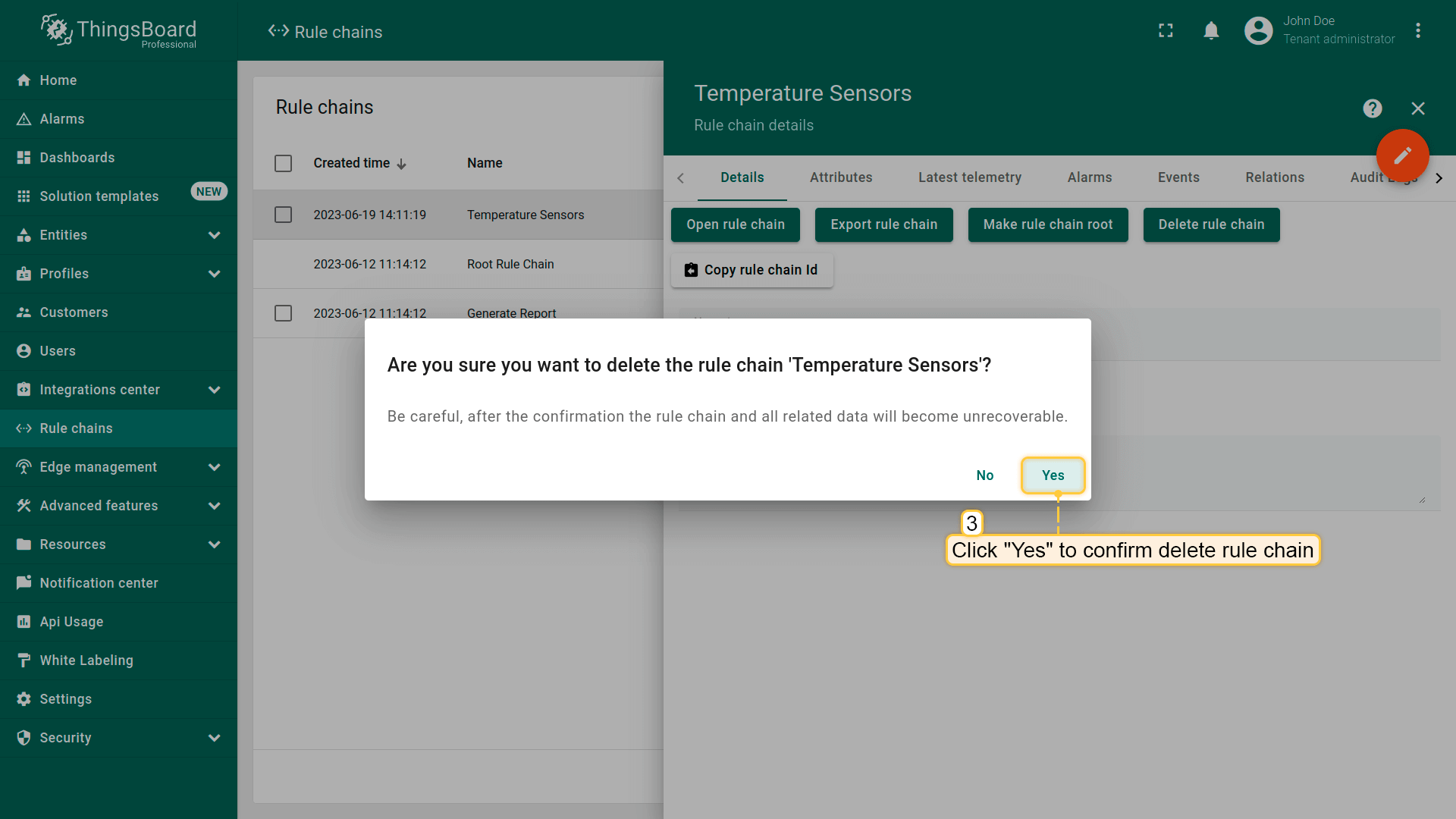
- Click on the "Rule chain details" button located on the particular rule chain row;
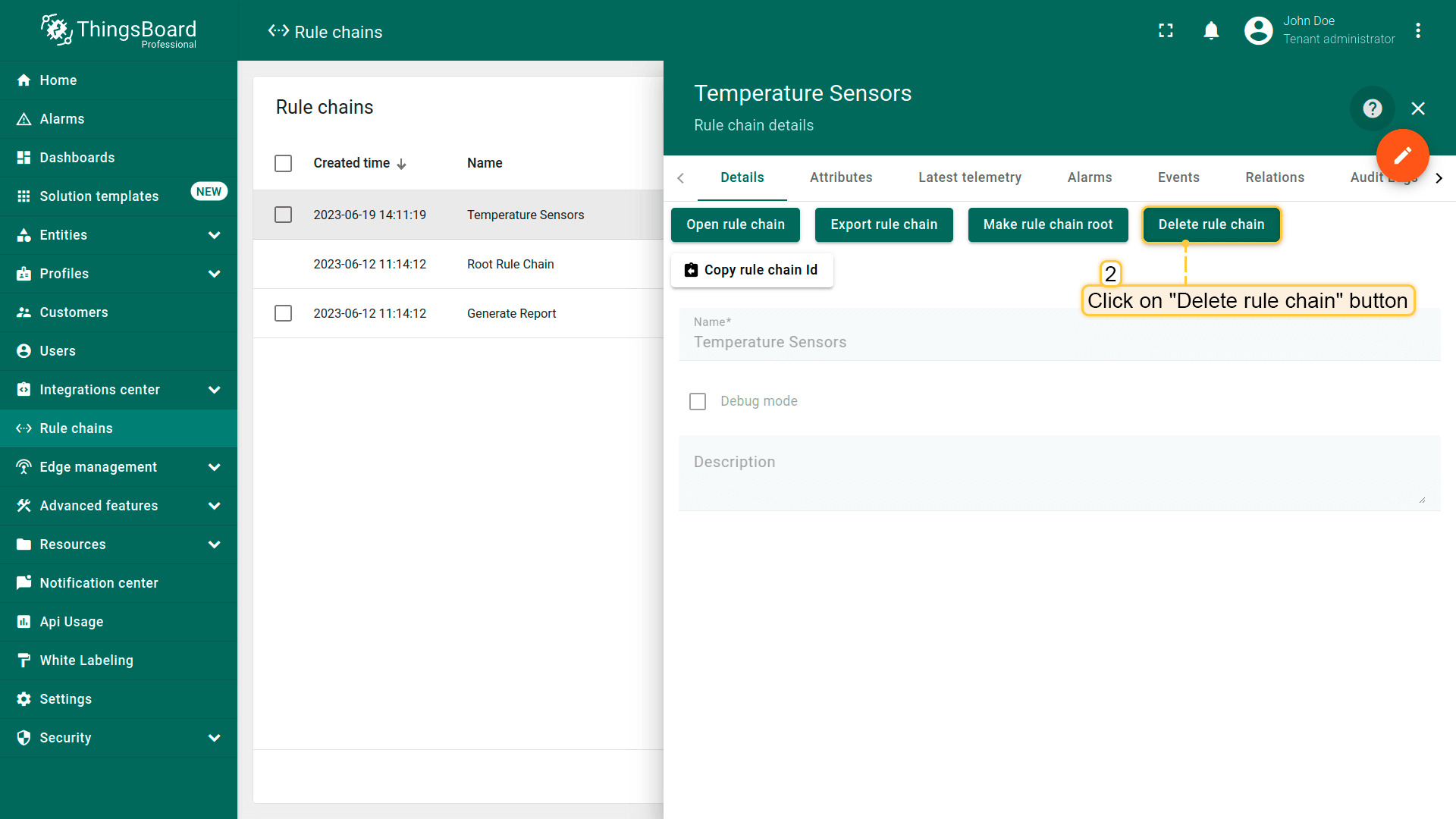
- In the rule chain details, click on the "Delete rule chain" button;
- Confirm deleting the rule chain in the dialog box.
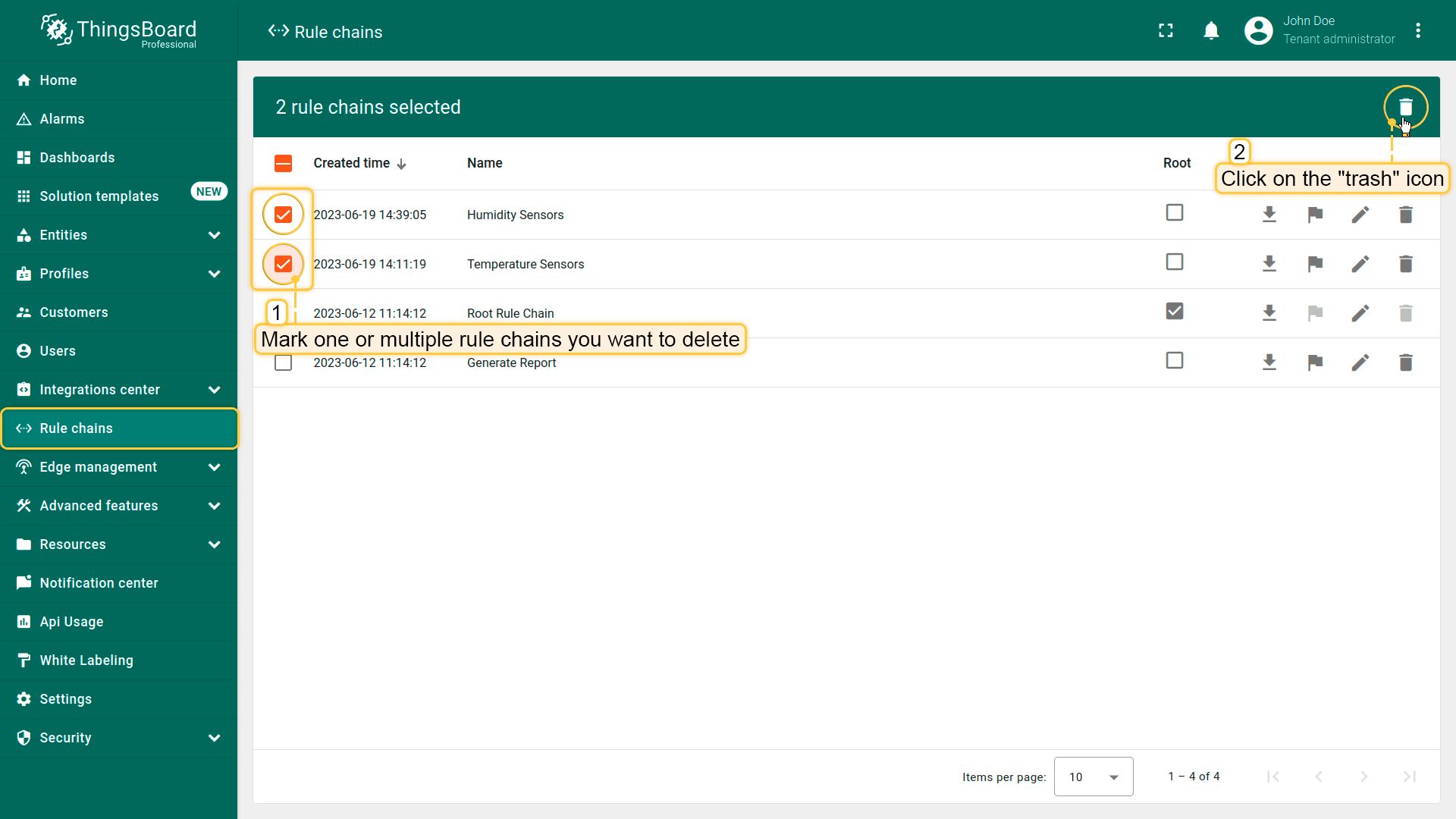
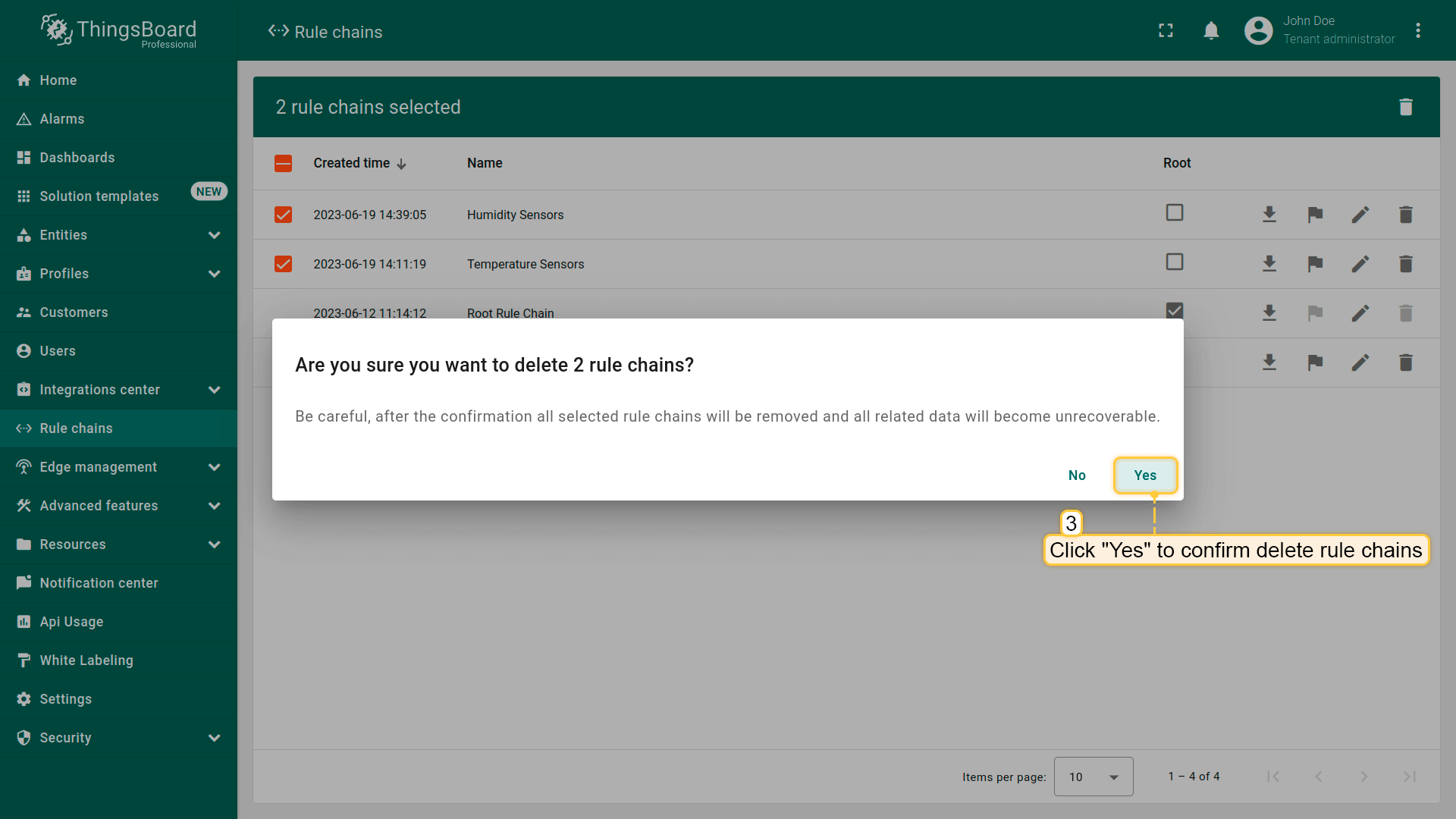
You can also delete multiple rule chains at once.
- Mark one or multiple rule chains you want to delete. Click on the trash bin icon in the top right corner;
- Confirm deleting rule chains in the dialog box.
Next steps
-
Getting started guides - These guides provide quick overview of main IoT Hub features. Designed to be completed in 15-30 minutes.
-
Data visualization - These guides contain instructions on how to configure complex IoT Hub dashboards.
-
Data processing & actions - Learn how to use IoT Hub Rule Engine.
-
Hardware samples - Learn how to connect various hardware platforms to IoT Hub.
-
Advanced features - Learn about advanced IoT Hub features.