UDP Integration allows to stream data from devices which use a UDP protocol to IoT Hub and converts payloads of these devices into the IoT Hub format.
Please note UDP Integration can be started only as remote integration. It could be started on the same machine, where TB instance is running, or you can start in on another machine, that has access over the network to the TB instance.
Please review the integration diagram to learn more.
UDP integration, running externally and connected to the IoT Hub instance;
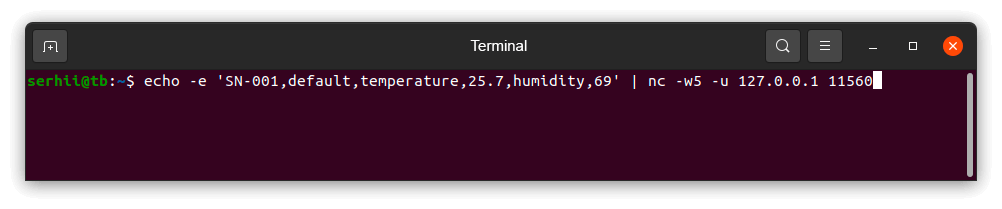
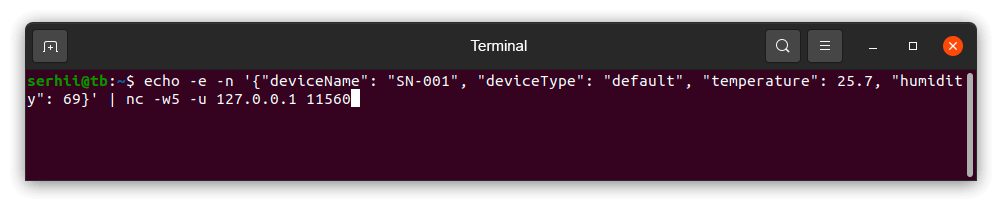
echo command which intended to display a line of text, and will redirect it’s output to netcat (nc) utility;
netcat (nc) utility to establish UDP connections, receive data from there and transfer them;
Suppose we have a sensor sending current temperature and humidity readings.
Sensor SN-001 sends data to UDP integration on port 11560 of the machine where the UDP integration is running.
For demo purposes we assume that our device is smart enough to send data in 4 different payload types.
You can select payload type based on your device capabilities and business cases:
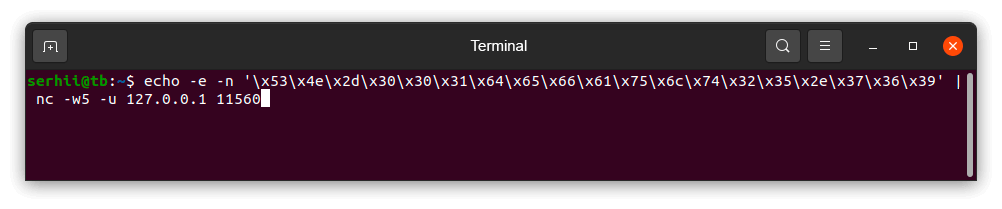
Here is the description of the bytes in this payload:
0-5 bytes - \x53\x4e\x2d\x30\x30\x31 - device name. If we convert it to text - SN-001;
6-12 bytes - \x64\x65\x66\x61\x75\x6c\x74 - device type. If we convert it to text - default;
13-16 bytes - \x32\x35\x2e\x37 - temperature telemetry. If we convert it to text - 25.7;
17-18 bytes - \x36\x39 - humidity telemetry. If we convert it to text - 69.
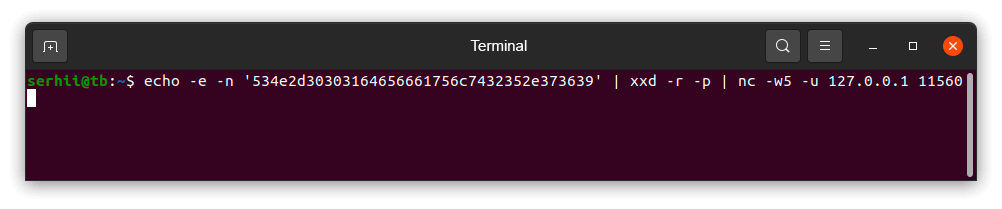
In this case payload is hexadecimal string:
1
534e2d30303164656661756c7432352e373639
Here is the description of the bytes in this payload:
0-5 bytes - 534e2d303031 - device name. If we convert it to text - SN-001;
6-12 byte - 64656661756c74 - device type. If we convert it to text - default;
13-16 byte - 32352e37 - temperature telemetry. If we convert it to text: - 25.7;
17-18 byte - 3639 - humidity telemetry. If we convert it to text: - 69.
Please note On the machine, where UDP Integration is running, port 11560 must be opened for incoming connections - nc utility must be able to connect to UDP socket. In case you are running it locally, it should be fine without any additional changes.
Add UDP integration
1. Basic settings.
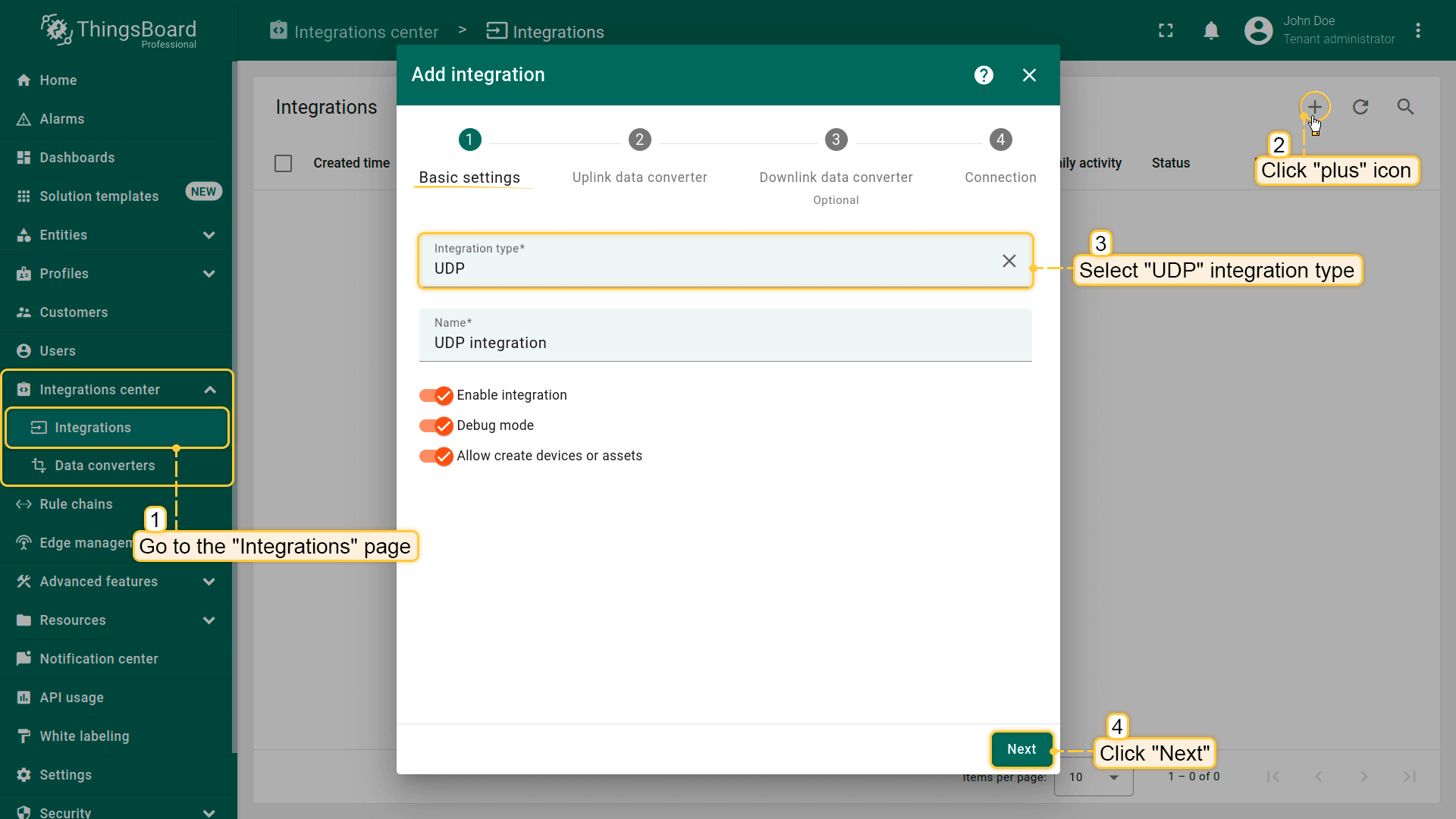
Go to the “Integrations” page of the “Integrations center” section. Click “plus” button to start adding new integration. Select type “UDP” integration and click “Next”;
2. Uplink data converter.
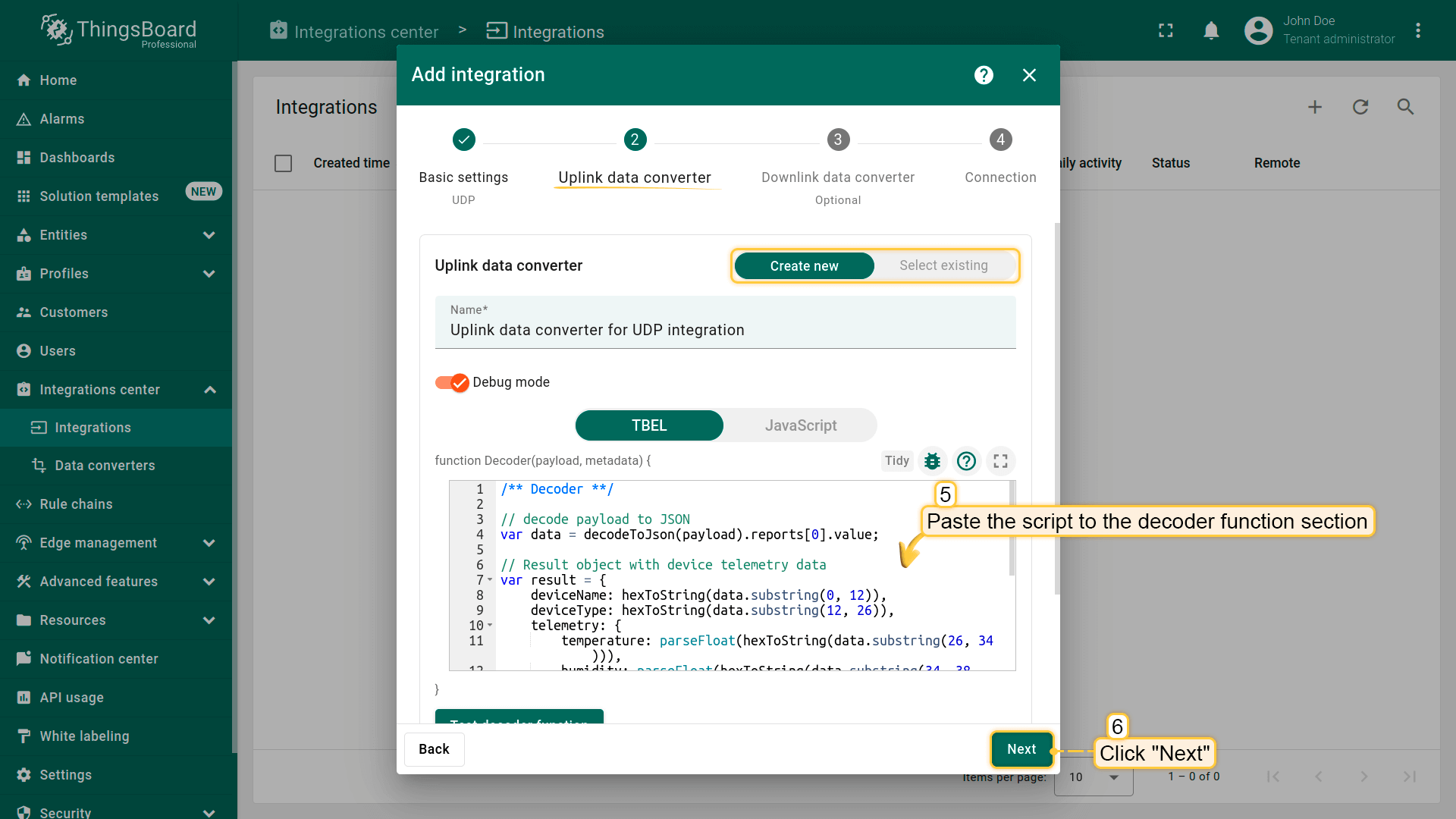
An uplink converter that is a script for parsing and transforming the data received by UDP integration to format that IoT Hub uses.
deviceName and deviceType are required, while attributes and telemetry are optional. attributes and telemetry are flat key-value objects. Nested objects are not supported.
Choose device payload type to for decoder configuration:
One can use either TBEL (ThingsBoard expression language) or JavaScript to develop user defined functions.
We recommend utilizing TBEL as it’s execution in ThingsBoard is much more efficient compared to JS.
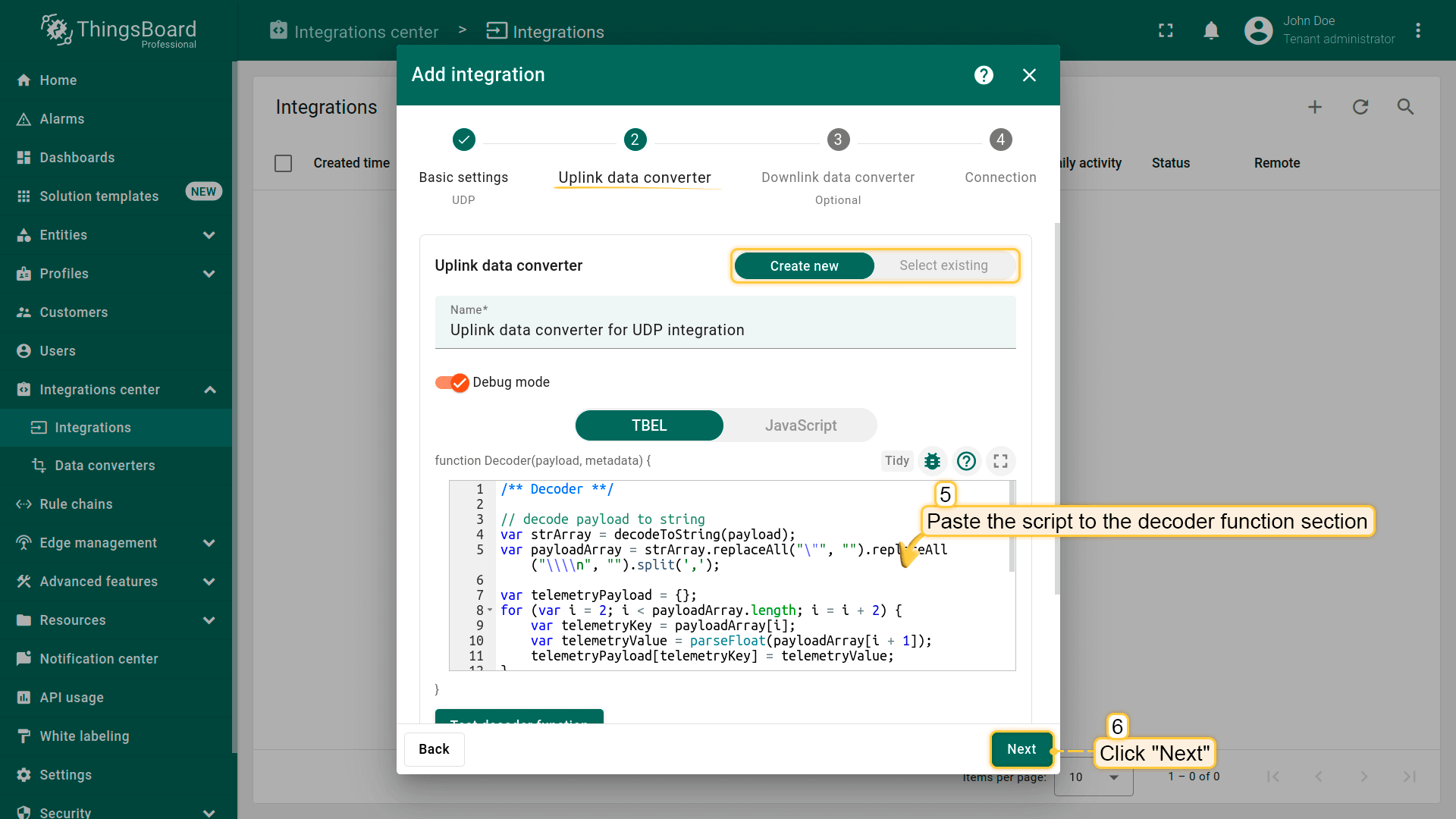
/** Decoder **/// decode payload to stringvarstrArray=decodeToString(payload);varpayloadArray=strArray.replaceAll("\"","").replaceAll("\\\\n","").split(',');vartelemetryPayload={};for(vari=2;i<payloadArray.length;i=i+2){vartelemetryKey=payloadArray[i];vartelemetryValue=parseFloat(payloadArray[i+1]);telemetryPayload[telemetryKey]=telemetryValue;}// Result object with device attributes/telemetry datavarresult={deviceName:payloadArray[0],deviceType:payloadArray[1],telemetry:telemetryPayload,attributes:{}};/** Helper functions 'decodeToString' and 'decodeToJson' are already built-in **/returnresult;
If you want to use the JavaScript decoder function, use this script:
/** Decoder **/// decode payload to stringvarstrArray=decodeToString(payload);varpayloadArray=strArray.replace(/\"/g,"").replace(/\s/g,"").replace(/\\n/g,"").split(',');vartelemetryPayload={};for(vari=2;i<payloadArray.length;i=i+2){vartelemetryKey=payloadArray[i];vartelemetryValue=parseFloat(payloadArray[i+1]);telemetryPayload[telemetryKey]=telemetryValue;}// Result object with device attributes/telemetry datavarresult={deviceName:payloadArray[0],deviceType:payloadArray[1],telemetry:telemetryPayload,attributes:{}};/** Helper functions **/functiondecodeToString(payload){returnString.fromCharCode.apply(String,payload);}returnresult;
Paste the copied script to the decoder function section. Then, click “Next”;
NOTE Although the Debug mode is very useful for development and troubleshooting, leaving it enabled in production mode may tremendously increase the disk space, used by the database, because all the debugging data is stored there. It is highly recommended to turn the Debug mode off when done debugging.
One can use either TBEL (ThingsBoard expression language) or JavaScript to develop user defined functions.
We recommend utilizing TBEL as it’s execution in ThingsBoard is much more efficient compared to JS.
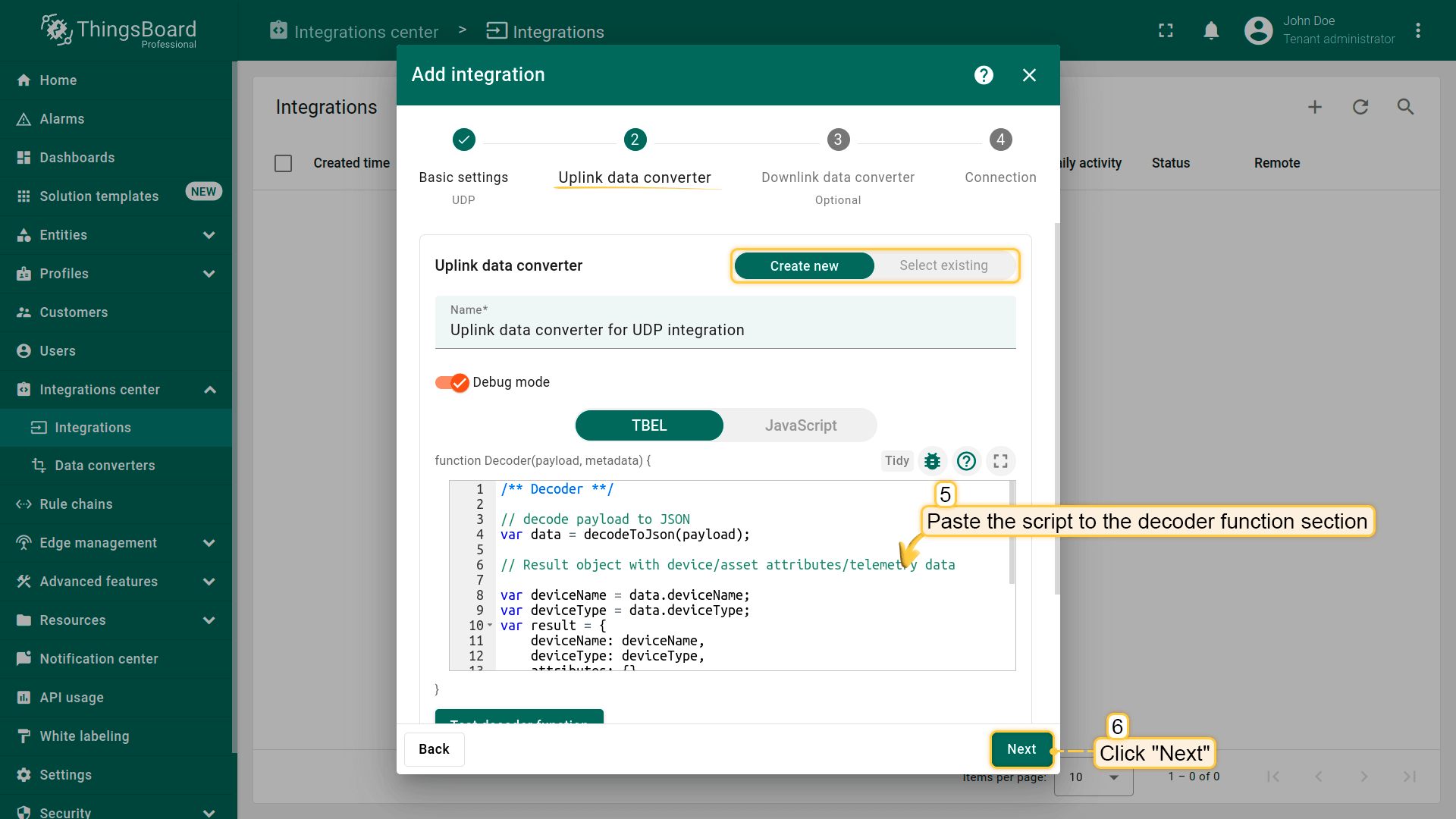
/** Decoder **/// decode payload to JSONvardata=decodeToJson(payload);// Result object with device/asset attributes/telemetry datavardeviceName=data.deviceName;vardeviceType=data.deviceType;varresult={deviceName:deviceName,deviceType:deviceType,attributes:{},telemetry:{temperature:data.temperature,humidity:data.humidity}};/** Helper functions 'decodeToString' and 'decodeToJson' are already built-in **/returnresult;
If you want to use the JavaScript decoder function, use this script:
/** Decoder **/// decode payload to JSONvardata=decodeToJson(payload);// Result object with device/asset attributes/telemetry datavardeviceName=data.deviceName;vardeviceType=data.deviceType;varresult={deviceName:deviceName,deviceType:deviceType,attributes:{},telemetry:{temperature:data.temperature,humidity:data.humidity}};/** Helper functions **/functiondecodeToString(payload){returnString.fromCharCode.apply(String,payload);}functiondecodeToJson(payload){// covert payload to string.varstr=decodeToString(payload);// parse string to JSONvardata=JSON.parse(str);returndata;}returnresult;
Paste the copied script to the decoder function section. Then, click “Next”;
NOTE Although the Debug mode is very useful for development and troubleshooting, leaving it enabled in production mode may tremendously increase the disk space, used by the database, because all the debugging data is stored there. It is highly recommended to turn the Debug mode off when done debugging.
One can use either TBEL (ThingsBoard expression language) or JavaScript to develop user defined functions.
We recommend utilizing TBEL as it’s execution in ThingsBoard is much more efficient compared to JS.
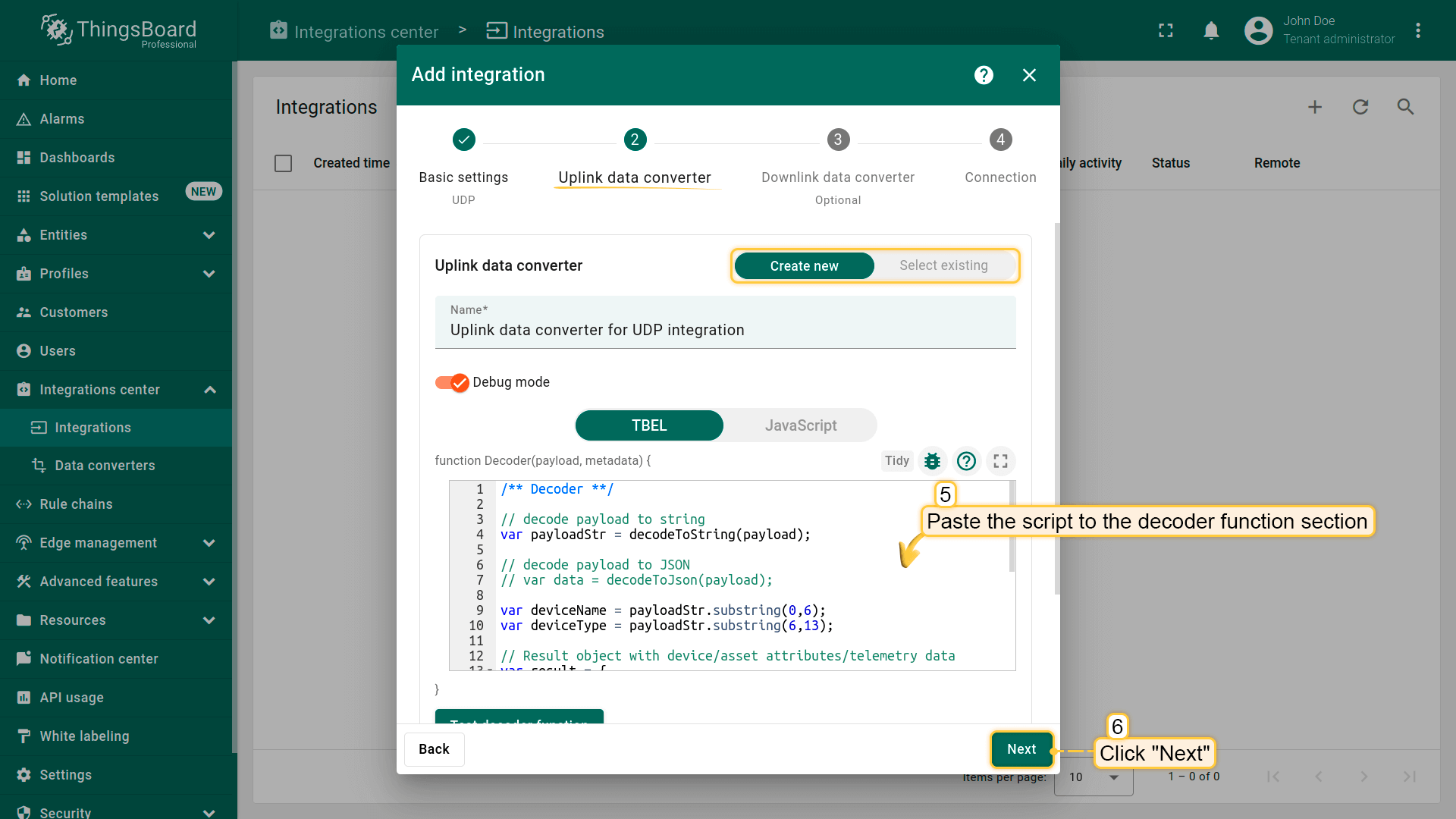
/** Decoder **/// decode payload to stringvarpayloadStr=decodeToString(payload);// decode payload to JSON// var data = decodeToJson(payload);vardeviceName=payloadStr.substring(0,6);vardeviceType=payloadStr.substring(6,13);// Result object with device/asset attributes/telemetry datavarresult={deviceName:deviceName,deviceType:deviceType,attributes:{},telemetry:{temperature:parseFloat(payloadStr.substring(13,17)),humidity:parseFloat(payloadStr.substring(17,19))}};/** Helper functions 'decodeToString' and 'decodeToJson' are already built-in **/returnresult;
If you want to use the JavaScript decoder function, use this script:
/** Decoder **/// decode payload to stringvarpayloadStr=decodeToString(payload);// decode payload to JSON// var data = decodeToJson(payload);vardeviceName=payloadStr.substring(0,6);vardeviceType=payloadStr.substring(6,13);// Result object with device/asset attributes/telemetry datavarresult={deviceName:deviceName,deviceType:deviceType,attributes:{},telemetry:{temperature:parseFloat(payloadStr.substring(13,17)),humidity:parseFloat(payloadStr.substring(17,19))}};/** Helper functions **/functiondecodeToString(payload){returnString.fromCharCode.apply(String,payload);}functiondecodeToJson(payload){// covert payload to string.varstr=decodeToString(payload);// parse string to JSONvardata=JSON.parse(str);returndata;}returnresult;
Paste the copied script to the decoder function section. Then, click “Next”;
NOTE Although the Debug mode is very useful for development and troubleshooting, leaving it enabled in production mode may tremendously increase the disk space, used by the database, because all the debugging data is stored there. It is highly recommended to turn the Debug mode off when done debugging.
One can use either TBEL (ThingsBoard expression language) or JavaScript to develop user defined functions.
We recommend utilizing TBEL as it’s execution in ThingsBoard is much more efficient compared to JS.
/** Decoder **/// decode payload to JSONvardata=decodeToJson(payload).reports[0].value;// Result object with device telemetry datavarresult={deviceName:hexToString(data.substring(0,12)),deviceType:hexToString(data.substring(12,26)),telemetry:{temperature:parseFloat(hexToString(data.substring(26,34))),humidity:parseFloat(hexToString(data.substring(34,38))),}};/** Helper functions **/// Hexadecimal string to stringfunctionhexToString(hex){returnbytesToString(hexToBytes(hex));}returnresult;
If you want to use the JavaScript decoder function, use this script:
/** Decoder **/// decode payload to JSONvardata=decodeToJson(payload).reports[0].value;// Result object with device telemetry datavarresult={deviceName:hexToString(data.substring(0,12)),deviceType:hexToString(data.substring(12,26)),telemetry:{temperature:parseFloat(hexToString(data.substring(26,34))),humidity:parseFloat(hexToString(data.substring(34,38))),}};/** Helper functions **/functiondecodeToString(payload){returnString.fromCharCode.apply(String,payload);}// Hexadecimal string to stringfunctionhexToString(hex){varstr='';for(vari=0;i<hex.length;i+=2){varnotNullValue=parseInt(hex.substr(i,2),16);if(notNullValue){str+=String.fromCharCode(notNullValue);}}returnstr;}functiondecodeToJson(payload){// convert payload to string.varstr=decodeToString(payload);// parse string to JSONvardata=JSON.parse(str);returndata;}returnresult;
Paste the copied script to the decoder function section. Then, click “Next”;
NOTE Although the Debug mode is very useful for development and troubleshooting, leaving it enabled in production mode may tremendously increase the disk space, used by the database, because all the debugging data is stored there. It is highly recommended to turn the Debug mode off when done debugging.
3. Downlink data converter.
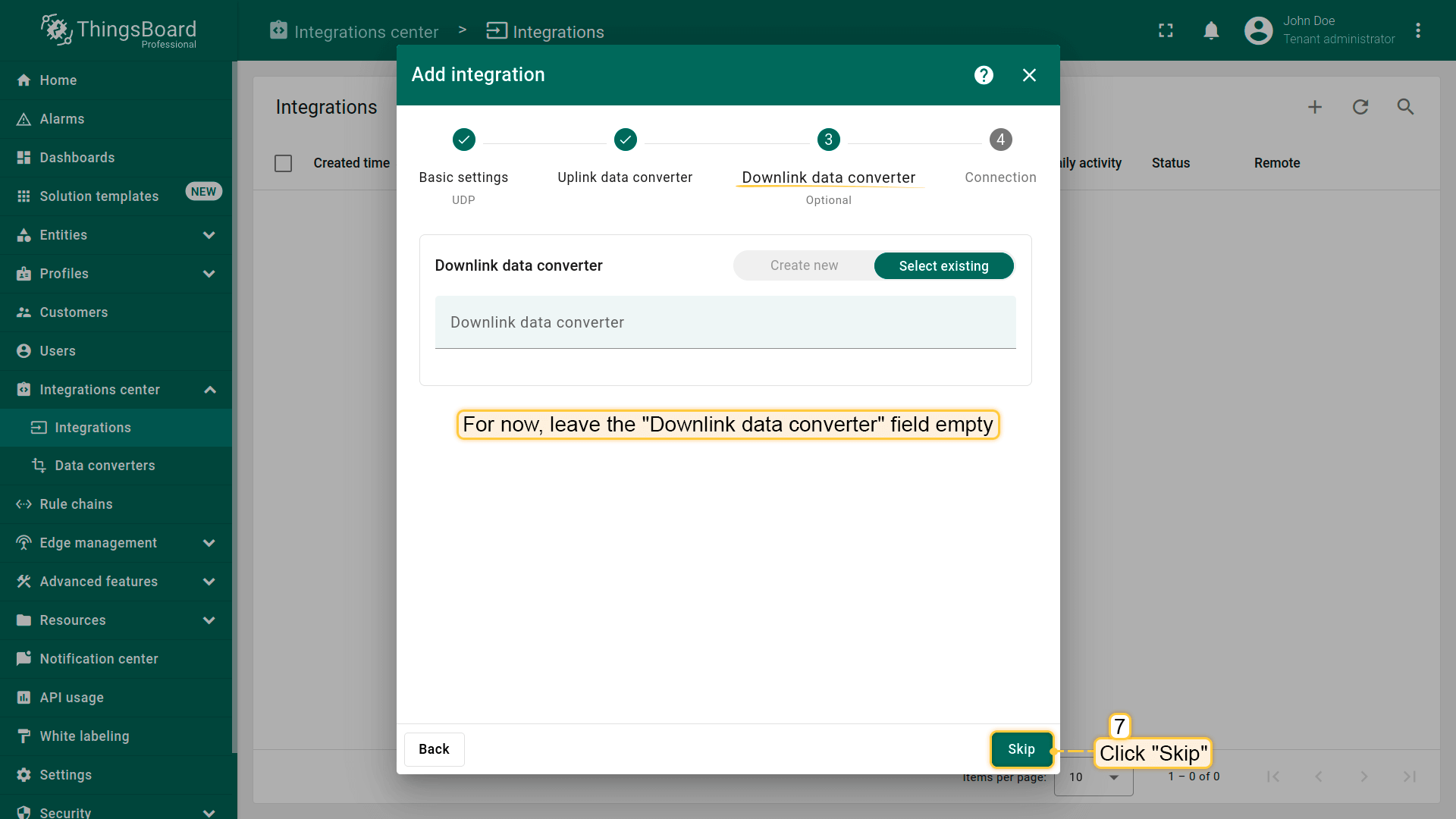
At the step of adding a downlink converter, you can also select a previously created or create a new downlink converter. But for now, leave the “Downlink data converter” field empty. Click “Skip”;
4. Connection.
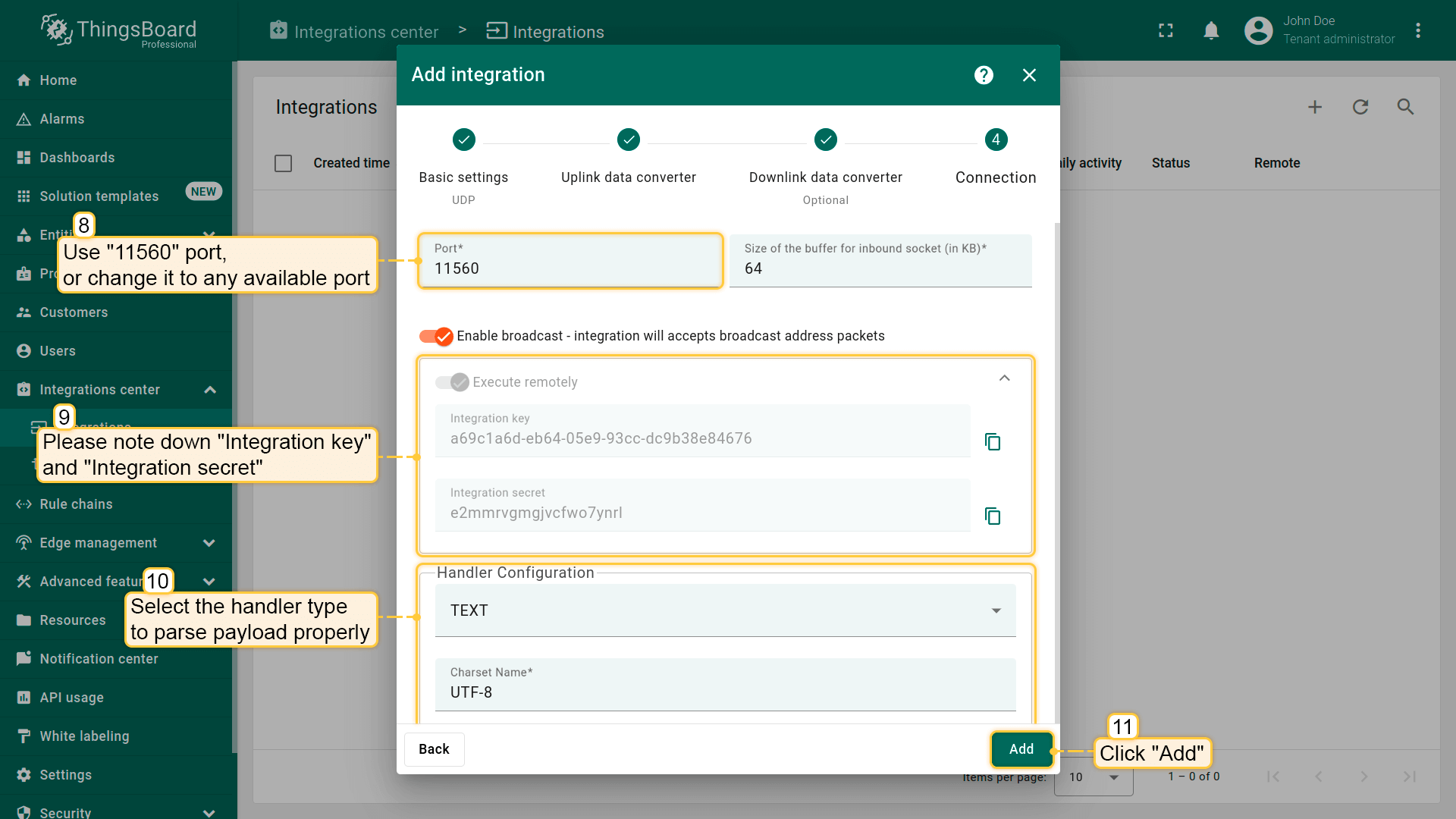
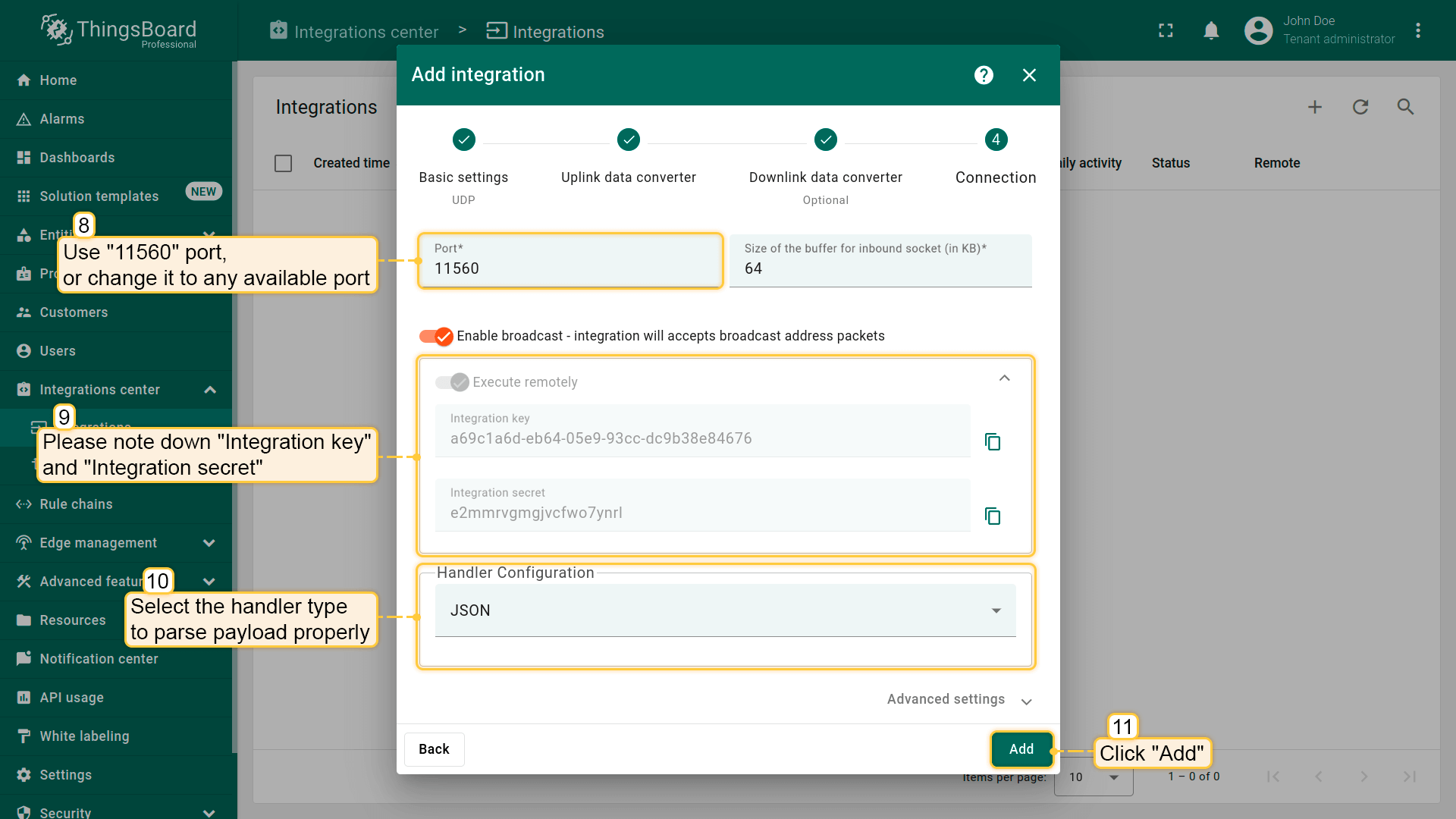
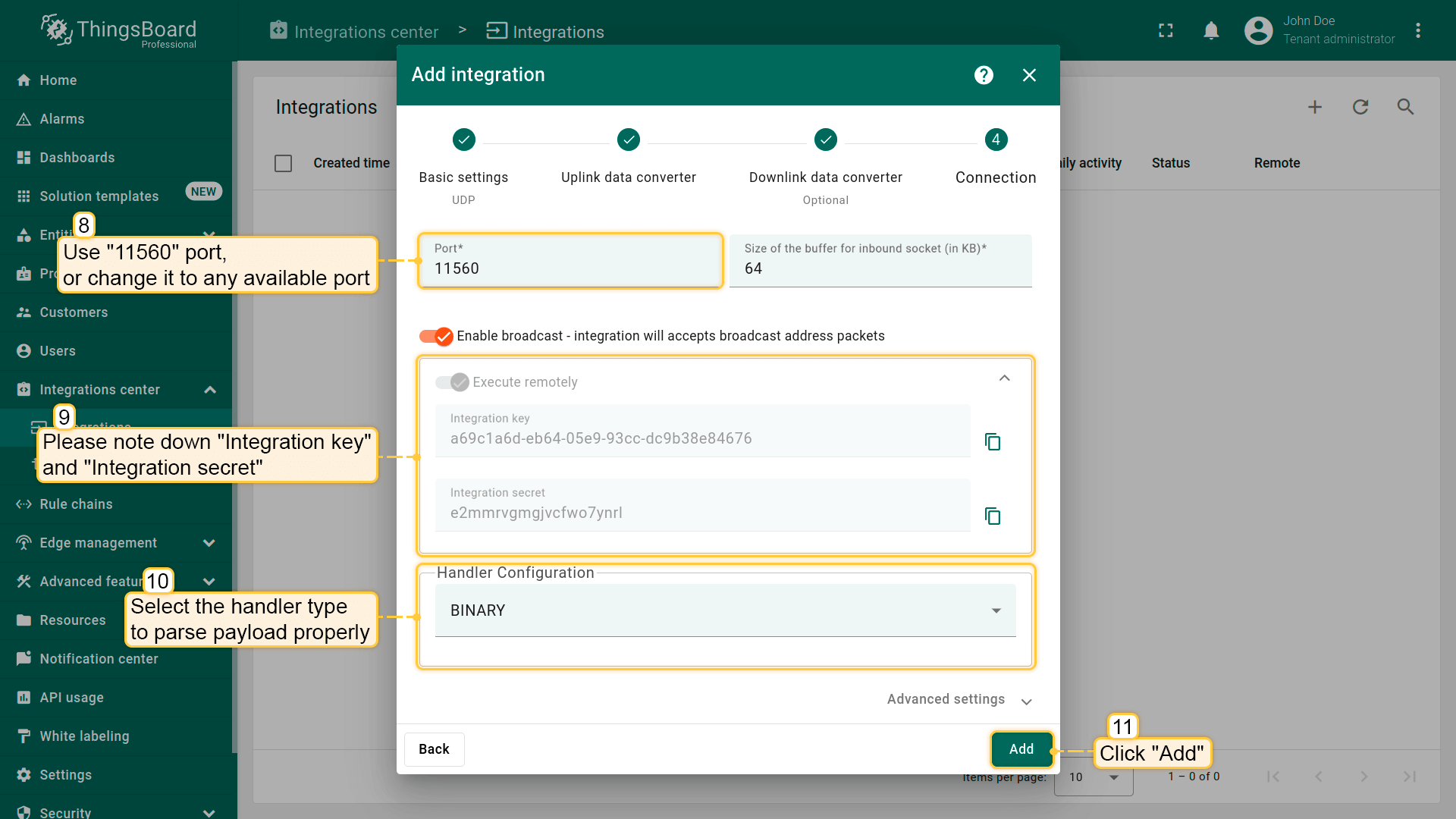
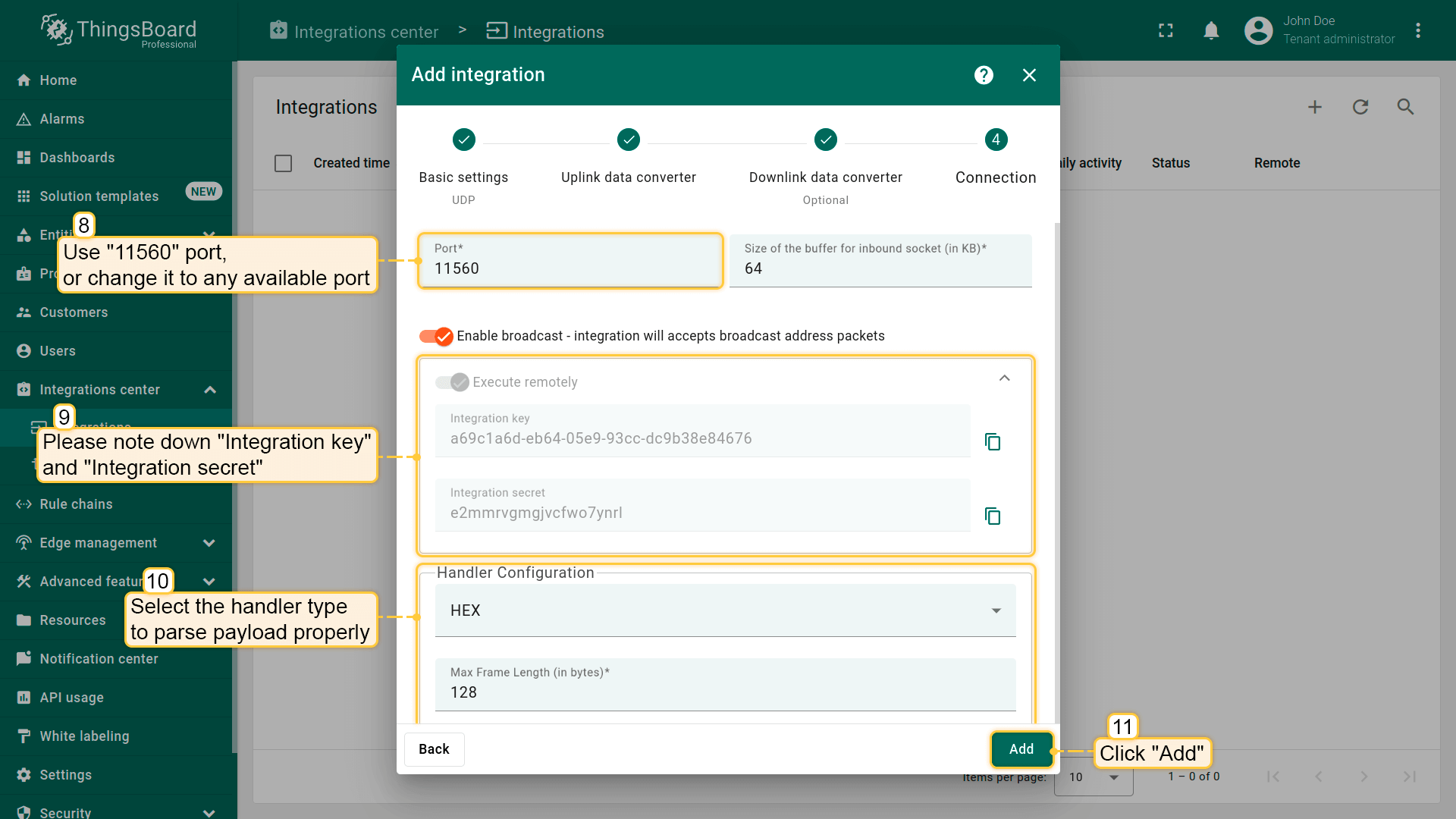
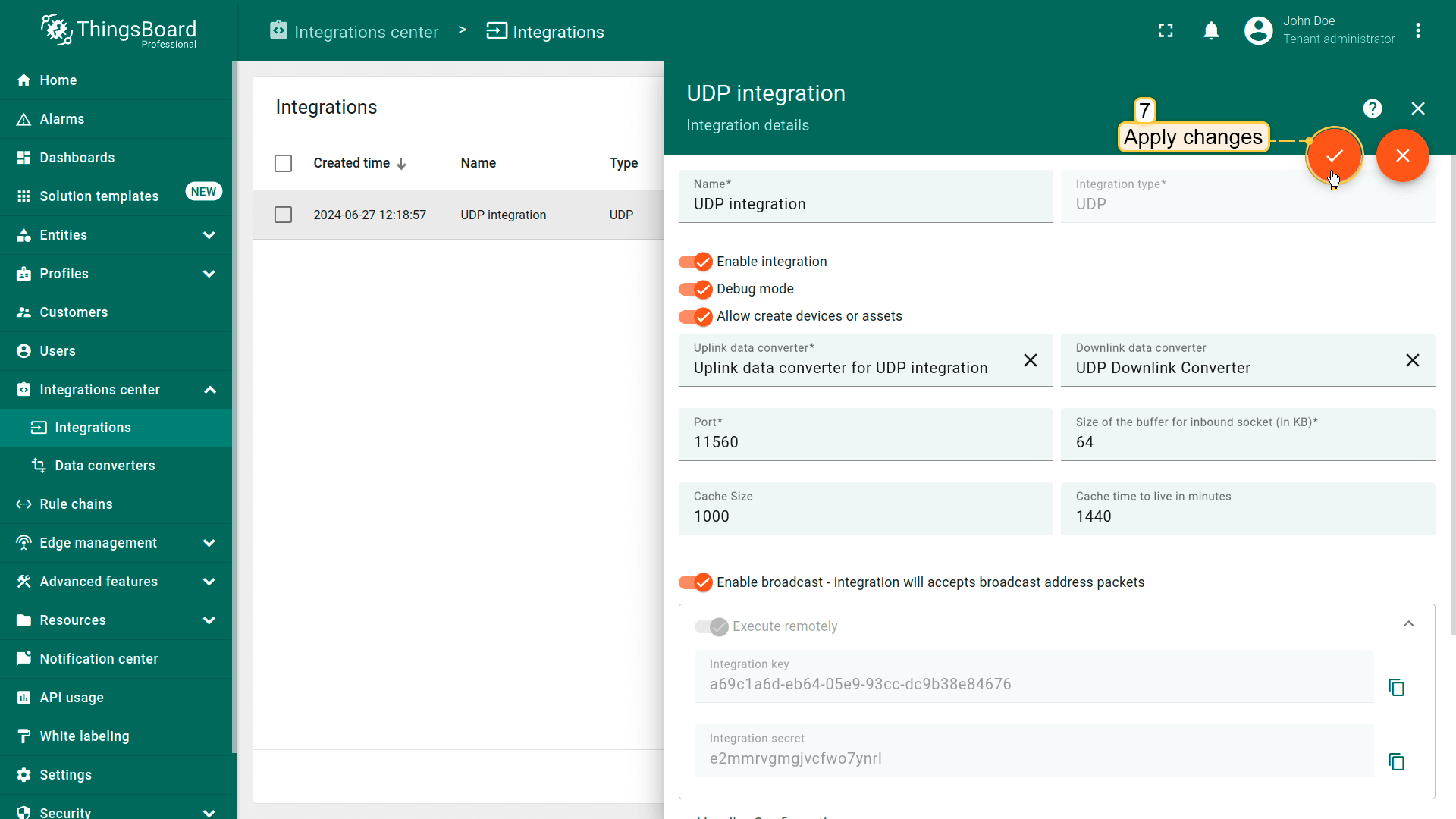
As we mentioned earlier, “Execute remotely” option is checked and can not be modified - UDP Integration can be only remote type.
By default, UDP Integration will use 11560 port, but you can change this to any available port in your case.
Please note down Integration key and Integration secret - we will use these values later in the configuration on the remote UDP Integration itself.
We leave the Enable broadcast - integration will accepts broadcast address packets options by default. This flag indicates that integration will accept UDP packets sent to the broadcast address.
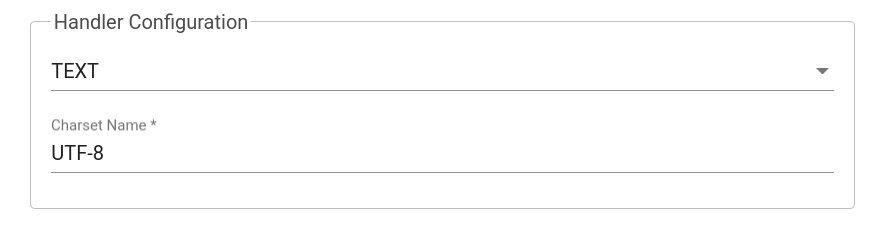
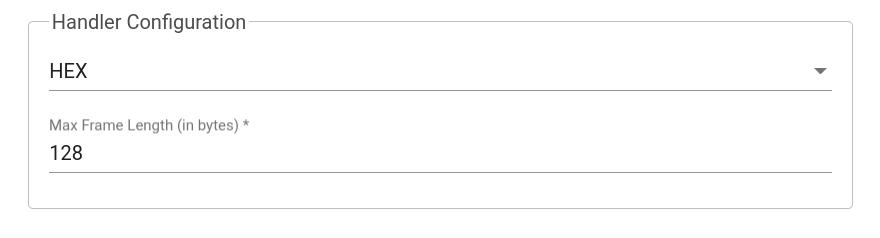
Choose device payload type for Handler Configuration:
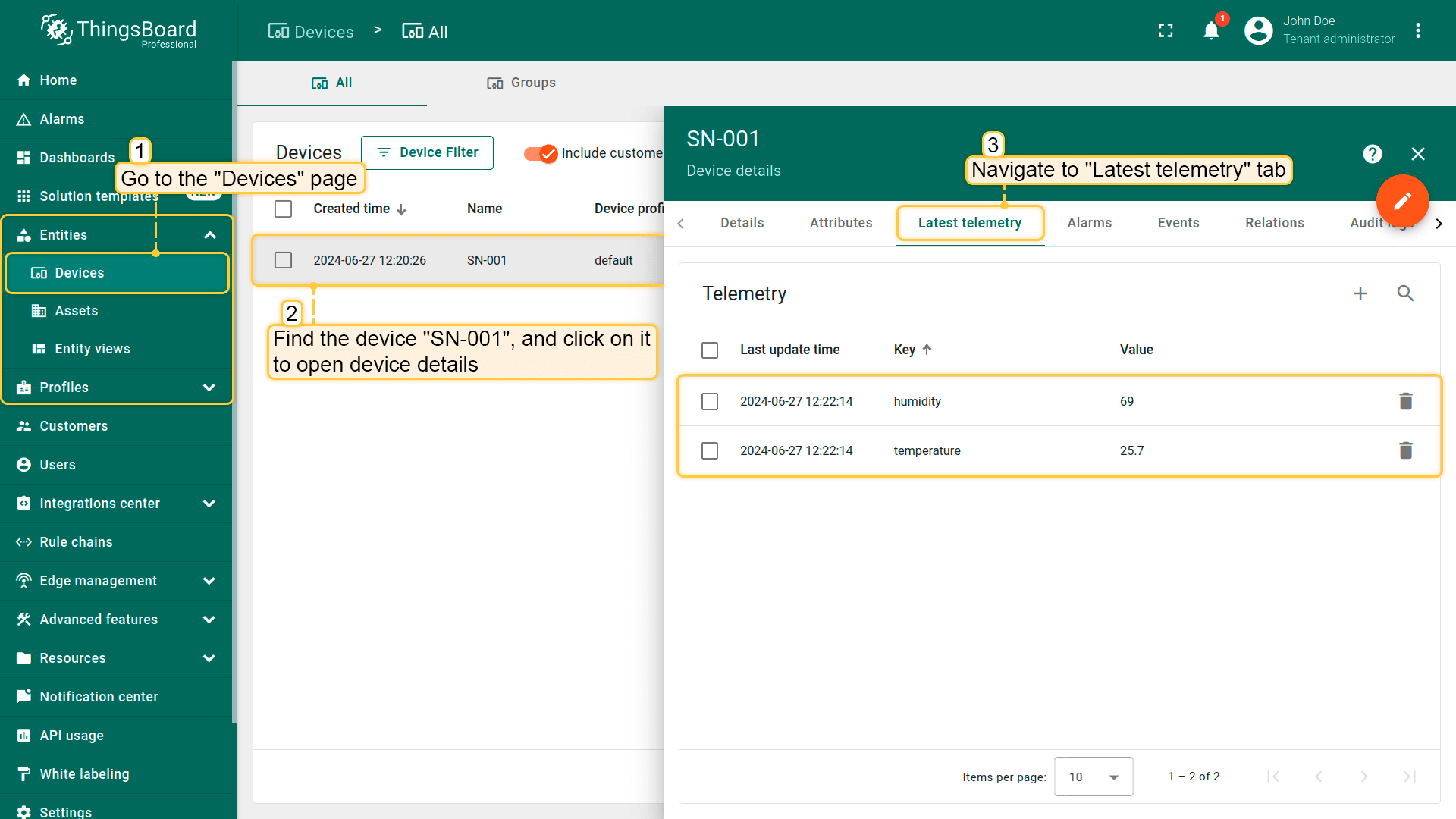
Once you go to “Devices” page you should find a SN-001 device provisioned by the UDP integration.
Click the device, navigate to the “Latest telemetry” tab to see the “temperature” key and its value (25.7) there and also the “humidity” key and its value (69) there as well.
Advanced usage: downlink
For sending Downlink messages from IoT Hub to the device, we need to define a downlink converter.
Add downlink converter
One can use either TBEL (ThingsBoard expression language) or JavaScript to develop user defined functions.
We recommend utilizing TBEL as it’s execution in ThingsBoard is much more efficient compared to JS.
You can use our example of downlink converter, or write your own according to your configuration:
1
2
3
4
5
6
7
8
9
10
11
12
13
14
15
// Result object with encoded downlink payloadvarresult={// downlink data content type: JSON, TEXT or BINARY (base64 format)contentType:"JSON",// downlink datadata:JSON.stringify(msg),// Optional metadata object presented in key/value formatmetadata:{}};returnresult;
You can use our example of downlink converter, or write your own according to your configuration:
1
2
3
4
5
6
7
8
9
10
11
12
13
14
15
// Result object with encoded downlink payloadvarresult={// downlink data content type: JSON, TEXT or BINARY (base64 format)contentType:"JSON",// downlink datadata:JSON.stringify(msg),// Optional metadata object presented in key/value formatmetadata:{}};returnresult;
To add a downlink data converter to the UDP integration, follow these steps:
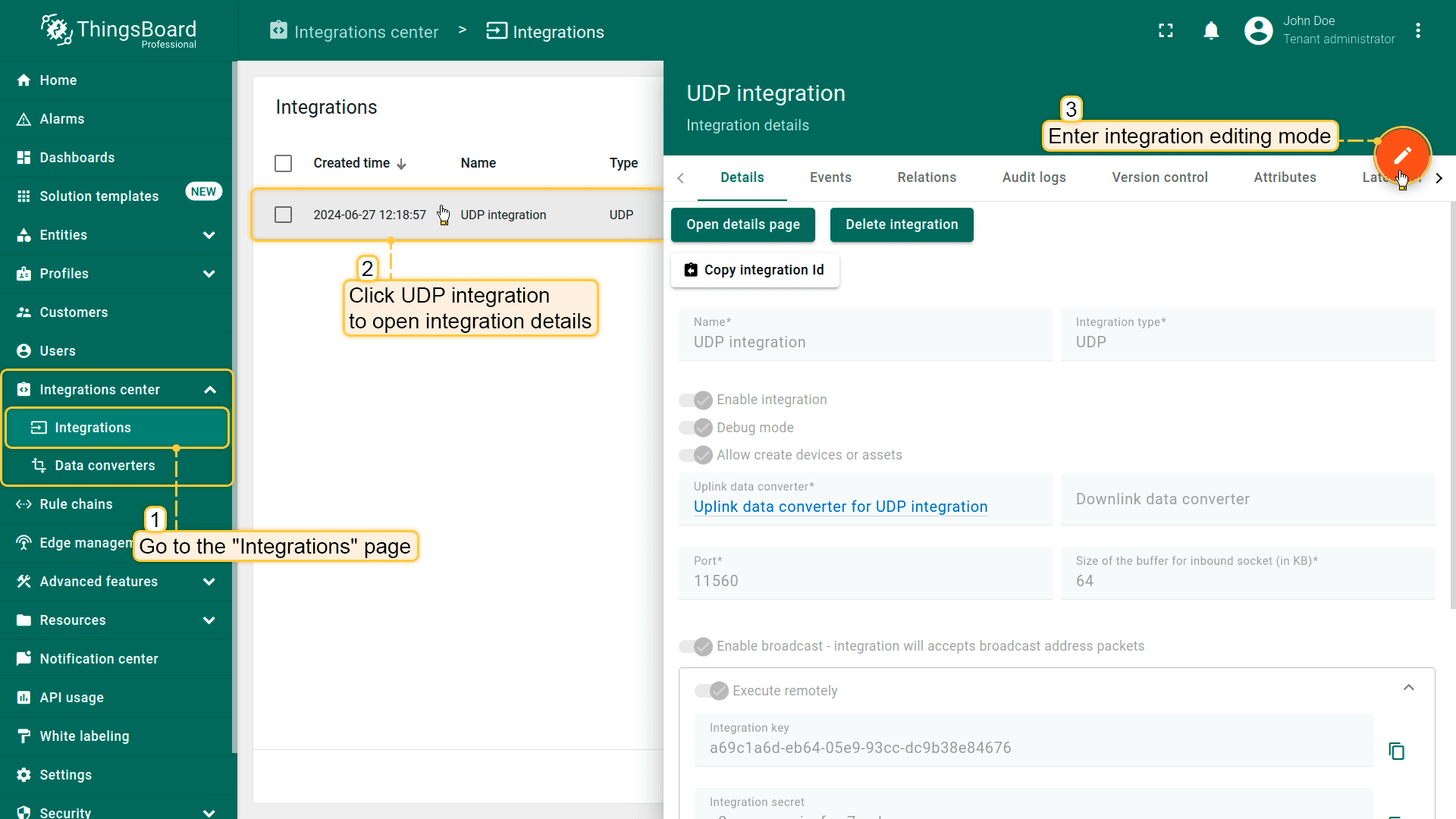
Go to the “Integrations” page, click UDP integration to open its details, and enter integration editing mode by clicking the “pencil” icon;
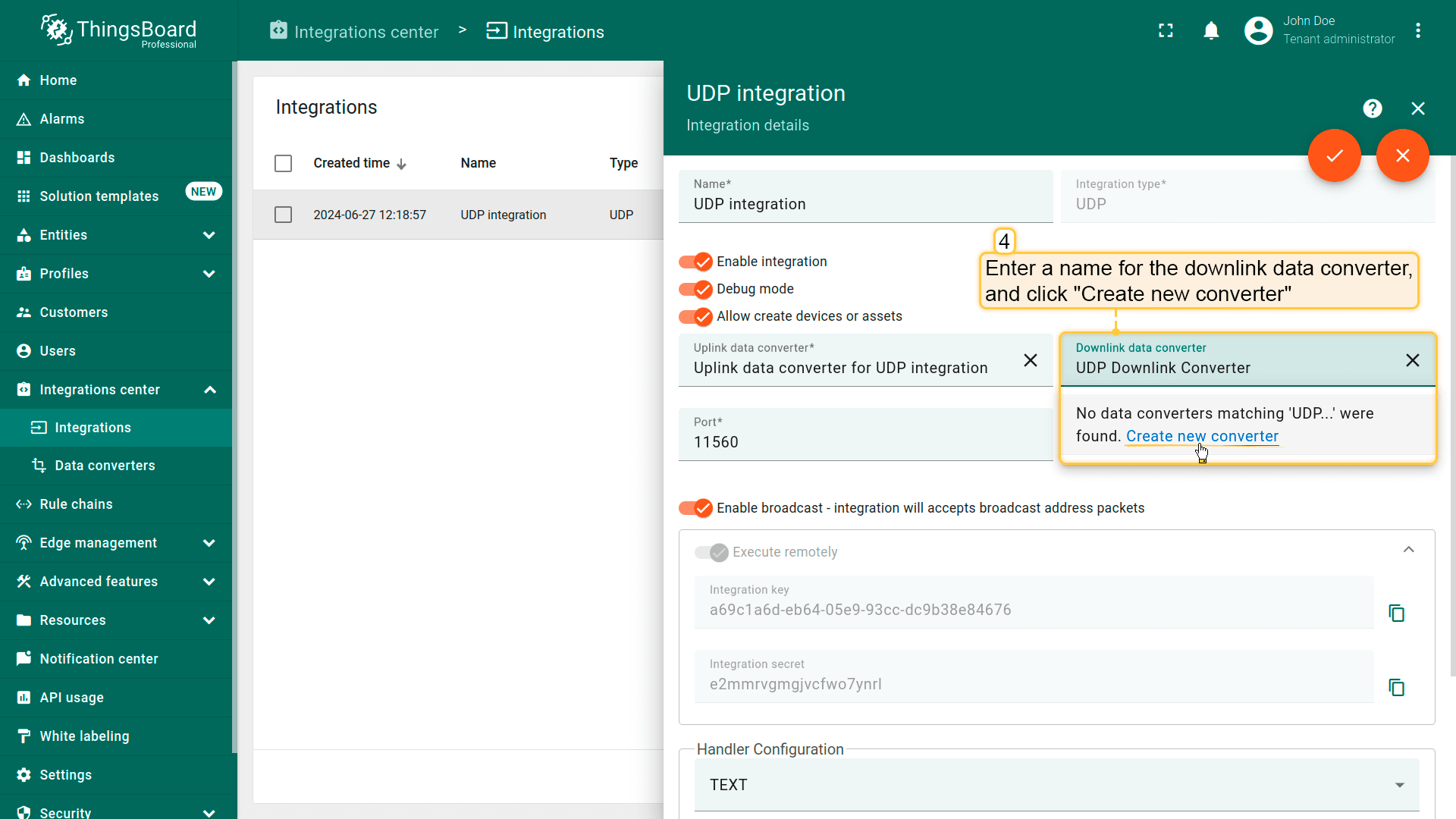
Enter a name for the downlink data converter and click “Create new converter”;
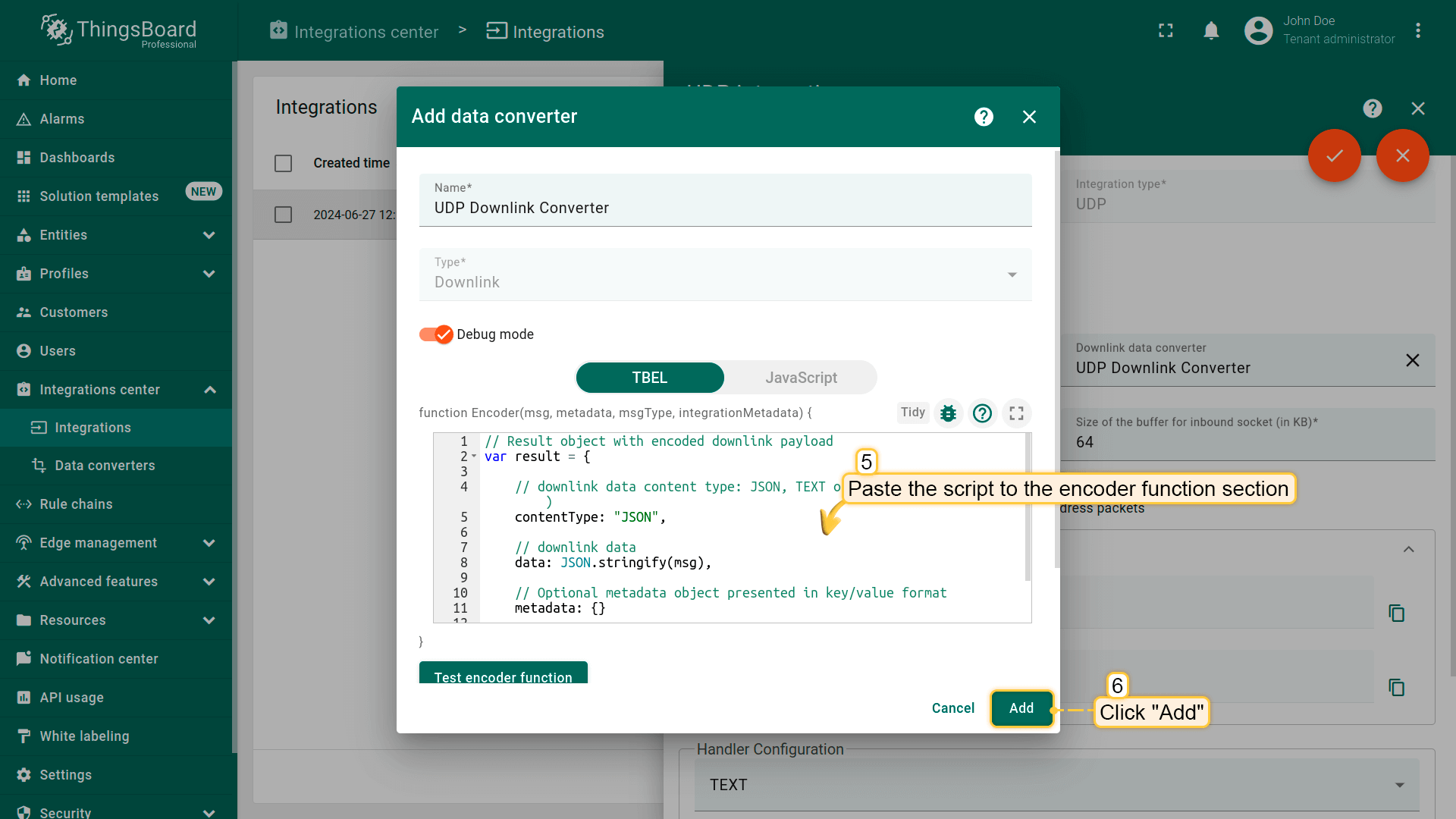
Paste the script to the encoder function section, and click “Add”;
Apply changes.
Go to the “Integrations” page, click UDP integration to open its details, and enter integration editing mode by clicking the “pencil” icon;
Enter a name for the downlink data converter and click “Create new converter”;
Paste the script to the encoder function section, and click “Add”;
Apply changes.
Optionally, configure Cache Size and Cache time to live in minutes - features, that helps to avoid memory leak when we are storing connections (able just for UDP Downlink). Cache Size - maximum size of messages for UDP client. Cache time to live in minutes - time to storage messages.
Modify Root Rule Chain
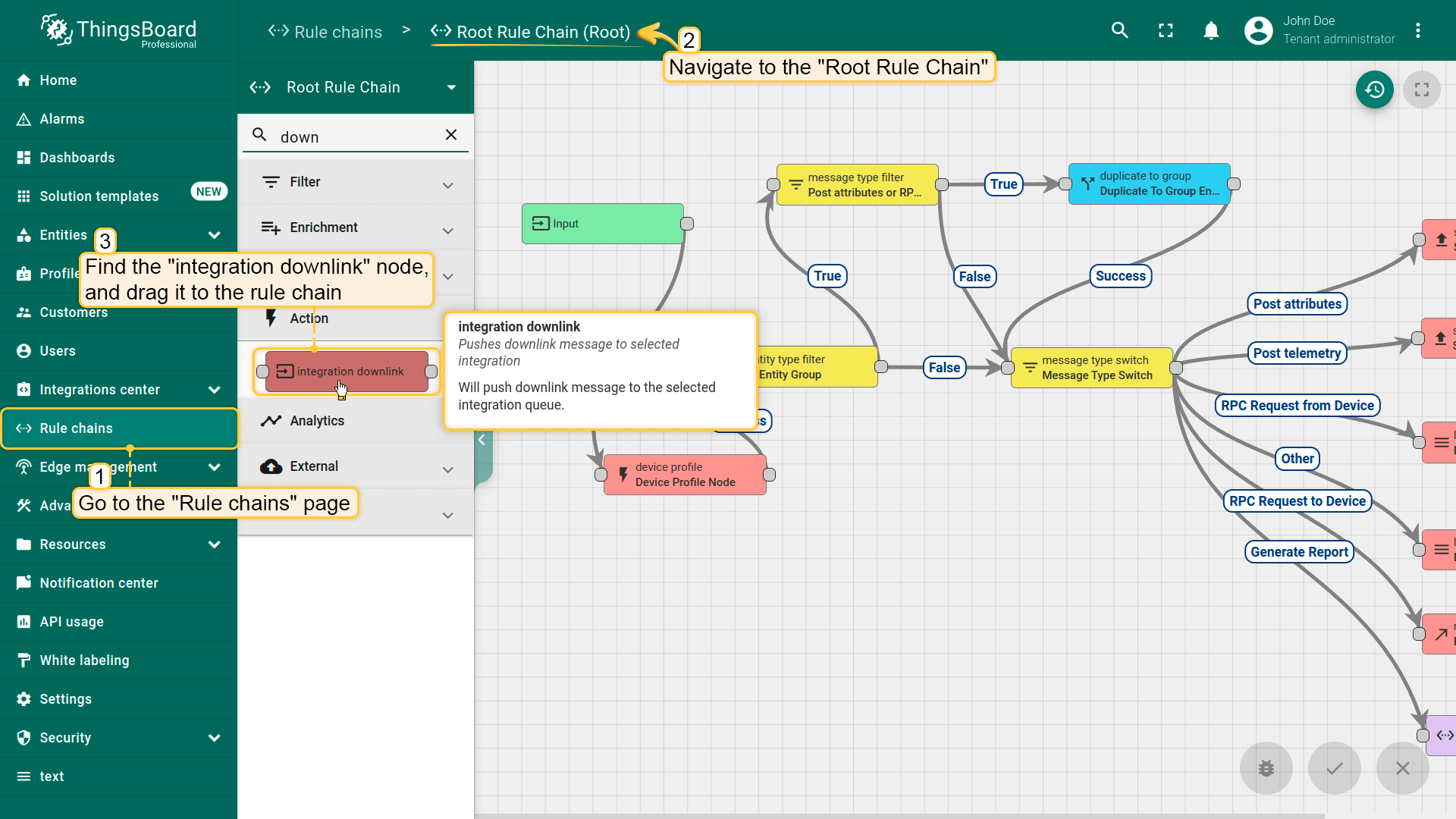
When integration configured and ready to use, we need to go to “Rule Chains” page and configure the “Root Rule Chain” so that messages like “Attributes updated” and “Post attributes” are forwarded to the downlink data converter:
In the Root Rule Chain editor, find the “integration downlink” node and drag it to the rule chain;
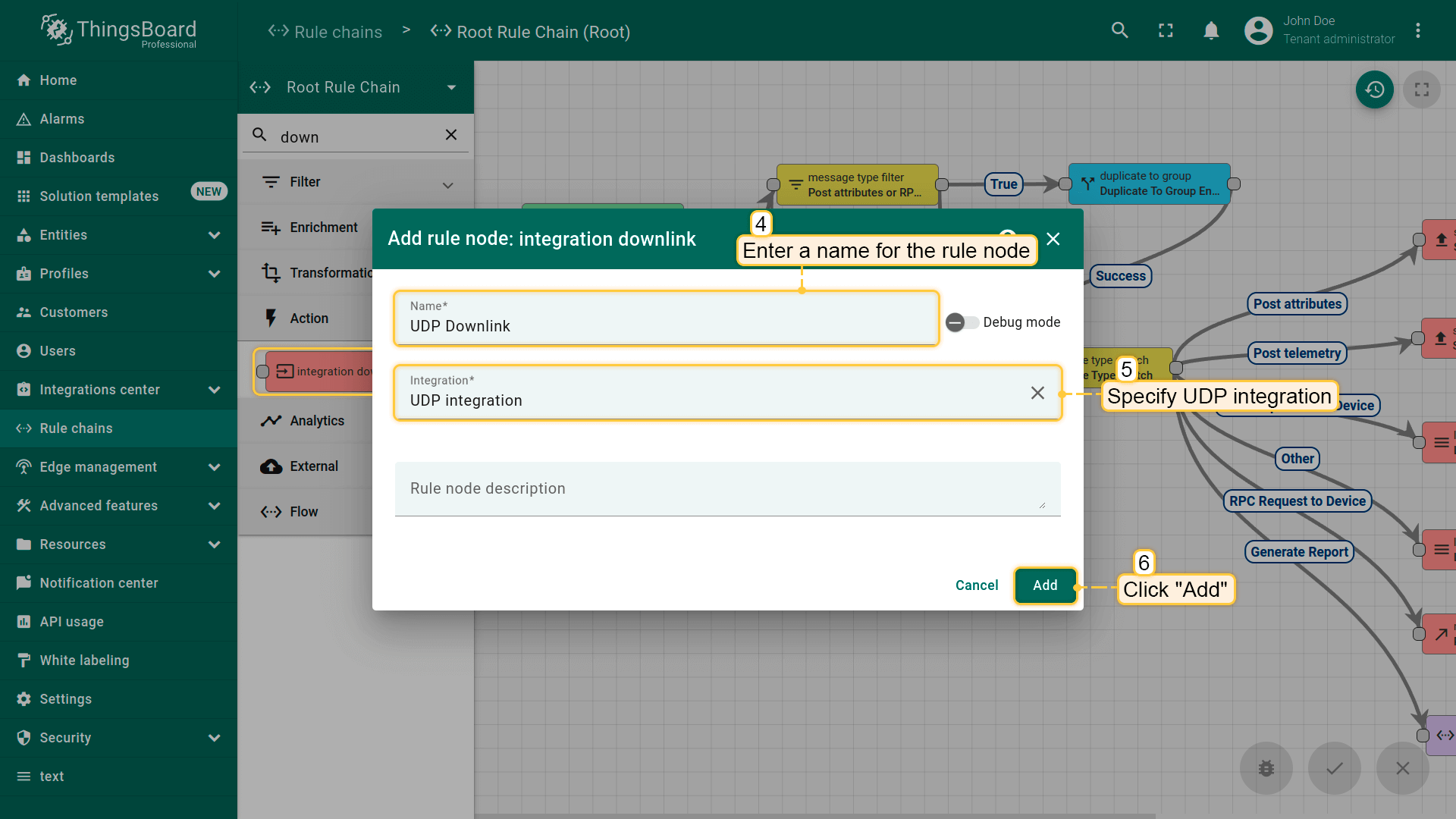
Name it “UDP Downlink”, specify our “UDP integration”, and click “Add”;
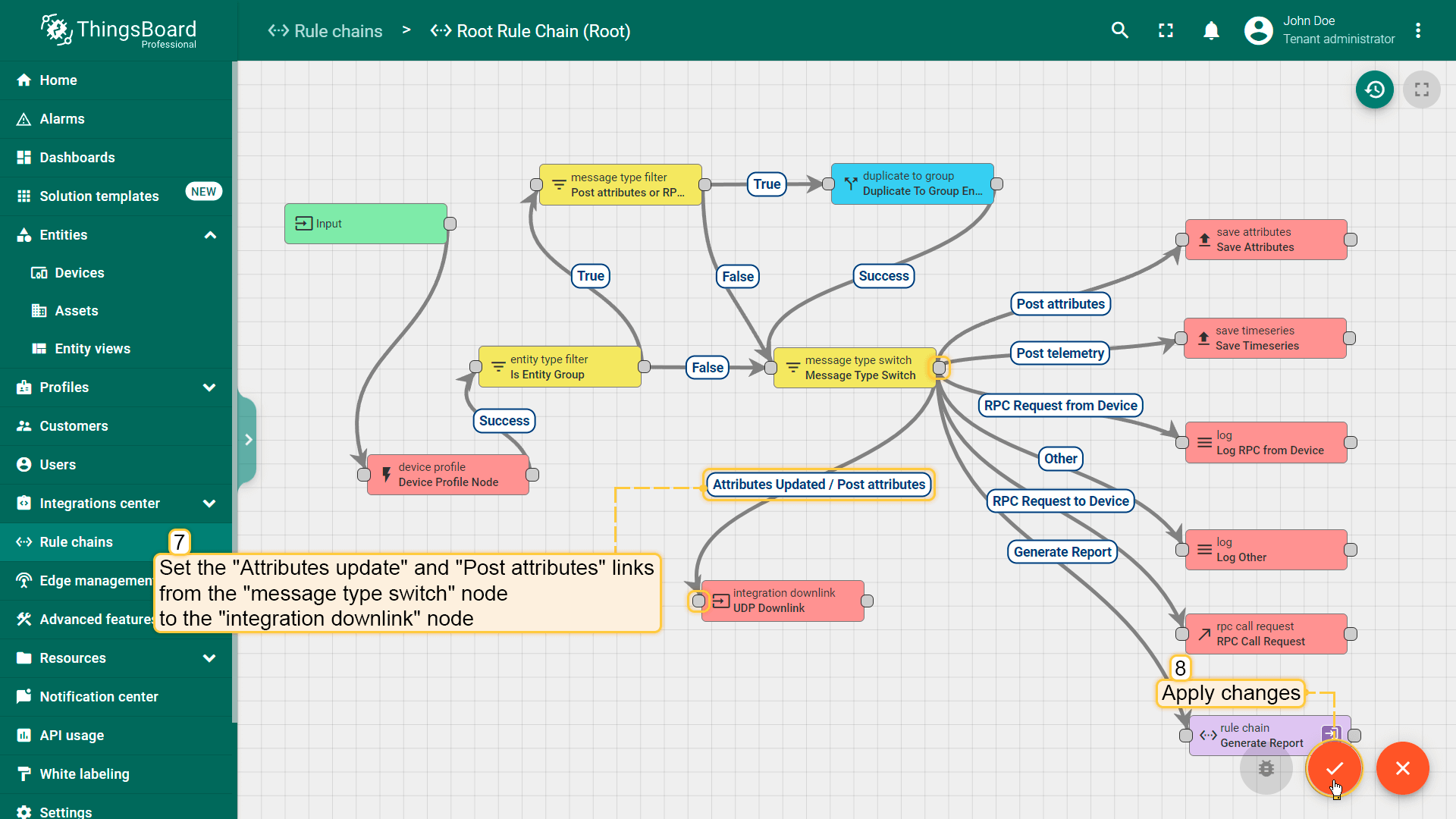
Drag the connection from the “message type switch” node to the “UDP integration” node with “Attributes updated” and “Post attributes” labels. Save all changes;
In the Root Rule Chain editor, find the “integration downlink” node and drag it to the rule chain;
Name it “UDP Downlink”, specify our “UDP integration”, and click “Add”;
Drag the connection from the “message type switch” node to the “UDP integration” node with “Attributes updated” and “Post attributes” labels. Save all changes;
Test downlink
To test downlink, create some shared attribute on your device:
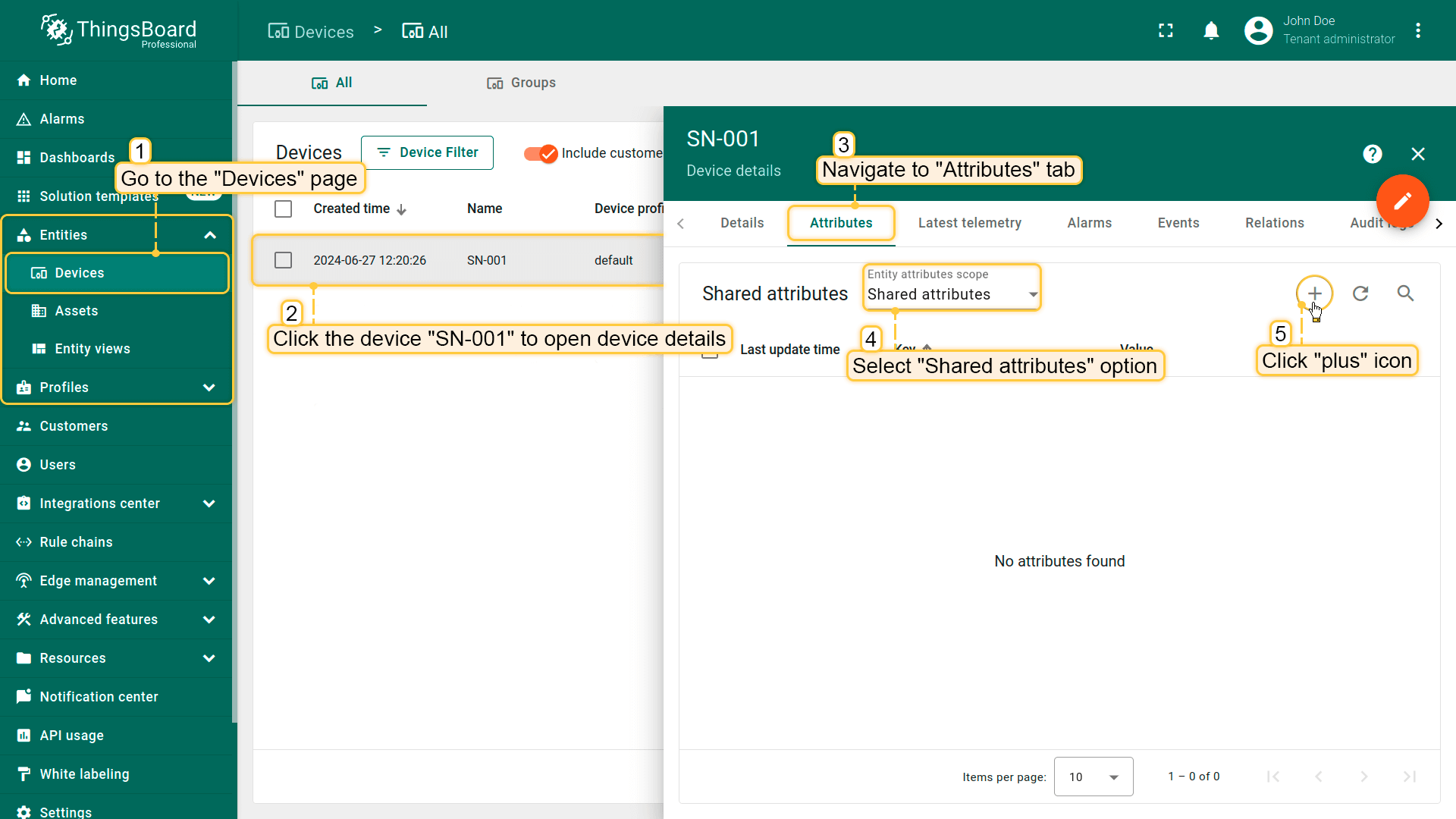
Go to the “Devices” page. Click your device and navigate to the “Attributes” tab. Select the “Shared attributes” option, and click the “plus” icon;
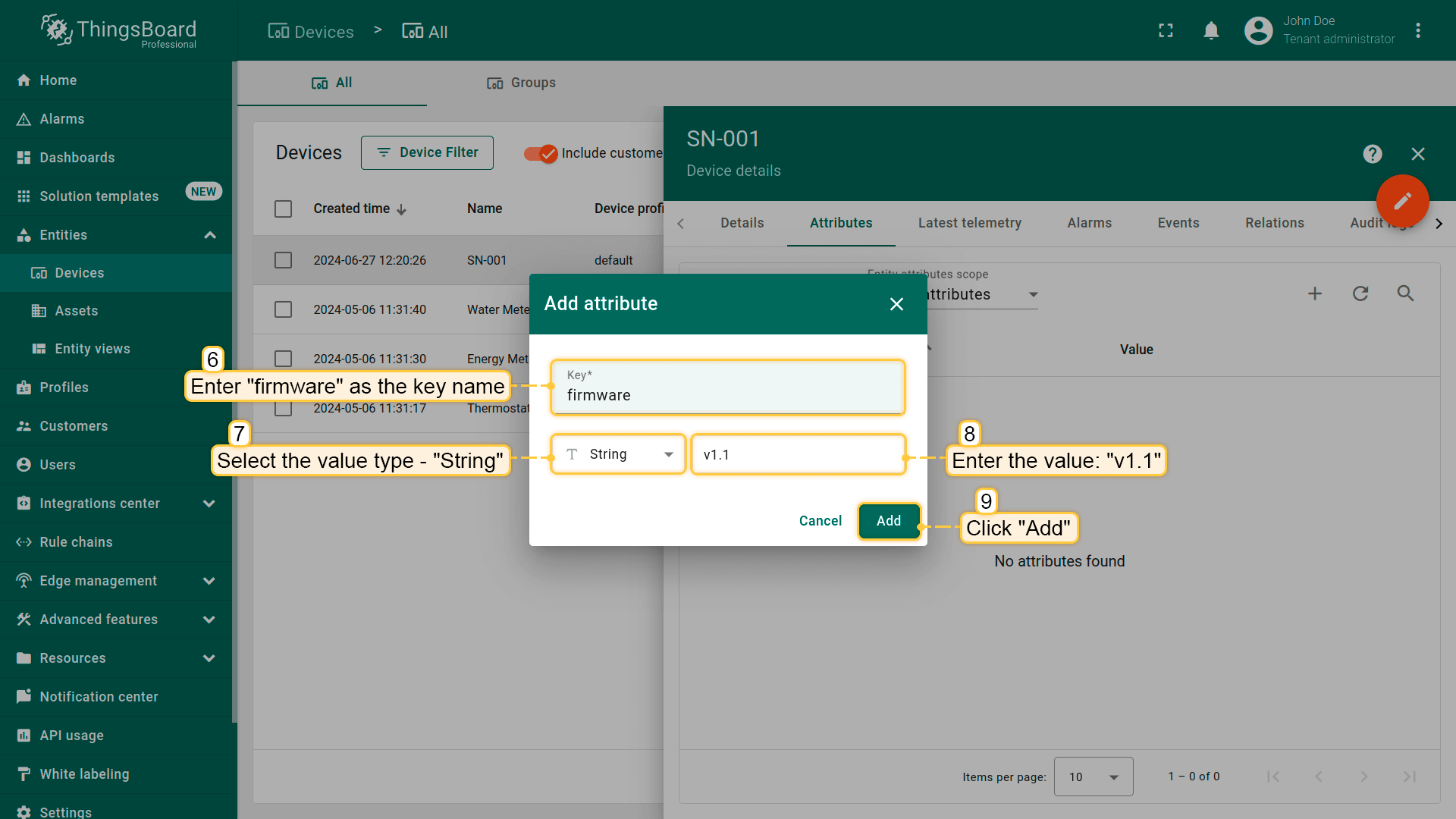
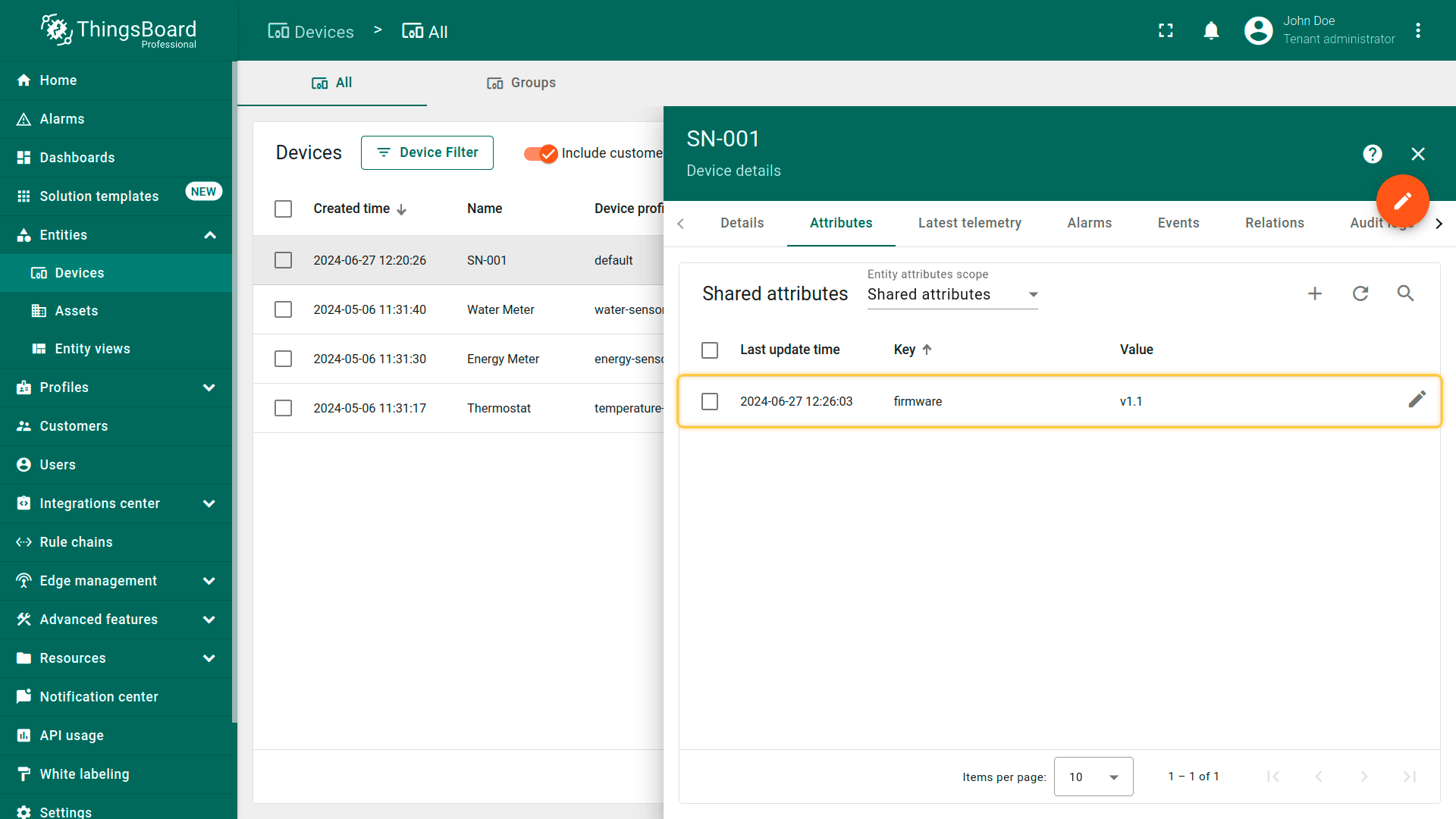
Enter the attribute name, and its value (for example, the key name is “firmware”, value: “v1.1”) and click “Save”;
Go to the “Devices” page. Click your device and navigate to the “Attributes” tab. Select the “Shared attributes” option, and click the “plus” icon;
Enter the attribute name, and its value (for example, the key name is “firmware”, value: “v1.1”) and click “Save”;
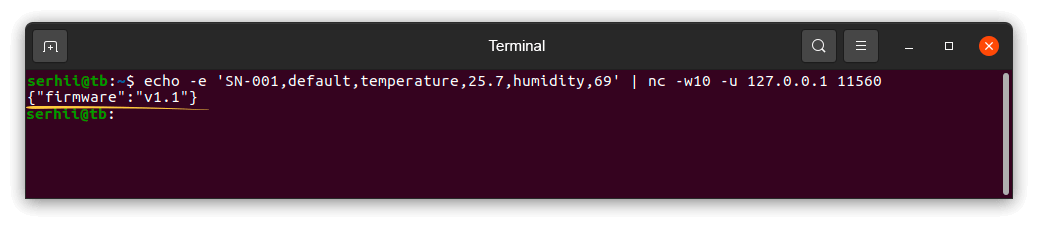
To receive a downlink message you need to set the timeout for responses -w10 (this option determines how long you will wait for a response) and send the uplink message again:
You should get the following response from the IoT Hub in the terminal:
Note When you use UDP integration, and your connection established for a long time, you will receive just one Downlink message. All other will be saved on server side and will be sent on next Uplink.
Next steps
Getting started guides - These guides provide quick overview of main IoT Hub features. Designed to be completed in 15-30 minutes.
Data visualization - These guides contain instructions on how to configure complex IoT Hub dashboards.